
Edit User
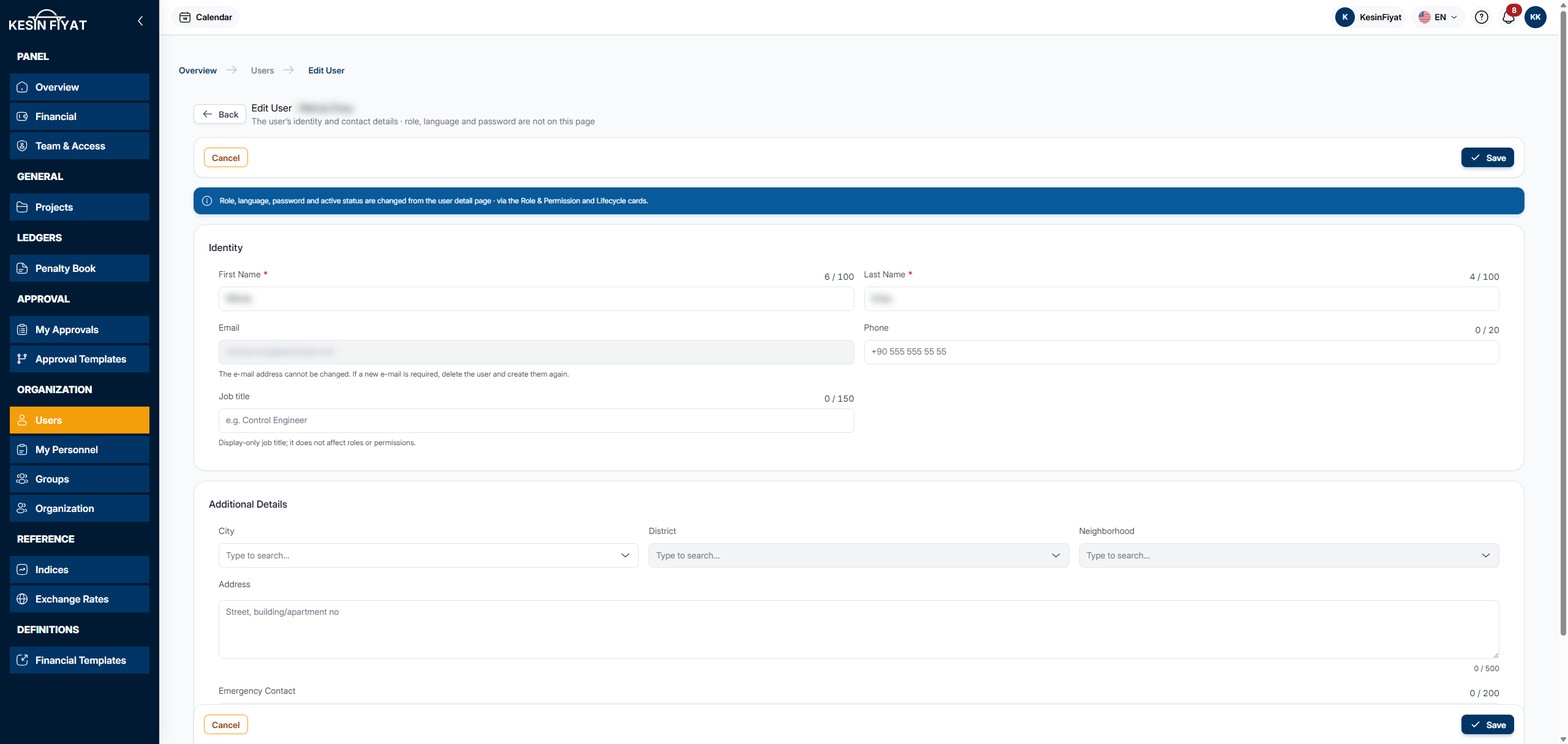
On this page you correct a user's identity and contact details: first name, last name, phone, job title, address and emergency contact.
The role, the password and whether the user is active or passive are not changed on this page. They are on the user's detail page.
When to use it
- When a user's first or last name was typed wrong.
- To add or change a phone number, job title, address or emergency contact.
Step by step
1. Open the page
On the user's detail page, click Edit. The pencil button at the end of the row on the Users list also opens this page.
2. Correct the identity details
On the Identity card:
- First Name and Last Name are required, up to 100 characters each.
- The Email box is closed. The e-mail address cannot be changed.
- Phone can be up to 20 characters.
- Job title is the user's position, for example control engineer. It can be up to 150 characters.
The job title is for information only. It does not change the role or permissions. It appears on the Profile tab of the user's detail page.
3. Correct the additional details
The boxes on the Additional Details card are optional: City, District, Neighborhood, Address and Emergency Contact.
A district can be chosen after the city, and a neighborhood after the district. If you change the city, the district and neighborhood boxes are emptied. Then choose the district and neighborhood again.
Address can be up to 500 characters and Emergency Contact up to 200. The emergency contact is the person to call after a workplace accident or in an emergency.
4. Save
The Save button saves the changes and returns to the user's detail page. The message Details updated appears.
The Cancel and Back buttons return to the previous page without saving.
The Save and Cancel buttons are at both the top and the bottom of the page.
Things to keep in mind
- Only the company owner and administrators can change user details.
- The details of a user with a higher role than yours cannot be changed. For example, an administrator cannot save the company owner's details; a warning appears and nothing changes.
- You cannot change your own details on this page. The My Profile button on your own detail page opens your profile page.
- Emptying a box and saving does not delete the old information in it. The saved information stays as it is.
Frequently asked questions
Where do I change the role or the password?
On the user's detail page. The role is changed on the Role & Permissions tab and the password with the Reset Password button. To turn the user's sign-in off and on, use the Deactivate and Activate buttons.
If I change a user's name, does their sign-in name change?
No. Changing the first or last name does not change the user's sign-in name.
How do I change a user's language?
There is no language on this page. Users choose their own language with the language button at the top of the panel.