
My Approvals
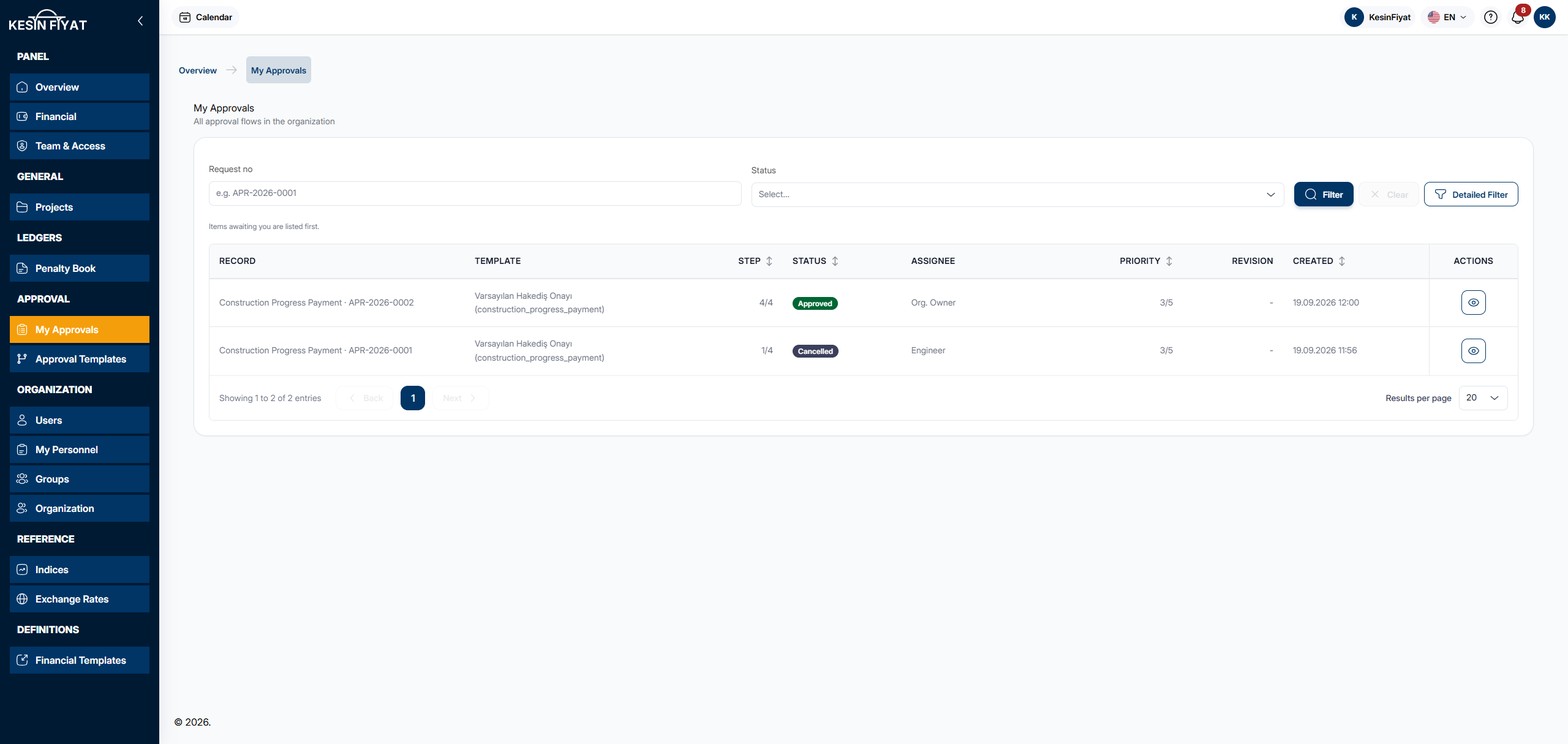
My Approvals is the list of work that has entered approval. When records such as progress payments, penalties or advances enter approval, their approvals appear here. Approvals waiting for you come first in the list.
Approvals are not opened on this screen. Approving, returning, rejecting and reassigning are done on the approval's own page.
When to use it
- To see the work waiting for your approval.
- To find out which step an approval is at and who it is assigned to.
- To find approvals that were approved, rejected, returned or cancelled.
- To open an approval and approve, return or reject it.
Step by step
1. See what is waiting for you
The number next to My Approvals in the menu is the number of approvals waiting for you. Pending and Escalated approvals are counted. Returned ones are not.
In the list, approvals waiting for you have a red You mark at the start. The Assignee column also says You.
These approvals come first in the list, and Items awaiting you are listed first. is written above it. When you sort by clicking a column heading, this ordering is dropped and the note disappears.
2. Find an approval
Type an approval number, or part of it, in the first box. You can choose a stage from the box next to it. The Filter button narrows the list and the Clear button clears your choices.
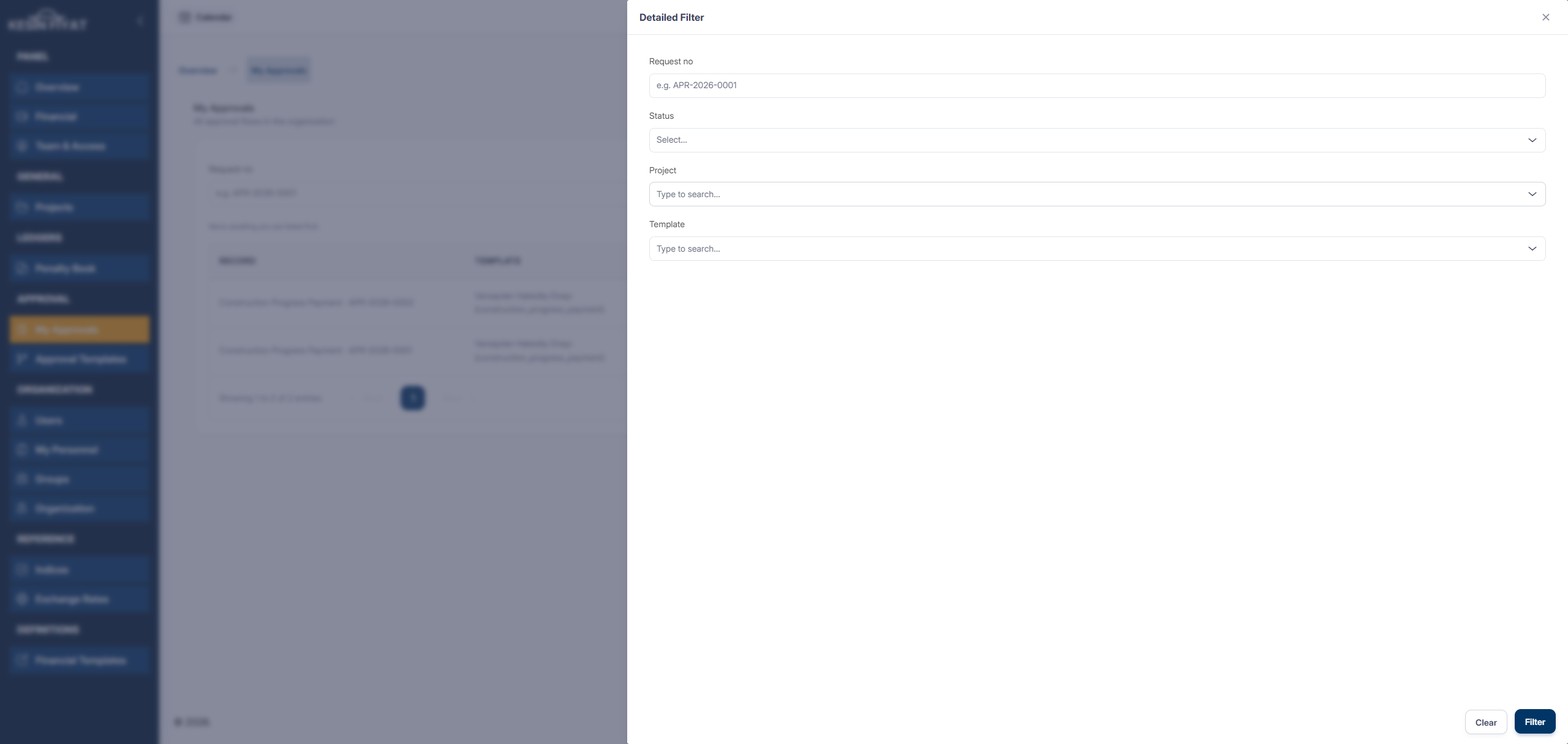
The Detailed Filter button opens a window on the side. There you can also choose Project and Template. You can type in both boxes to search. Suspended projects do not appear in the Project box.
If nothing matches, a message says so. Use the Clear Filters button to go back to the full list.
3. Read the list
Each row shows:
- Record: the type of record that entered approval and the approval number.
- Template: the approval template the approval follows.
- Step: which step the approval is at and the total number of steps.
- The stage badge: where the approval stands.
- Assignee: the role the approval is assigned to. If the step is assigned to a person, Assigned to a person is written.
- Priority: a priority from 1 to 5. The smaller the number, the more urgent the work.
- Revision: if the approval was returned and sent again, which version it is, for example v2. On the first sending a dash is shown.
- Created: the date and time the approval was opened.
Click the Step, stage, Priority or Created headings to sort the list.
4. Know the stages
The stage badge puts the approval at one of seven stages:
- Draft: the approval was prepared but not yet sent.
- Pending: the approval is waiting at a step.
- Escalated: the step's time ran out and the approval was passed to a higher level automatically. It can still be approved, returned or rejected.
- Returned: the approval was sent back for correction.
- Approved: every step of the approval chain was approved.
- Rejected: the approval was rejected.
- Cancelled: the approval was cancelled.
5. Open an approval
Click the eye button at the end of the row. The approval's own page opens. Approving, returning, rejecting and reassigning are done there.
Things to keep in mind
- The company owner, administrators, project managers, accountants, tender officers and site engineers see My Approvals.
- The company owner and administrators see every approval. Other roles see the approvals of the projects they can access, approvals not linked to a project, and approvals assigned to them. In that case the line under the heading says Approval flows of the projects you can access and the requests assigned to you.
- Approvals are not opened by hand on this screen. When a record enters approval, its approval is created automatically.
- Clicking a row does not open the approval. It opens with the eye button.
Frequently asked questions
What do I see if the list is empty?
If the company has no approvals yet, a message says so. If there are approvals but none in the projects you can access, a different message says that. Project access is given through groups. Ask your administrator to add you to the right group.
Why is the number in the menu smaller than the number of rows in the list?
The number in the menu counts only the approvals waiting for you. The list shows every approval you can see. Approved, rejected and cancelled approvals, and those waiting for someone else, are in the list too.
Why did the priority of an approval change?
When a step's time runs out and the approval is passed to a higher level, the priority number goes down by one. The smaller the number, the more urgent the work.