
New User
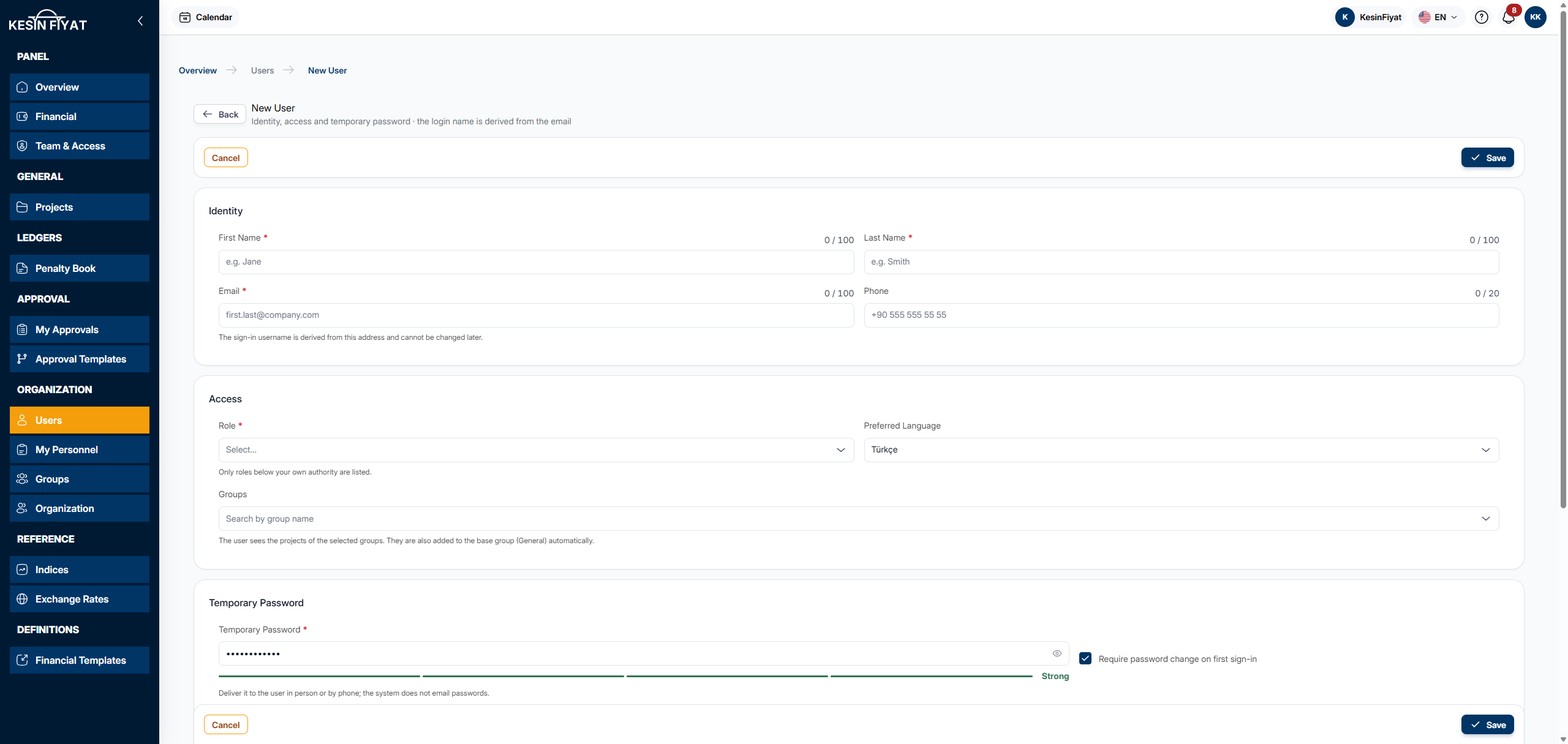
On this page you create a new user for your company. You enter the user's identity details, role and temporary password. The user is active as soon as they are saved and can sign in to the panel.
The system does not send an invitation or a password e-mail. You give the user their sign-in address and temporary password yourself.
When to use it
- To bring a new employee into the panel.
- To set a new user's role and groups from the start.
Step by step
1. Open the page
On the Users screen, click New User. If all seats are full, the button cannot be pressed.
2. Enter the identity details
On the Identity card:
- First Name and Last Name are required, up to 100 characters each.
- Email is required. The user signs in to the panel with this address. It cannot be changed later.
- Phone is optional.
3. Choose the role and groups
On the Access card:
- Role is required. The list shows only the roles you are allowed to assign.
- Preferred Language starts as Türkçe. You can choose Türkçe, English or العربية.
- In the Groups box you can add the user to one or more groups. The user sees the projects of these groups.
The user is also added to the base group (Genel) automatically. If you choose the company owner or administrator role, the Groups box closes; these roles see all projects through their role.
4. Set the temporary password
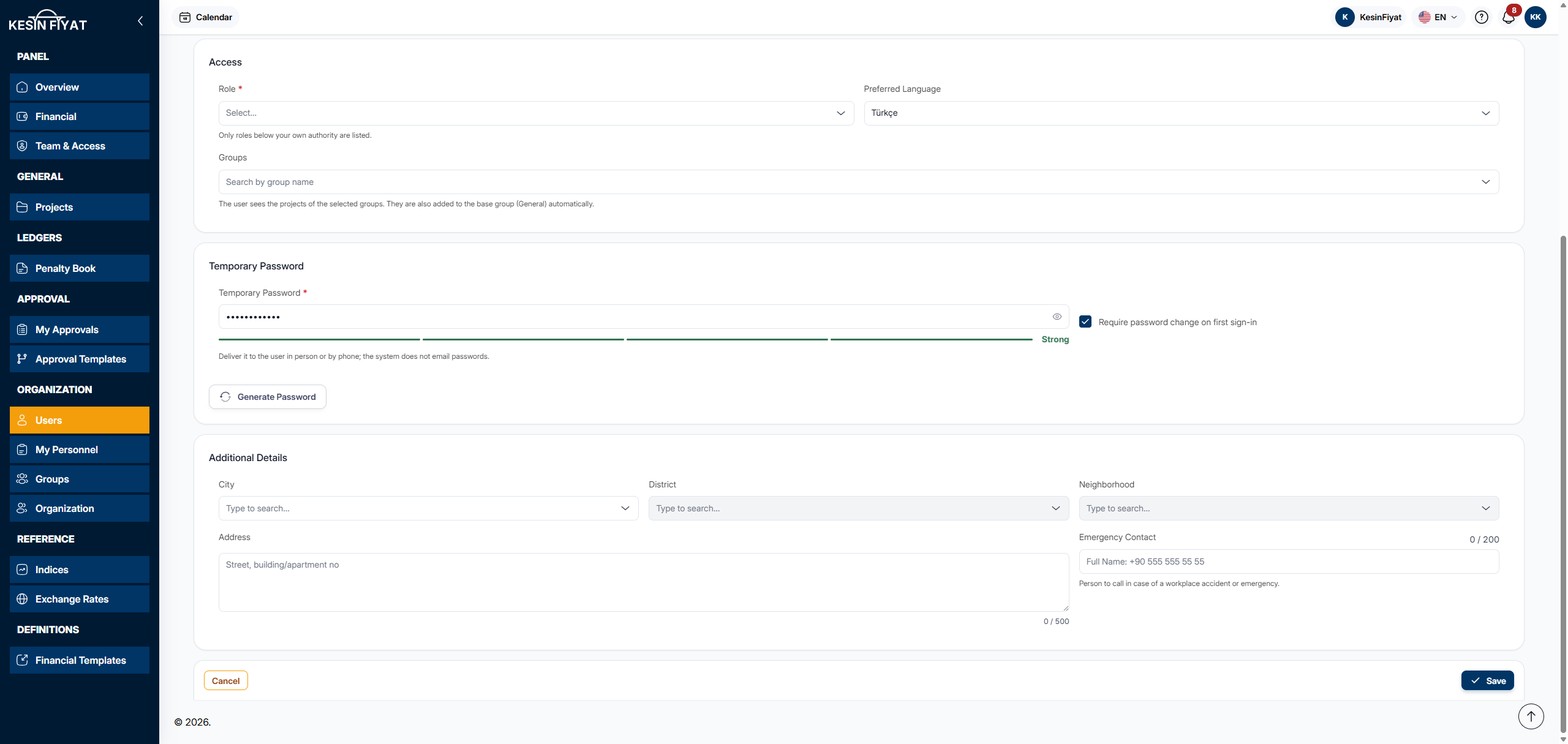
The password on the Temporary Password card is already filled in. For a new one, click the Generate Password button at the top of the card. The password must be at least 8 characters.
Require password change on first sign-in is ticked by default. If it stays ticked, the user sets their own password at first sign-in.
Give the password to the user in person or by phone. The system does not e-mail passwords.
5. Enter the additional details
The boxes on the Additional Details card are optional: City, District, Neighborhood, Address and Emergency Contact. A district can be chosen after the city, and a neighborhood after the district.
6. Save
The Save button creates the user and returns to the Users list. The message that appears reminds you to give the e-mail address and temporary password to the user yourself.
If the user was created but could not be added to one of the groups you chose, the message lists those groups and the user's Access tab opens.
The Cancel and Back buttons return to the previous page without saving.
Things to keep in mind
- Only the company owner and administrators can create users.
- Every user takes a seat. If the seats are full, the user cannot be created.
- If the same e-mail address is already registered to another user in the system, This email is already registered to another user. appears.
- Only people who can manage groups see the Groups box. It lists active groups, but not the base group.
Frequently asked questions
Does the user get an invitation e-mail?
No. The user is active as soon as they are saved. You give the user their sign-in address and temporary password yourself.
I typed the e-mail address wrong. Can I fix it?
No, the e-mail address cannot be changed later. It is the user's sign-in name.
Why are some roles missing from the Role list?
The list shows only the roles you are allowed to assign. You cannot assign a role higher than your own.