
User Detail
On this screen you see a user's details, role and the projects they can reach. The company owner and administrators can deactivate the user, reset their password, change their role or delete them from here.
The screen has three tabs: Profile, Role & Permissions and Access.
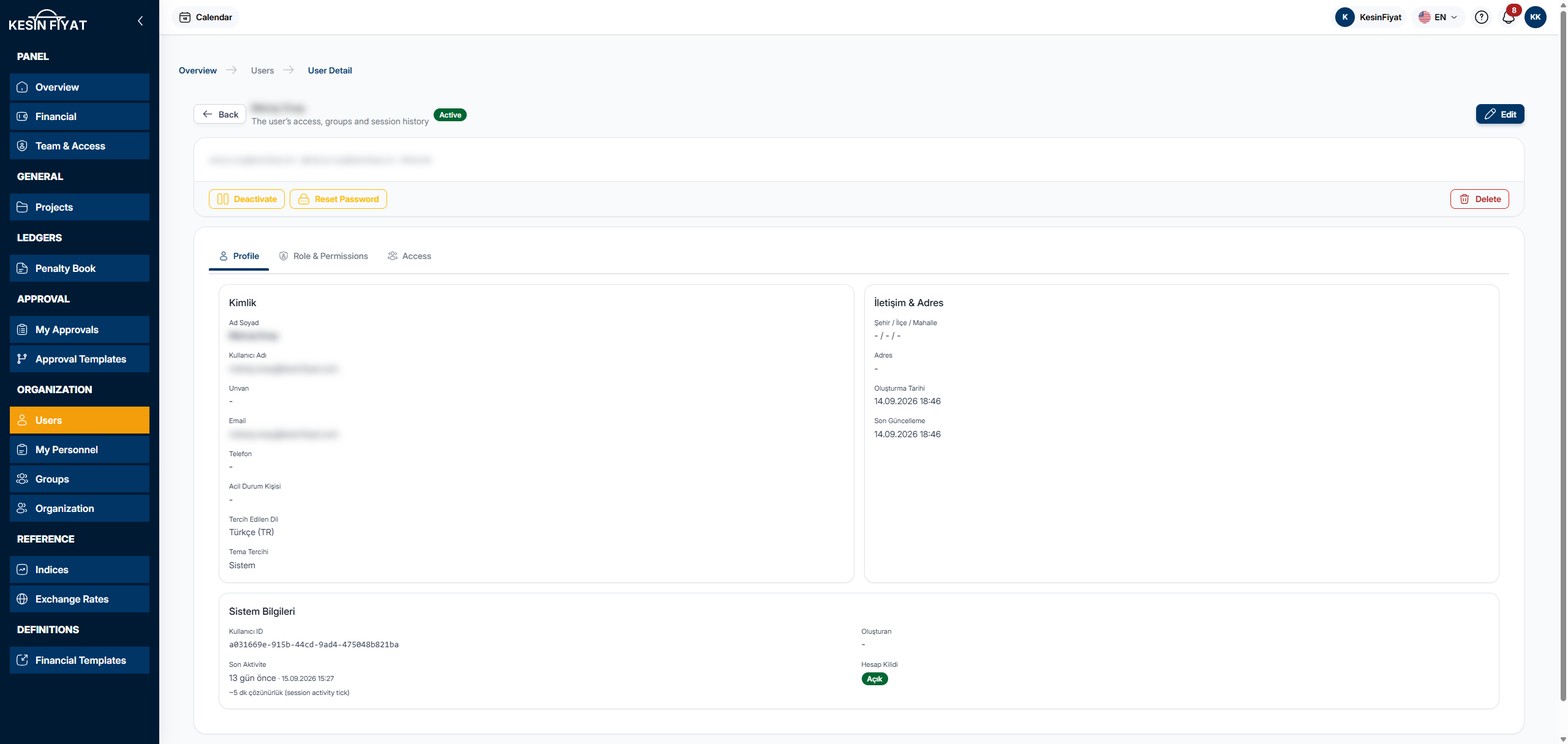
When to use it
- To look at a user's details, role and groups.
- To reset the password of a user who cannot sign in, or to unlock their account.
- To change a user's role.
- To add a user to a group and give them access to projects.
Step by step
1. Open the screen
On the Users list, click the eye button (View) at the end of the row.
The heading shows the user's name and a badge: Active, Passive or Pending. If the account was locked after too many wrong passwords, an Account locked badge also appears.
The Back button returns to the previous page. The Edit button opens the page where you edit the user's identity and contact details.
2. Read the Profile tab
The Profile tab has three cards. These cards are shown in Turkish:
- Kimlik (identity): full name, username, job title, e-mail, phone, emergency contact, preferred language and theme.
- İletişim & Adres (contact and address): city, district, neighborhood, address, creation date and last update date.
- Sistem Bilgileri (system information): who created the user, last activity and account lock.
Son Aktivite (last activity) shows when the user was last active in the panel. It is updated with a delay of about five minutes. If the user has never signed in, Hiç giriş yapmamış (never signed in) appears.
Hesap Kilidi (account lock) shows Açık (open) or Kilitli (locked).
3. Deactivate or unlock the user
The card below the heading shows the user's e-mail address, username and role. The buttons at the bottom of the card:
- Deactivate turns off the user's sign-in and ends their open sessions. For a passive user, Activate appears in its place.
- Unlock Account appears only on a locked account. It resets the count of sign-in attempts, and the user can sign in again.
Both buttons first open a confirmation window. If you click Cancel in the window, nothing changes.
For a Pending user, the Deactivate and Activate buttons do not appear.
4. Reset the password
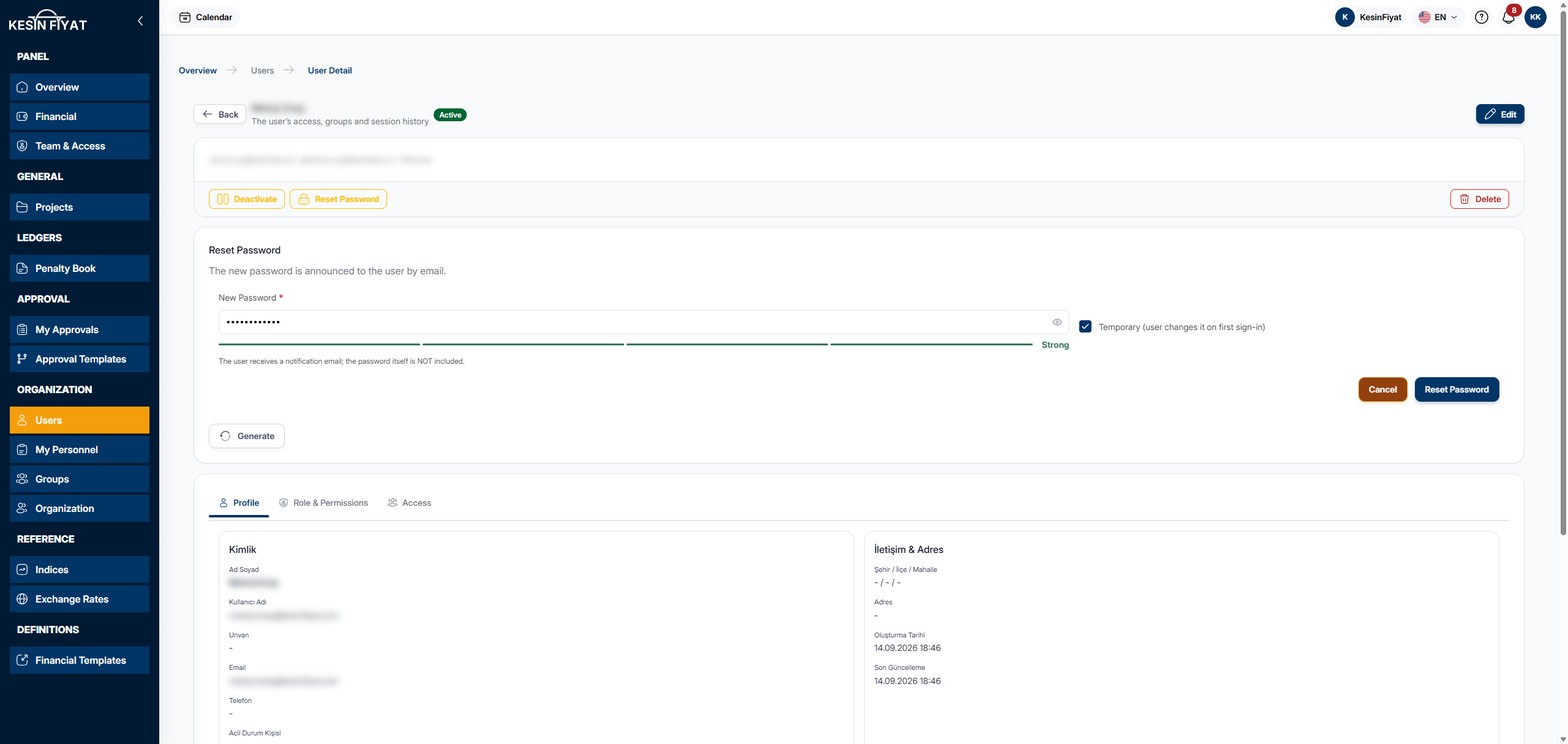
The Reset Password button opens the Reset Password card above the tabs.
The New Password box is already filled in with a password. For a different one, click Generate or type one yourself. The password must be at least 8 characters. The eye icon at the end of the box shows the password.
Temporary (user changes it on first sign-in) is ticked by default. If it stays ticked, the user sets their own password at first sign-in.
The card's Reset Password button saves the new password. Cancel closes the card.
The user receives an e-mail saying that their password was reset. The new password is not in this e-mail. Give the password to the user yourself, in person or by phone.
5. Review the role
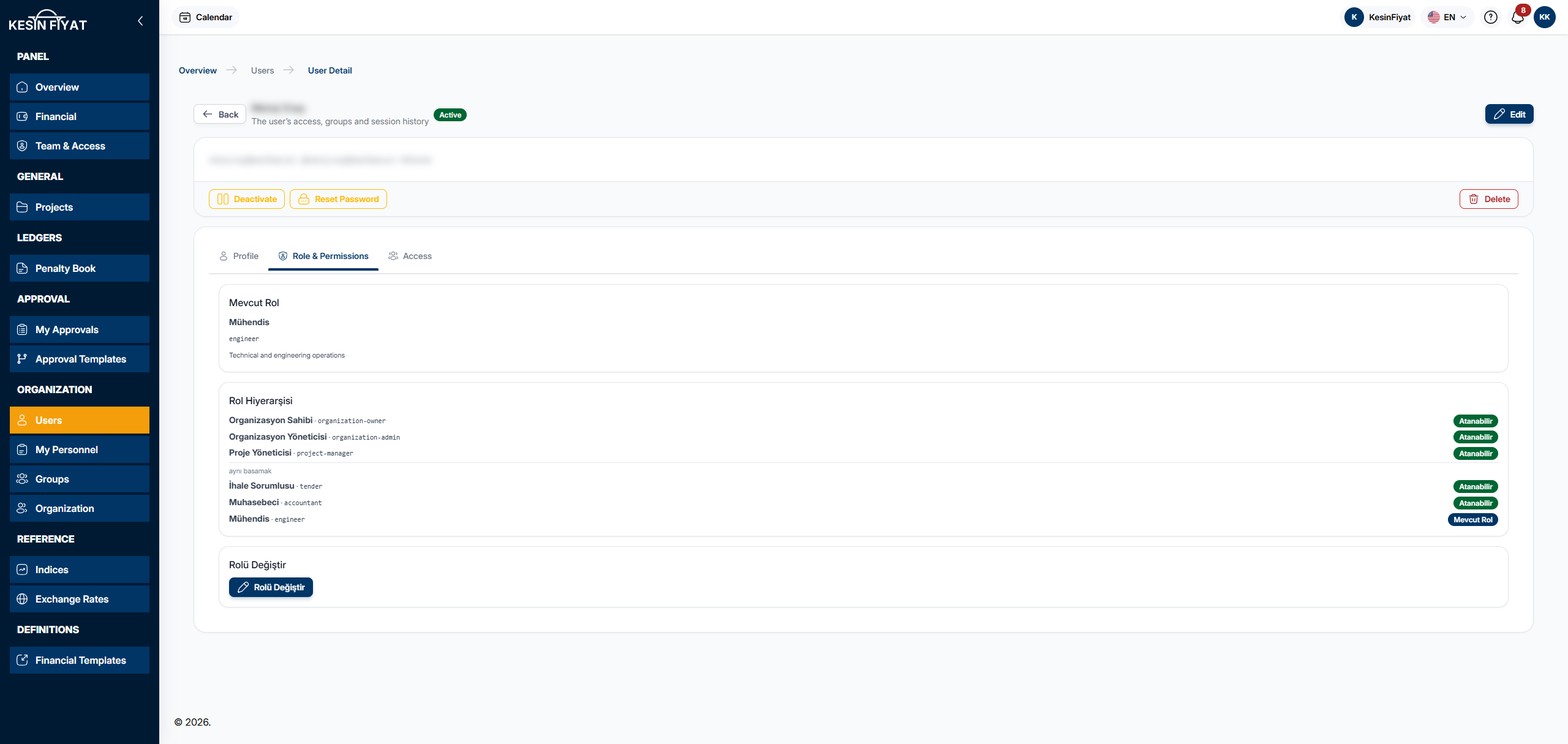
On the Role & Permissions tab, the Mevcut Rol (current role) card shows the user's current role. The cards on this tab are shown in Turkish.
The Rol Hiyerarşisi (role hierarchy) card lists all roles from top to bottom in order of authority. Each role has a badge:
- Mevcut Rol (current role): the user's current role.
- Atanabilir (assignable): a role you can give to this user.
- Üst Hiyerarşi (higher level): a role you cannot give.
The roles below the aynı basamak (same level) line, İhale Sorumlusu, Muhasebeci and Mühendis (tender officer, accountant and engineer), are on the same level of authority.
6. Change the role
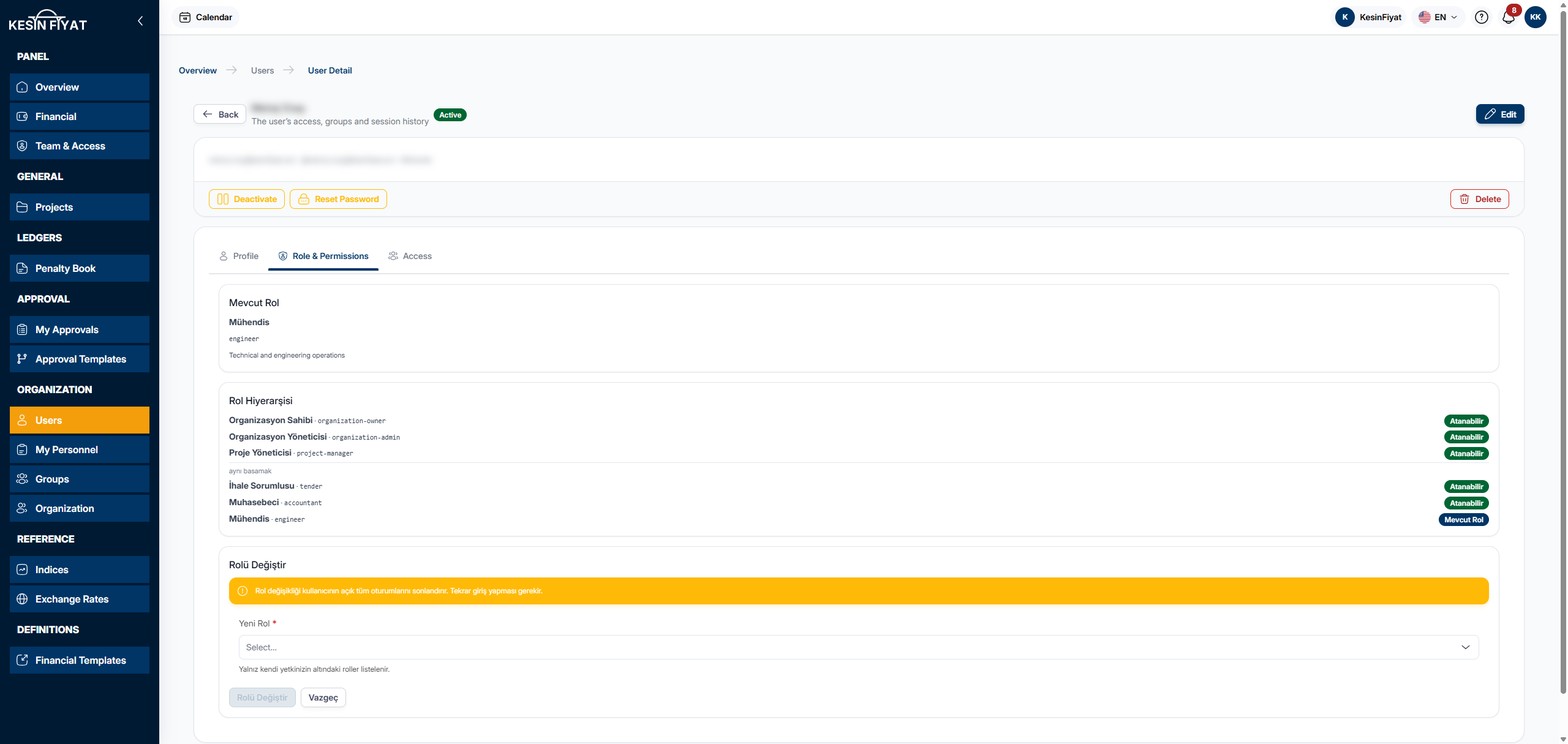
Click the Rolü Değiştir (change role) button on the Rolü Değiştir card.
A warning appears on the card: changing the role ends all of the user's open sessions, and the user has to sign in again.
Choose the role from the Yeni Rol (new role) list. The list shows only the roles you are allowed to assign.
The card's Rolü Değiştir button can be pressed once a role is chosen, and it saves the role. Vazgeç (cancel) closes the card.
7. Check the access
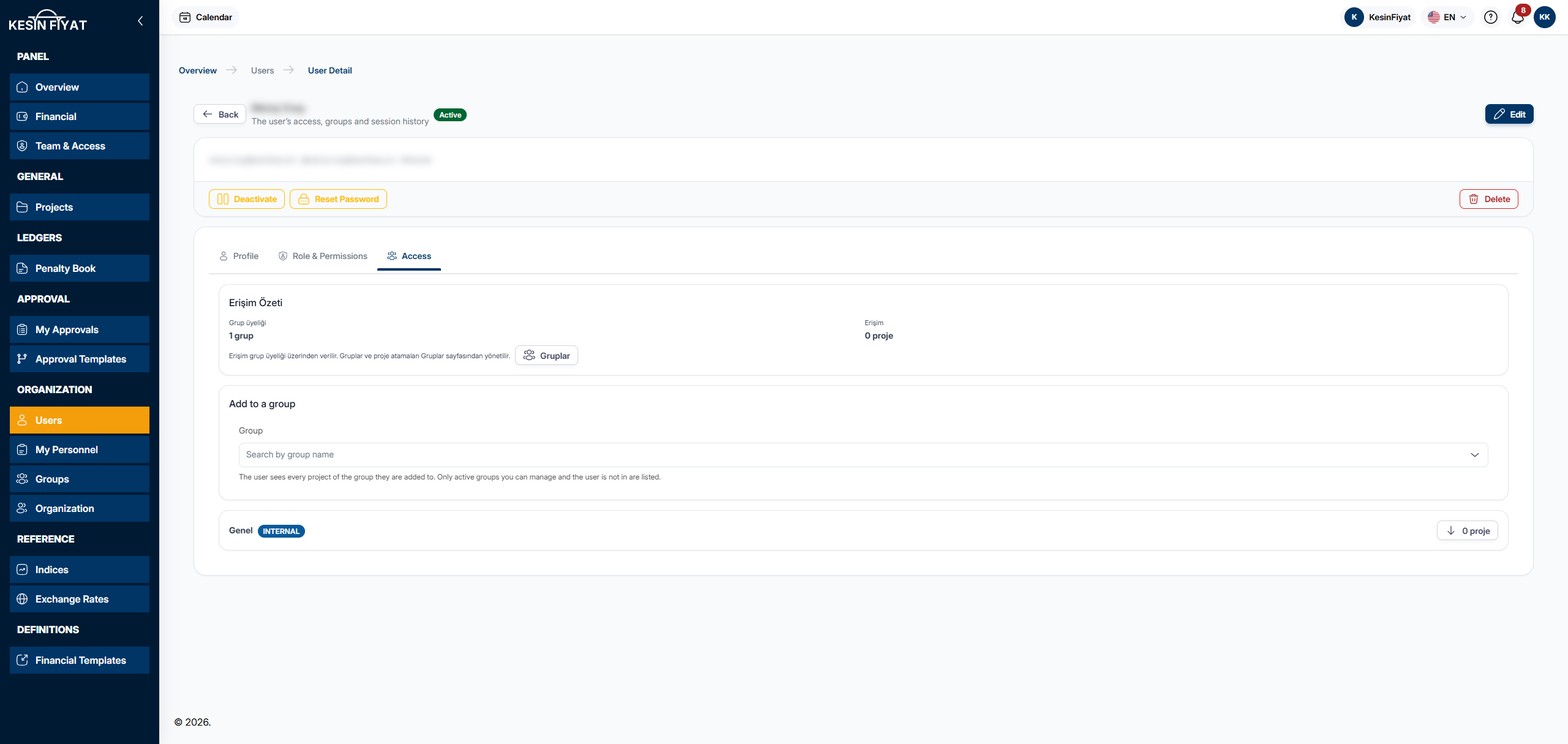
The Access tab shows which projects the user can see. A user sees projects through the groups they belong to.
The Erişim Özeti (access summary) card shows how many groups the user belongs to and how many projects they can reach. The Gruplar (groups) button opens the Groups page.
Below it there is a card for each group. The button at the end of the card shows the group's number of projects, for example 3 proje. Click it to see the membership date, the group's description and the group's projects. Click a project to open its page.
Users who are company owners or administrators do not need a group. These roles see all projects through their role.
8. Add the user to a group
On the Add to a group card, type a group name in the Group box and choose the group from the list.
The user is added to the group as soon as you choose it. No confirmation is asked. The new group appears in the list below, and the user sees all of that group's projects.
The list shows active groups that you can manage and that the user is not a member of. To remove the user from a group, go to that group's page.
9. Delete the user
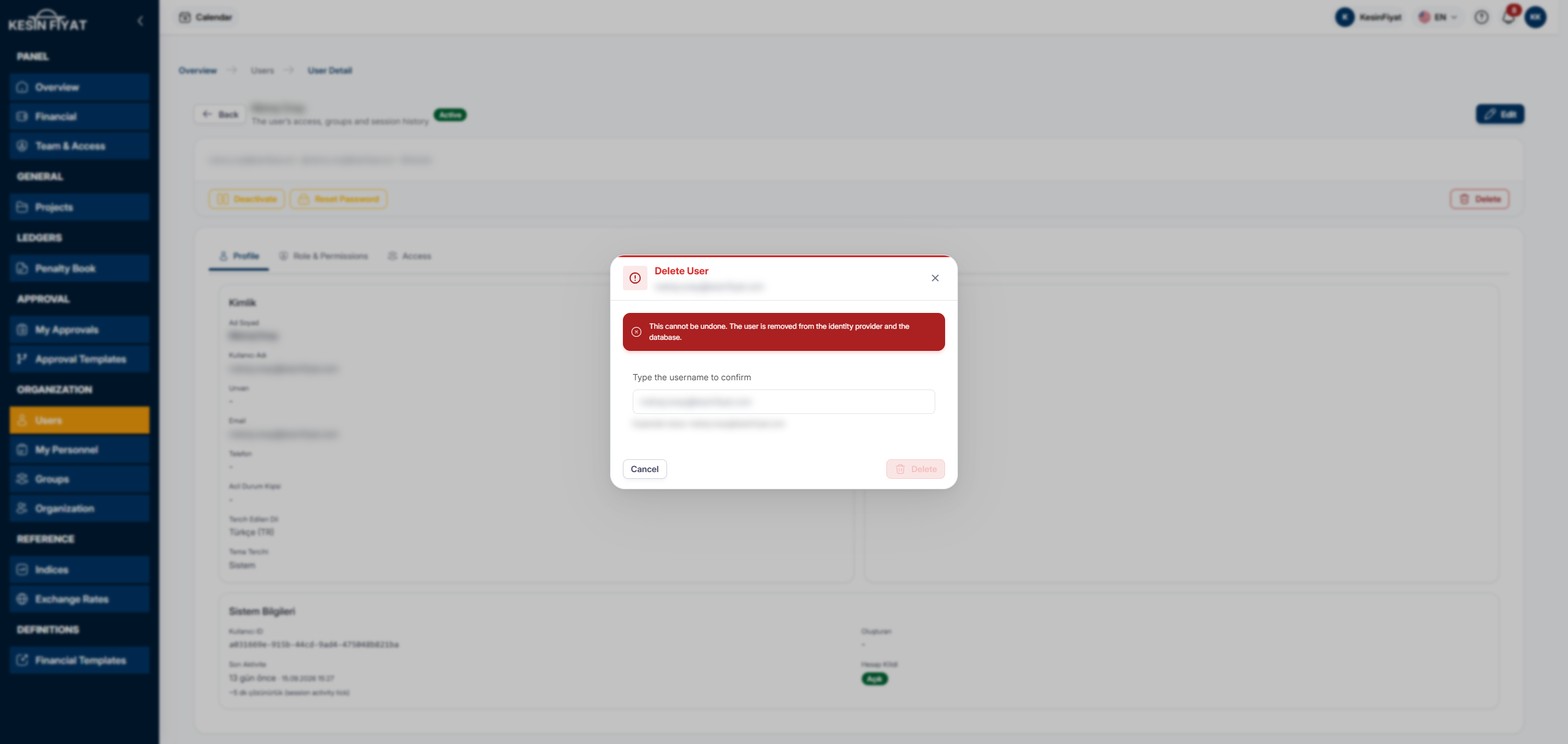
The Delete button at the end of the card opens the Delete User window. The window says that this cannot be undone.
In the Type the username to confirm box, type the username exactly as it appears below the box after Expected value. When the name matches, the window's Delete button can be pressed.
Cancel or the cross in the corner closes the window.
Things to keep in mind
- All roles can see this screen. Edit, Deactivate, Reset Password, Unlock Account, Delete and Rolü Değiştir appear only for the company owner and administrators.
- The buttons also appear on the page of a user with a higher role than yours, but the action cannot be completed. For example, an administrator cannot deactivate the company owner.
- The last active company owner cannot be deactivated, deleted or given another role.
- The company owner, administrators, project managers and tender officers see the Add to a group card. Project managers and tender officers see only the groups they created in the list.
- The Add to a group card does not appear for users who are company owners or administrators.
- A passive user cannot sign in but still takes a seat.
Cannot be undone
- A deleted user cannot be brought back. If you only want to turn off the user's sign-in, use the Deactivate button. You can open a passive user again later with Activate.
Frequently asked questions
A user cannot sign in. What should I do?
First look at the badge in the heading. If it says Passive, open the account with Activate. If there is an Account locked badge, use the Unlock Account button. If the user forgot their password, give them a new one with Reset Password.
Is the new password sent to the user by e-mail?
No. The user only receives an e-mail saying that their password was reset. You give the new password to the user yourself.
I changed a user's role. Why were they signed out?
Changing the role ends the user's open sessions. When the user signs in again, they work with the permissions of their new role.
A user cannot see a project. What should I do?
Look at the Access tab. A user sees projects through the groups they belong to. Add the user to a group that has access to that project.
Why are these buttons missing on my own page?
You cannot deactivate or delete your own account, or change your own role. Your own page shows a This is you badge and a My Profile button. Use My Profile for your own details.