
Edit Personnel
On this page you change a registered person's details and upload their CV and ID document. The page is the same as the New Personnel page, with an extra Documents tab.
When to use it
- When a person's details change, or to fill in missing details.
- To upload a CV or ID document.
- To make an archived person active again.
Step by step
1. Open the page
On the My Personnel list, click the pencil button (Edit) on the person's row.
2. Change the details
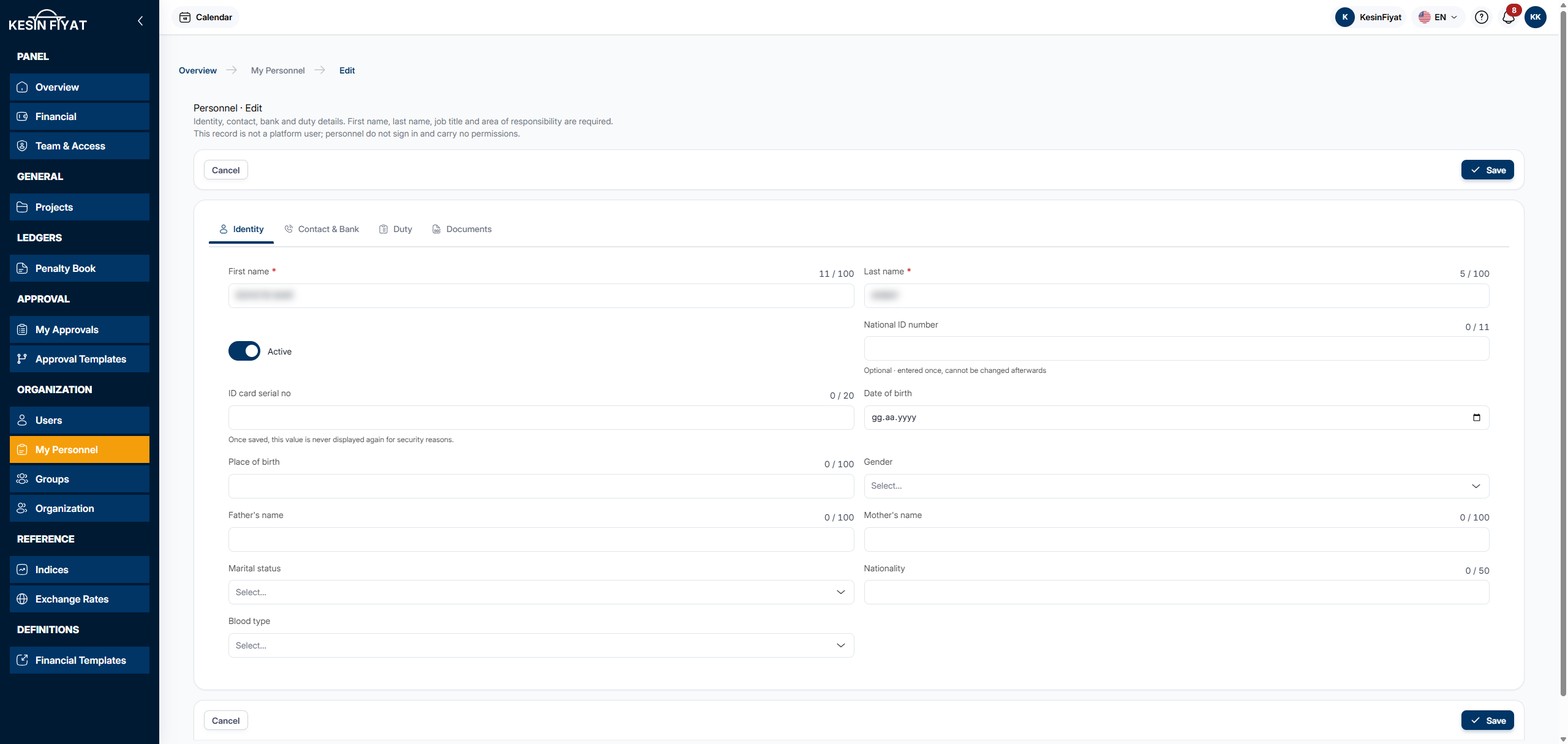
The boxes on the Identity, Contact & Bank and Duty tabs are the same as on the New Personnel page. First name, last name, job title and area of responsibility are required.
If you empty a box and save, that detail is deleted. The protected boxes below are the exception.
3. Use the protected boxes correctly
If a National ID number has been entered, its box does not appear. Instead, a note says that the number is on file, is not shown for security and cannot be changed here. If no number has been entered, the box appears and you can enter the number now.
The ID card serial no, IBAN and Social security registration no boxes always open empty. If a value is stored, Stored · not shown for security. Leave blank to keep it unchanged. appears under the box.
If you leave these boxes empty, the stored value is kept. If you type a new value, it replaces the old one.
4. Upload documents
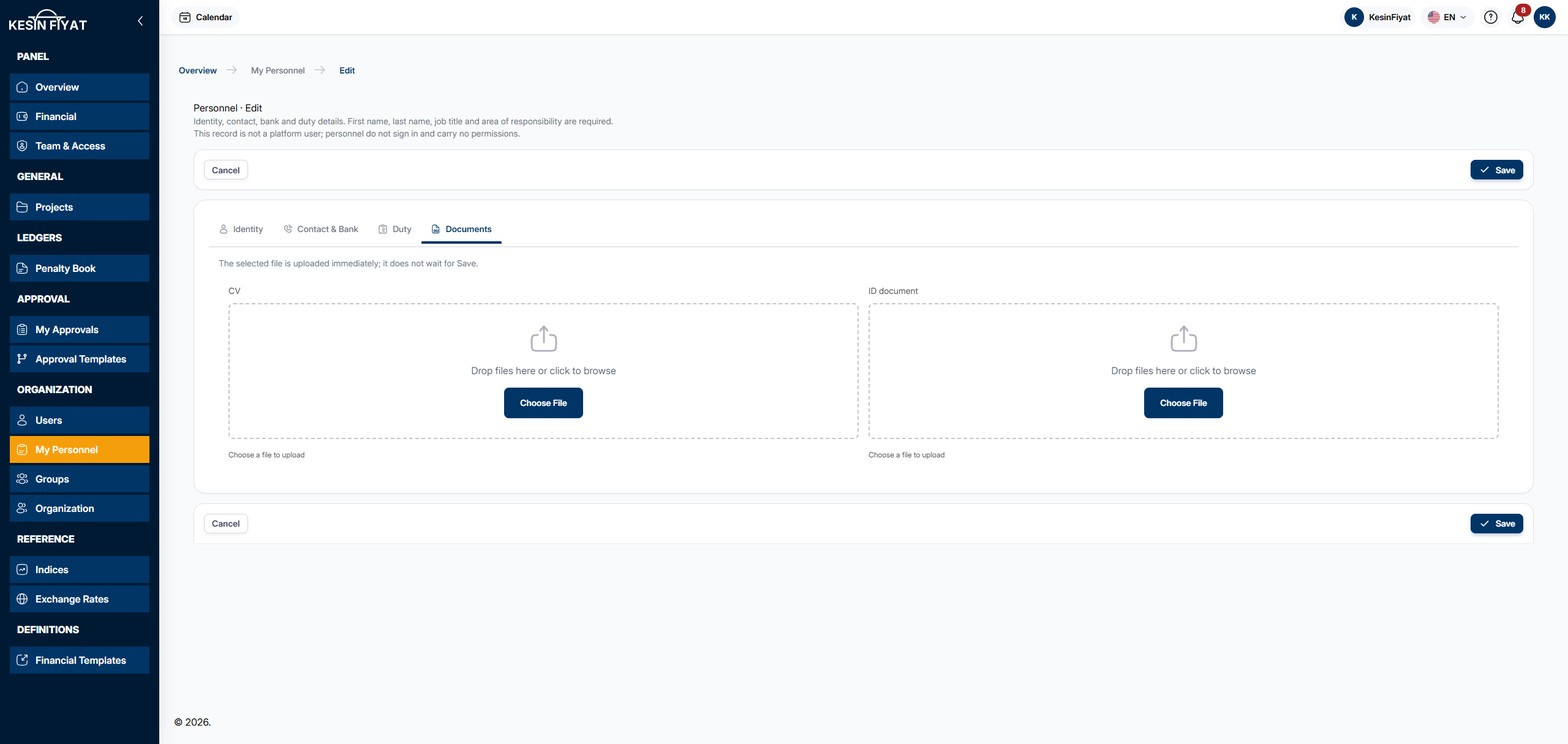
The Documents tab has two areas: CV and ID document. Drag the file onto the area or click Choose File.
- For the CV you can choose a PDF, DOC or DOCX file.
- For the ID document you can choose a PDF, PNG or JPG file.
- Each file can be up to 10 MB.
The file you choose is uploaded at once; it does not wait for Save. The message Document uploaded appears.
If a document is already uploaded, choosing a new file replaces it. To see an uploaded document, click Open CV or Open ID document. The document opens in a new browser tab.
5. Save
The Save button saves the changes and returns to the My Personnel list. The message Personnel updated appears.
If a required box is empty or a box is invalid, the record is not saved. A Missing badge appears next to the name of the tab with the problem.
The Cancel button returns to the list without saving.
Things to keep in mind
- The company owner, administrators and project managers can change personnel details.
- If you turn off the Active switch and save, the person becomes Passive. If you turn it on and save, the person is Active again.
- The national ID number cannot be changed or deleted once entered.
- If the record cannot be loaded, a warning appears at the top of the page and the Save button cannot be pressed. In that case, refresh the page.
Frequently asked questions
Why is the IBAN box empty?
For security, the stored IBAN is not shown on screen. The note under the box tells you whether a value is stored. If you leave the box empty, the stored IBAN does not change.
Can I make an archived person active again?
Yes. Turn on the Active switch on the Identity tab and click Save.
Do I need to click Save after uploading a document?
No. The document is uploaded as soon as you choose it. If you changed anything on the other tabs, click Save for those changes.