
New Group
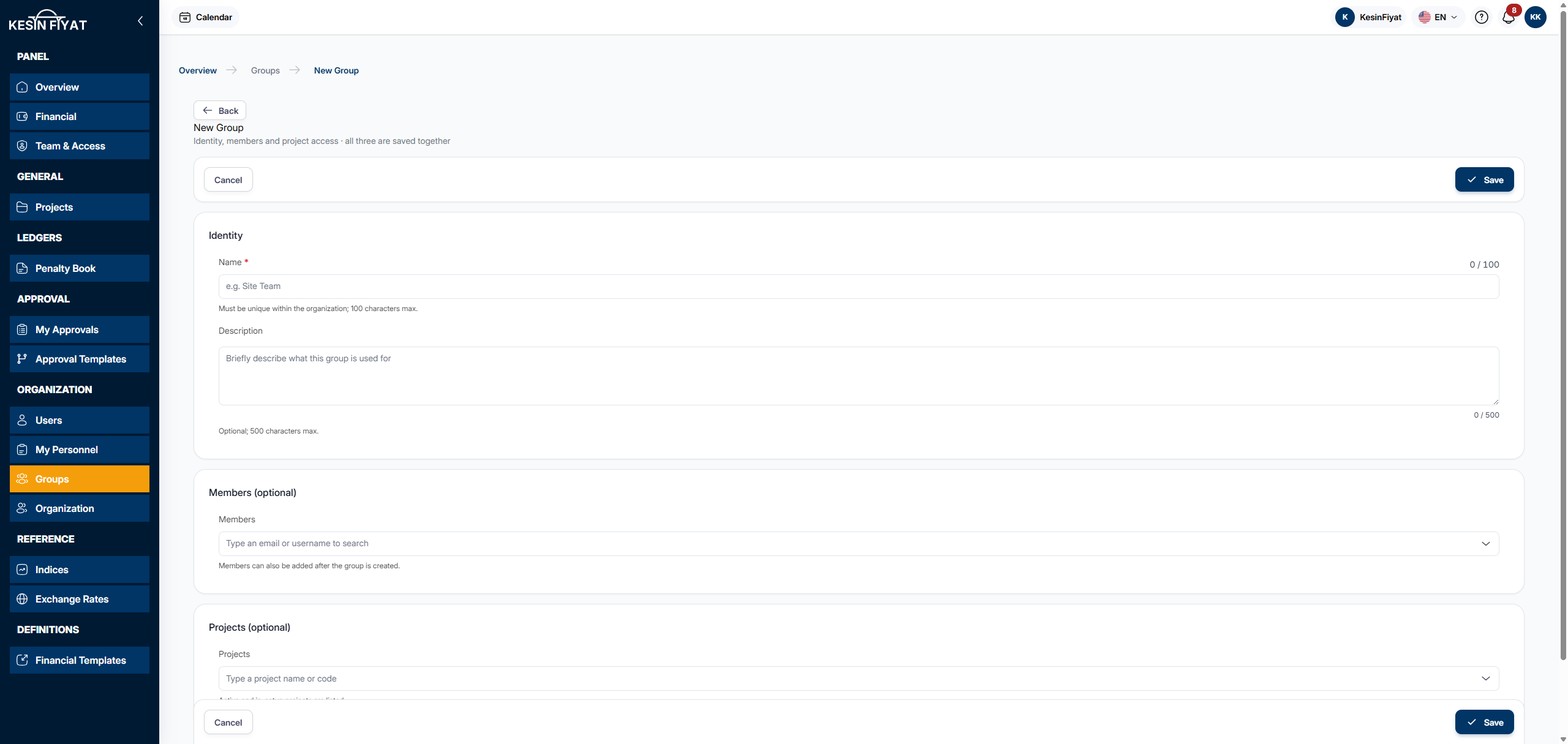
On this page you create a new group. You type the group's name and, if you like, choose its members and the projects it will reach at the same time. All three are saved together.
When to use it
- To create a group for a new team, for example a site team.
- To open the same projects to several people at once.
Step by step
1. Open the page
On the Groups screen, click New Group.
2. Type the group's name and description
On the Identity card:
- Name is required, for example Site Team. It cannot be the same as another group's name in your company, and it can be up to 100 characters.
- Description is optional and can be up to 500 characters. Briefly describe what the group is used for.
3. Choose the members
In the Members box on the Members (optional) card, type an e-mail address or username and choose the people. You can choose more than one person.
You can also add members later, on the group's page.
4. Choose the projects
In the Projects box on the Projects (optional) card, type a project name or code and choose the projects. The list shows active and in-setup projects.
The group's members see the projects you choose.
5. Save
The Save button creates the group and opens its page. The message Group created appears.
If a group with the same name exists, A group with this name already exists. Choose a different name. appears and the group is not created.
The Cancel and Back buttons return to the previous page without saving.
Things to keep in mind
- The company owner, administrators, project managers and tender officers can create groups. Other roles see a warning on the page saying they do not have permission.
- Project managers and tender officers can add to a group only the projects they can reach themselves.
- The company owner and administrators already see all projects through their role. There is no need to add them to a group.
Frequently asked questions
Do I have to choose members when creating a group?
No. Members and projects are optional. You can create the group with just a name and add members and projects later on the group's page.
Can a person be in more than one group?
Yes. A person sees the projects of every group they belong to.