
Penalty Detail
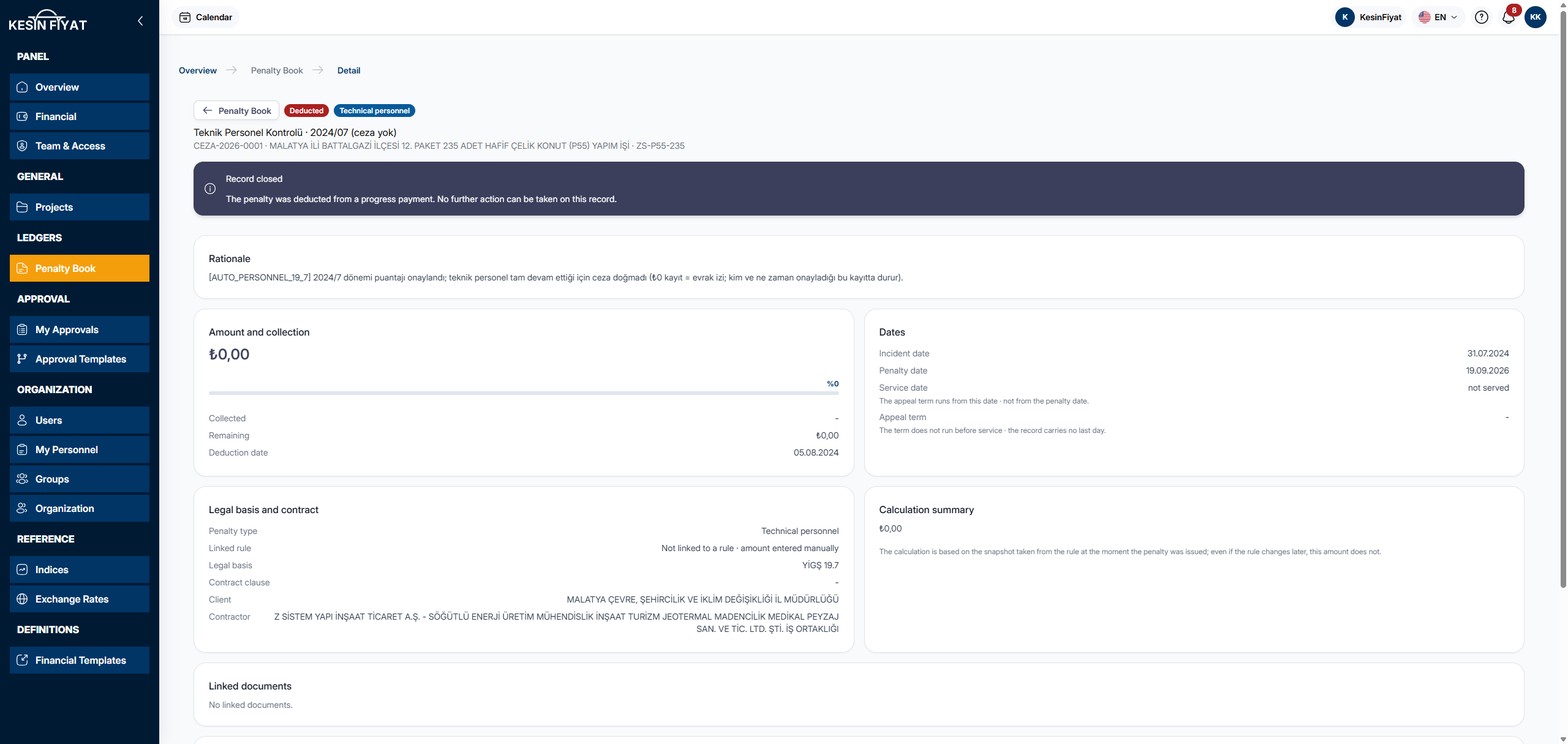
The penalty detail is the page that shows everything about a single penalty. At the top you see where the penalty stands. Below it are its amount, dates, legal basis, calculation, documents and activity history.
Penalties are not edited on this page. What you can do here is appeal a penalty within its term and withdraw an open appeal.
When to use it
- To see a penalty's amount, dates and legal basis.
- To find out when the appeal term ends.
- To appeal a penalty that has been served.
- To see which step an open appeal is at, or to withdraw it.
- To download the penalty's documents and see who did what and when.
Step by step
1. Open the penalty's page
In the Penalty Book, click the eye button at the end of the row. The Go to penalty detail button on an appeal's page also opens this page.
To go back to the list, use the Penalty Book button at the top of the page.
2. Read the heading
The page heading is the penalty's title. Above it you see the penalty's stage badge and its type. Below it are the penalty number, the project name and the project code.
3. Check the bar under the heading
The bar under the heading tells you where the penalty stands. It changes with the penalty's stage:
- Appeal window open: the penalty was served and the appeal term has not ended. The bar shows the service date, the last day and how many days are left. In the last 3 days the number of days left is written in bold.
- Appeal term expired: the penalty was served but the last day has passed. The bar shows the service date, the appeal term and the last day. An appeal can no longer be opened.
- Open appeal: an appeal has been opened against the penalty. The bar shows the appeal number, the requested action, who opened it and when, and the step the appeal is at. The Go to appeal detail link opens the appeal's page.
- Penalty reduced · awaiting deduction: the amount went down after an appeal. The deduction will be made in the progress payment in the industry panel.
- Record closed: the penalty was deducted from a progress payment or cancelled. No further action can be taken on this record.
No bar appears on Draft and Approved penalties.
4. Read the cards
The Rationale card shows the penalty's description.
The Amount and collection card shows the penalty amount and a collection bar. Below them you see Collected, Remaining and, if the penalty was deducted, Deduction date. On a penalty reduced by an appeal, the old amount appears struck through with the reduction rate next to it.
The Dates card lists Incident date, Penalty date, Service date and Appeal term. The appeal term runs from the service date, not from the penalty date. If the penalty has not been served, not served is written and the term does not run.
The Legal basis and contract card shows Penalty type, Linked rule, Legal basis, Contract clause, Client and Contractor. If the penalty is not linked to a rule, Not linked to a rule · amount entered manually is written. If the record carries delay days, Net delay also appears.
The Calculation summary shows how the penalty was calculated. The calculation follows the rule as it was when the penalty was written. Even if the rule changes later, this amount does not change.
5. Download documents
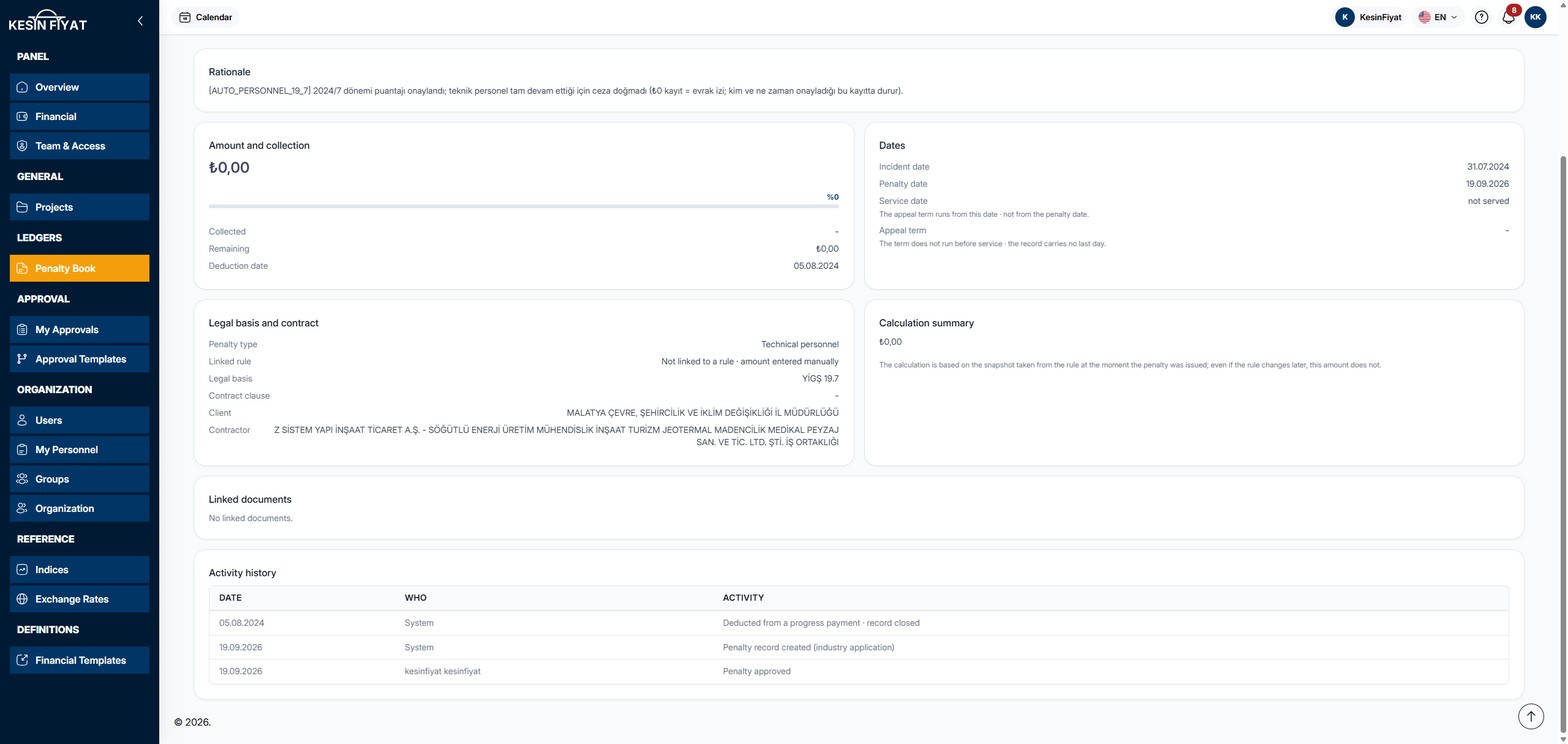
The Linked documents card lists the documents attached to the penalty: the Document name and Uploaded on date. The Download button on a row opens the document in a new tab.
Documents cannot be added to a penalty from this page. If there are none, No linked documents. is written.
6. Check the activity history
The Activity history lists what happened to the penalty in date order. The columns are Date, Who and Activity. Creation, service, approval, appeals, appeal outcome, cancellation and deduction appear here.
On rows where the person is not kept in the record, the Who column says System. The creation and deduction rows are like this.
7. Appeal the penalty
If the appeal window is open, an Appeal button appears to the right of the heading. When you click it, the page does not change. A Create appeal section opens under the heading, and the penalty details stay visible below.
- Requested action is required: Cancel the penalty, Reduction or Postponement. This choice cannot be changed later.
- Reduction rate (%) appears only when Reduction is chosen, and it is required. It must be between 0 and 100.
- Rationale is required and must be at least 10 characters. More than 100 characters is recommended. The counter below it shows how many characters you have written.
- Supporting documents are optional. PDF, JPG, PNG, XLS and XLSX files can be attached, up to 25 MB.
- Note is optional. You can write a short message for the decision maker.
The Create appeal button opens the appeal and the penalty moves to Under Appeal. If you change your mind, click Cancel.
A new appeal is not sent for approval right away. First you can add documents and correct the rationale. Sending for approval is done from the appeal's own page.
8. Withdraw the appeal
If there is an open appeal, a Withdraw appeal button appears on the Rationale card. Clicking it opens a confirmation window. If you choose Withdraw, the appeal is withdrawn and the penalty goes back to Served.
If the appeal was already sent for approval, its item in My Approvals is cancelled too.
Things to keep in mind
- The Appeal button appears only on Served penalties whose last day has not passed. You can still appeal on the last day.
- Only the company owner, administrators and accountants can open and withdraw an appeal. Project managers and site engineers can only read the page and do not see these buttons.
- A penalty can have only one open appeal at a time.
- A Reduced penalty is not closed. It will still be deducted from a progress payment.
Cannot be undone
- A withdrawn appeal cannot be reopened. You need to open a new appeal.
- If the last day has passed, a withdrawn appeal cannot be replaced with a new one.
- The requested action of an appeal cannot be changed later. For a different action, you need to withdraw the appeal and open a new one.
Frequently asked questions
Why can I not see the Appeal button?
The button appears only on penalties that have been served and whose appeal term has not ended. Also, only the company owner, administrators and accountants see it. If the term has ended, the bar says Appeal term expired.
When does the appeal term start?
It starts on the service date, not on the penalty date. The last day is shown on the Dates card and in the bar.
The appeal was opened but the document could not be added. What should I do?
If a document cannot be added, the message tells you that the appeal was created. Add the document from the appeal's own page. A second appeal cannot be opened for the same penalty.
Can I deduct the penalty from a progress payment here?
No. Penalties are deducted in the progress payment in the industry panel. This page shows the result of the deduction.