
Groups
Groups decide which projects users can see. A group is made of members and projects: a member of the group sees every project the group has access to.
The company owner and administrators see all projects through their role. Other roles see projects only through the groups they belong to.
Every company has a base group: Genel. New users and new projects are attached to it.
When to use it
- To see which projects are open to a team.
- To create a new team group.
- To turn a group off for a while or delete it.
Step by step
1. Find the group
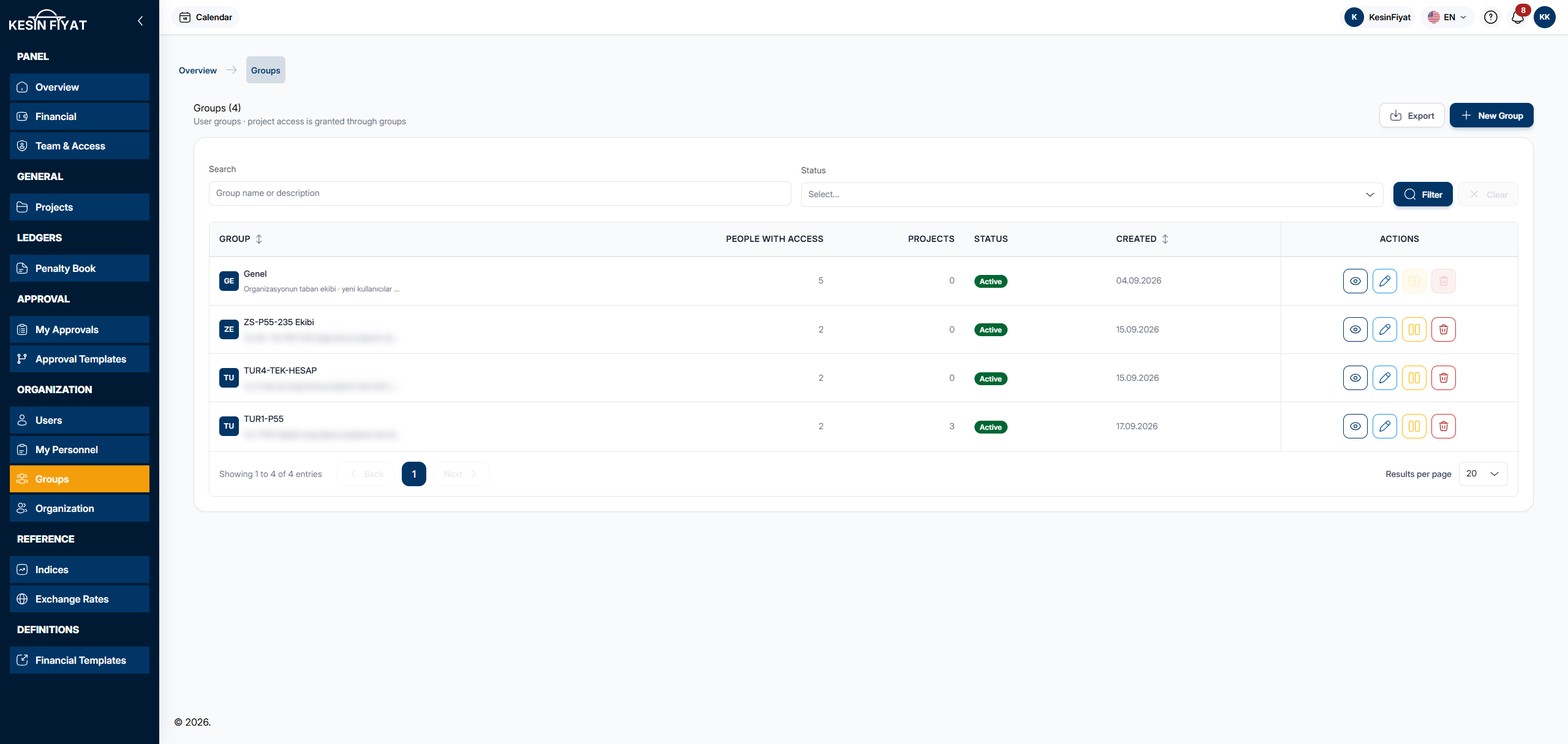
In the Search box, type part of the group's name or description. In the box next to it you can choose Active or Passive. The Filter button narrows the list and Clear removes your choices.
The heading shows the number of groups, for example Groups (4).
2. Read the list
Each row shows:
- Group: the group's name, with its description below.
- People with access: the number of people who reach the group's projects. The company owner and administrators are counted too.
- Projects: the number of projects the group has access to.
- An Active or Passive badge.
- Created: the date the group was created.
Click the Group and Created headings to sort the list.
3. Use the row buttons
The buttons at the end of the row:
- The eye button (View) opens the group's page.
- The pencil button (Edit) opens the page where you change the group's name, description and whether it is active.
- Deactivate turns the group off. On a passive group, Activate appears in its place.
- Delete opens the group's page with the delete window already open.
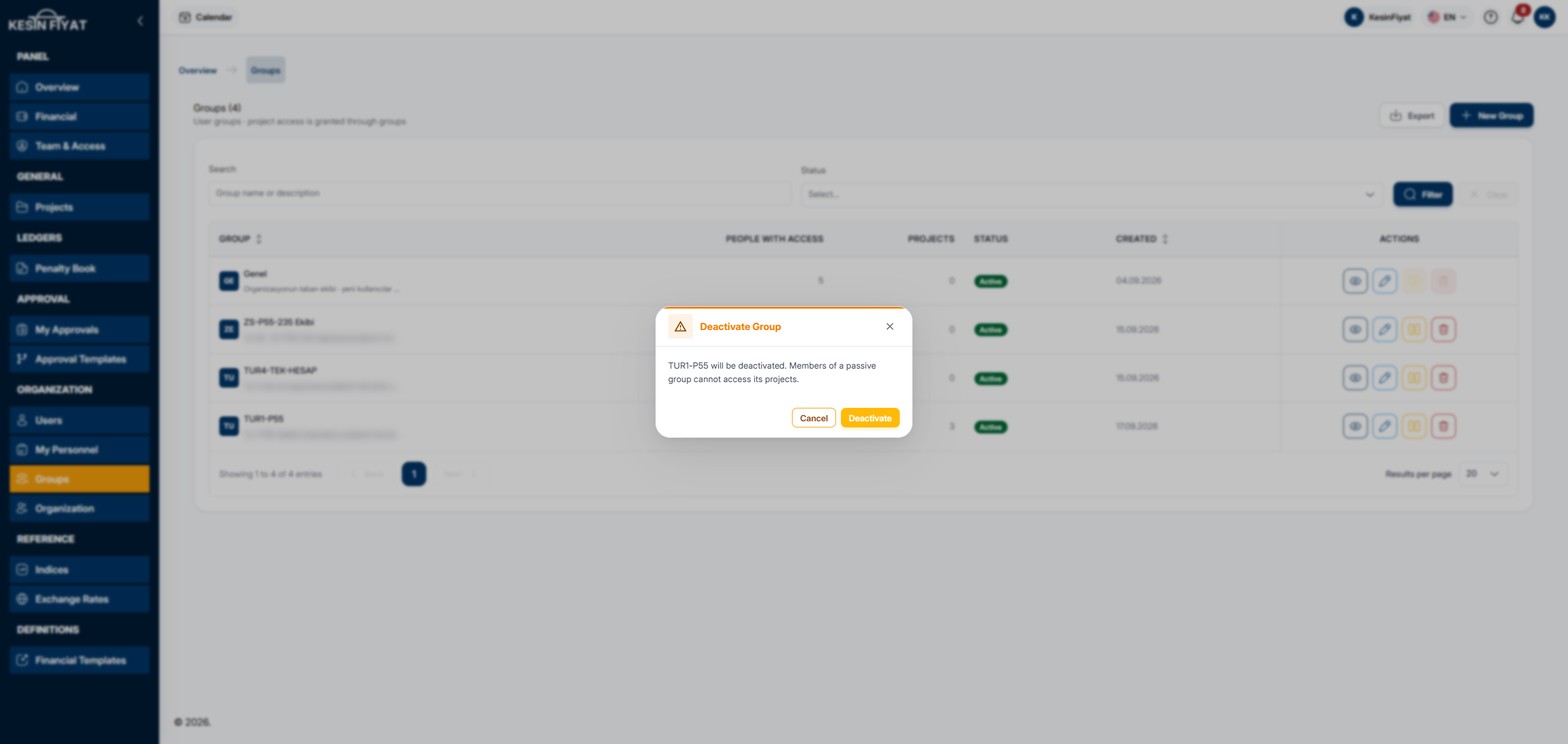
Deactivate and Activate first open a confirmation window. The Deactivate Group window says that members of a passive group cannot reach its projects. If the group carries pending approval steps, it also says how many steps would be left with nobody to take them.
4. Know the last access window
If this is the only group with access to a project, deactivating it leaves that project without any group. In that case the No group would be left with access to the project window opens.
The window lists the affected projects and the members who would lose access. The Transfer to base group and apply button transfers the project to the base group (Genel) and completes the action. Cancel changes nothing.
5. Create a new group
The New Group button opens the new group page. It is explained on the New Group page.
6. Export the list
The Export button downloads the groups that match your search and your active or passive choice as an Excel file. The file lists each group's name, description, type, number of people with access and projects, whether it is active, and its creation date.
You can export up to 3 times an hour.
Things to keep in mind
- All roles can see the Groups screen.
- The company owner, administrators, project managers and tender officers can create and manage groups. Project managers and tender officers manage only the groups they created; on other groups' rows they see only the eye button.
- Accountants and site engineers can only view groups.
- Only the company owner and administrators see the Export button.
- The base group (Genel) cannot be deleted or deactivated. These two buttons are disabled on its row.
- Members of a passive group cannot reach its projects.
Cannot be undone
- A deleted group cannot be brought back. To turn a group off for a while, use the Deactivate button.
Frequently asked questions
Why can't a user see a project?
Users see projects through the groups they belong to. Find a group that has access to the project and add the user to it. Also check that the group is active.
Why can't the Genel group be deleted?
Genel is your company's base group. New users and new projects are attached to it, so it cannot be deleted or deactivated. You can still change its members and project access.
What is the difference between deactivating and deleting?
A passive group stays on record with its members and projects, but its members cannot reach its projects. You can open it again with Activate. A deleted group does not come back.