
Team & Access
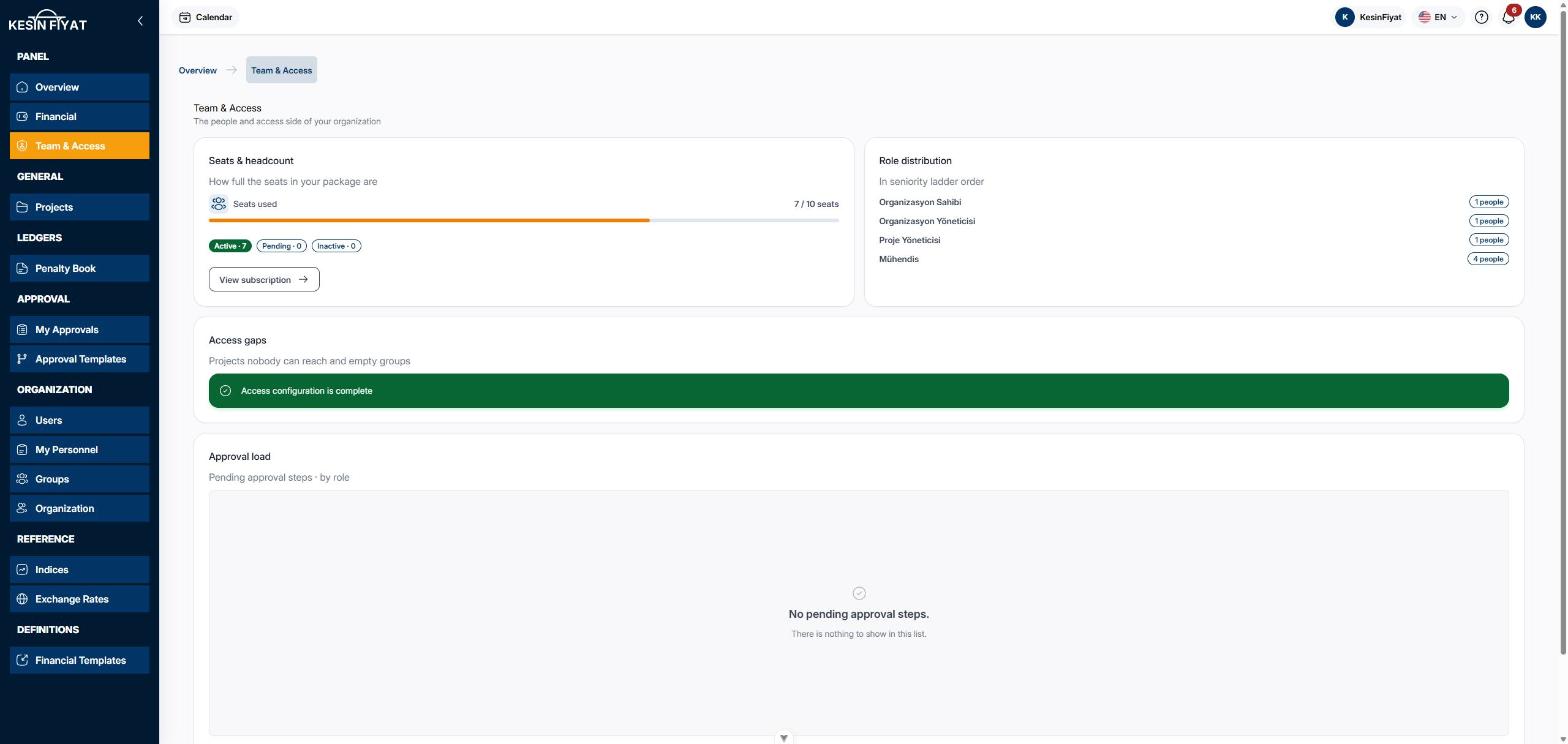
The Team & Access screen shows the people and access side of your company. What you see depends on your role. The company owner and administrators see the whole company. Other roles see their own projects and their own approvals.
Nothing is changed on this screen. The cards take you to the screen where the work is done.
When to use it
- To see how many seats are left in your package.
- To check how many people there are in each role.
- To check whether any project cannot be reached or any group is empty.
- To see in which role approvals are piling up.
Step by step
1. Check seat usage (owner and administrators)
In the Seats & headcount card, the Seats used bar shows how full your package is.
The badges below it give the number of users by stage: Active, Pending and Inactive. The View subscription button opens the Organization screen.
2. Read the role distribution (owner and administrators)
The Role distribution card lists the roles in seniority order and shows how many people are in each role.
Roles of equal seniority are on the same tier. Above such a group you see same tier.
3. Check access gaps (owner and administrators)
The Access gaps card has three counters:
- Projects without a group: nobody other than the owner and administrators can reach the project.
- Projects with only inactive groups: the project has groups but all of them are inactive, so in practice nobody has access.
- Groups without members: the group exists but nobody is in it.
The first two counters open the Projects screen, the third opens the Groups screen. When there is a problem, the first two are red and the third is yellow. Cancelled projects are not counted.
When all three counters are zero, you see Access configuration is complete instead.
4. Look at the approval load (owner and administrators)
The Approval load table lists pending approval steps by role. Each row shows the number of Pending steps and the number Older than 24h.
Next to the roles, two more rows can appear: steps assigned to a person and steps not assigned to anyone.
The My Approvals button opens the approval list. When there is nothing pending, you see No pending approval steps.
5. See the projects open to you (other roles)
Project managers, accountants, site engineers and tender officers see the Projects assigned to me table. It lists the projects that the groups you belong to give you access to.
The table shows the project, its industry, its stage and its progress. Click a row, or the eye button on the row, to open the project in its industry panel. If you cannot reach that industry panel, the project's page in this panel opens instead. The All button opens the Projects screen.
6. Check your pending approvals (other roles)
The My pending approvals card has two numbers: Pending steps and Older than 24h. Click a number, or the My Approvals button, to open the approval list.
These numbers come from the same source as the approval card on the Overview screen. The two screens never show different numbers.
Things to keep in mind
- Only the company owner and administrators see the seats, role distribution, access gaps and approval load cards.
- Project managers can see the Financial screen but get their own view on this screen. The two rules are separate.
- The figures are for following up only. Changes to users, groups and access are made on their own screens.
Frequently asked questions
Why can I not see the seats and role cards?
These cards are only for the company owner and administrators. Other roles see Projects assigned to me and My pending approvals on this screen.
My projects table is empty. What should I do?
If the table says You do not have access to any project yet · ask your administrator for an access group, no group gives you access to a project. Ask your administrator to add you to an access group.
Why are there no names in the approval load?
Most approval steps are assigned to a role, not to a person. Who approves a step is worked out at that moment from the role and project access. That is why the table counts by role, not by person.