
My Personnel
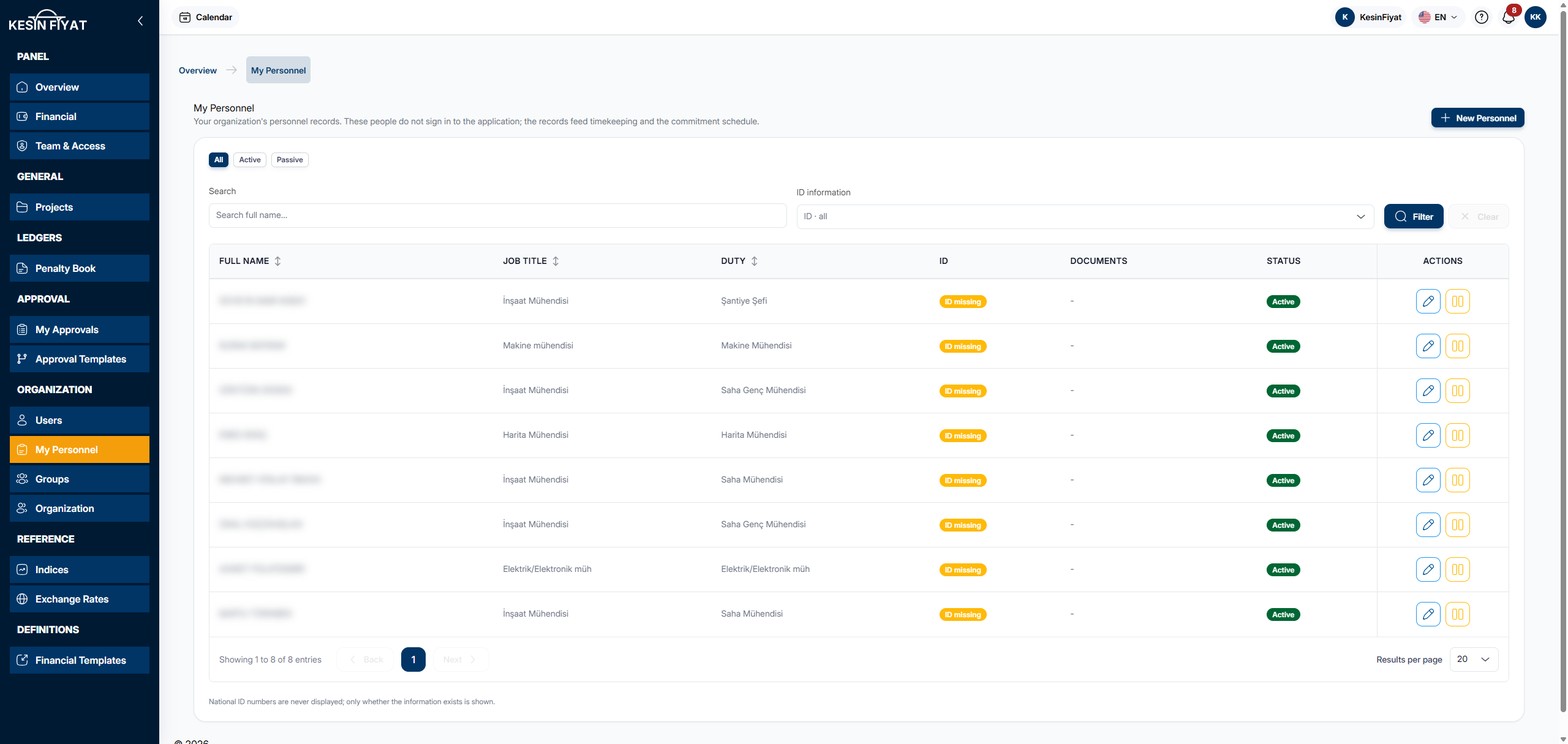
On this screen you keep your company's personnel records: the identity, contact, bank and duty details of the people who work on your sites and jobs. These records feed timekeeping and the commitment schedule.
The people here do not sign in to the panel and have no permissions. People who sign in to the panel are managed on the Users screen.
When to use it
- To register a new person who will work on a site.
- To find personnel whose national ID number is missing.
- To archive a person who no longer works for you.
Step by step
1. Narrow the list
The All, Active and Passive options above the list split it by whether the person is active.
In the Search box you can type a first name, last name, job title or duty. If you choose Only those missing an ID in the ID information box, only people without a national ID number remain.
The Filter button narrows the list and Clear removes your choices.
2. Read the list
Each row has these columns:
- Full name: the person's first and last name.
- Job title: the person's profession, for example İnşaat Mühendisi (civil engineer).
- Duty: the person's job in your company, for example Şantiye Şefi (site chief).
- ID: ID on file if a national ID number has been entered, ID missing if not. The number itself is never shown.
- Documents: the uploaded documents, CV and ID document. If there is no document, a short line appears.
- The last column shows Active or Passive.
Click the Full name, Job title and Duty headings to sort the list. The Full name column sorts by last name.
3. Add new personnel
The New Personnel button opens the new record page. It is explained on the New Personnel page.
4. Edit a record
The pencil button (Edit) at the end of the row opens the person's record page. It is explained on the Edit Personnel page.
5. Archive a person
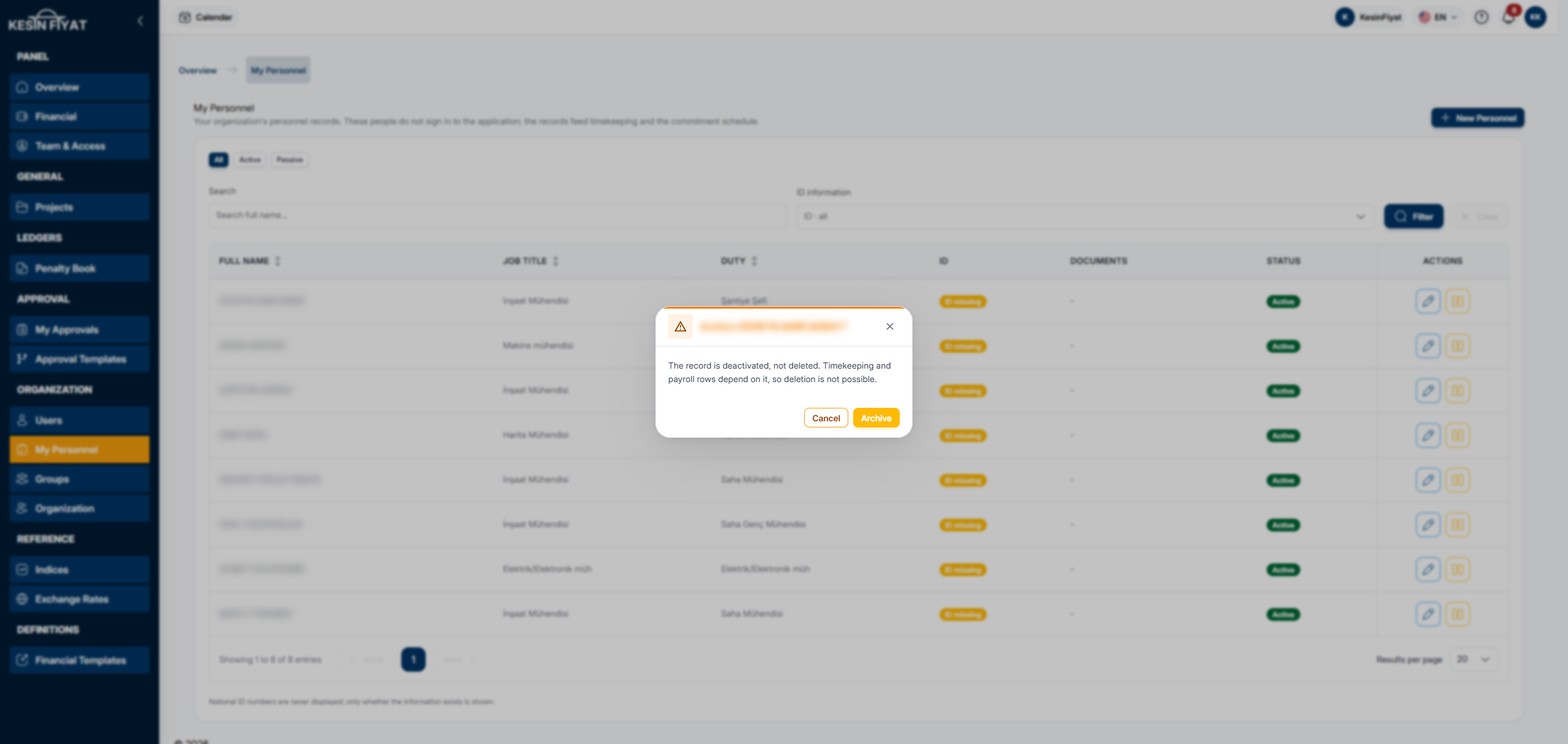
The archive button (Archive) at the end of the row makes the person passive. A confirmation window opens first.
The window says that the record is not deleted but made passive. The record is not deleted because timekeeping and payroll rows depend on it.
If you click Archive in the window, the person becomes Passive and the message Personnel archived appears. If you click Cancel, nothing changes.
The archive button appears only on the rows of active people.
Things to keep in mind
- All roles can see the My Personnel screen.
- The company owner, administrators and project managers can add and edit personnel. Only the company owner and administrators see the archive button.
- Tender officers, accountants and site engineers can only view the list. They do not see the New Personnel button or the row buttons.
- Personnel records are never deleted. Archive a person who no longer works for you.
Frequently asked questions
How do I make an archived person active again?
Click the Passive option above the list and then the Edit button on the person's row. Turn on the Active switch on the Identity tab and click Save.
What is the difference between personnel and users?
A user is a person who signs in to the panel and has a role and permissions. Personnel are records kept for timekeeping and the commitment schedule; they do not sign in to the panel.
Why can't I see the national ID number?
For security, the national ID number is not shown on any screen. The list only shows whether the number has been entered.