
Projects
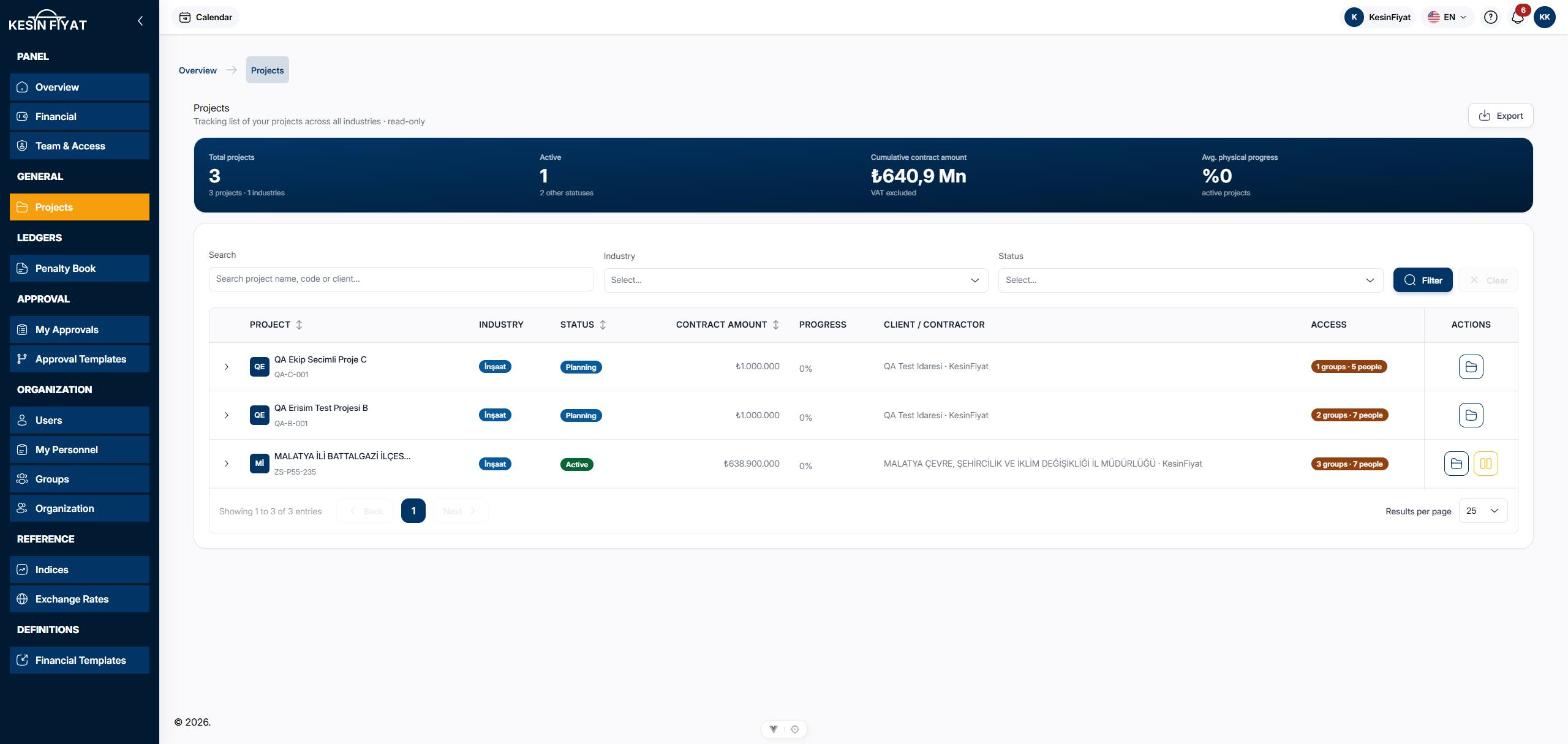
The Projects screen shows all of your company's projects across every industry in one list. This screen is for following up. Projects are not created, edited or deleted here.
The only change you can make on this screen is suspending a project or resuming it.
When to use it
- To look at the stage and contract amount of all projects together.
- To find a project by its name, code or client name.
- To see who can reach a project.
- To suspend a project or resume it.
Step by step
1. Read the summary card
The card at the top of the screen has four numbers.
- Total projects: how many projects are in the list and in how many industries.
- Active: the number of active projects and how many are at other stages.
- Cumulative contract amount: the total contract amount of the projects, VAT excluded.
- Avg. physical progress: the average progress of active projects.
2. Find a project
Type a project name, code or client name in the Search box. You can also choose from the Industry box and the stage box next to it. Stages are listed in groups.
The Filter button narrows the list to your choices. The Clear button clears them.
If no project matches, you see No project matches the filters. Use the Clear filters button to go back to the full list.
3. Read the list
Each row shows the Project name and code, Industry, the stage, Contract amount, Progress and Client / Contractor.
The stage badge puts the project in one of six groups: Planning, Active, Suspended, Closing out, Completed and Cancelled.
If you cannot reach an industry panel, Locked appears next to the industry badge. Click the Project, stage or Contract amount headings to sort the list.
4. Check the access column
The company owner and administrators also see an Access column. It shows how many groups and people give access to the project.
No access and Groups passive are shown in red: nobody other than the owner and administrators can get into the project. When groups exist but none has an active user, it is shown in yellow.
5. Open a row
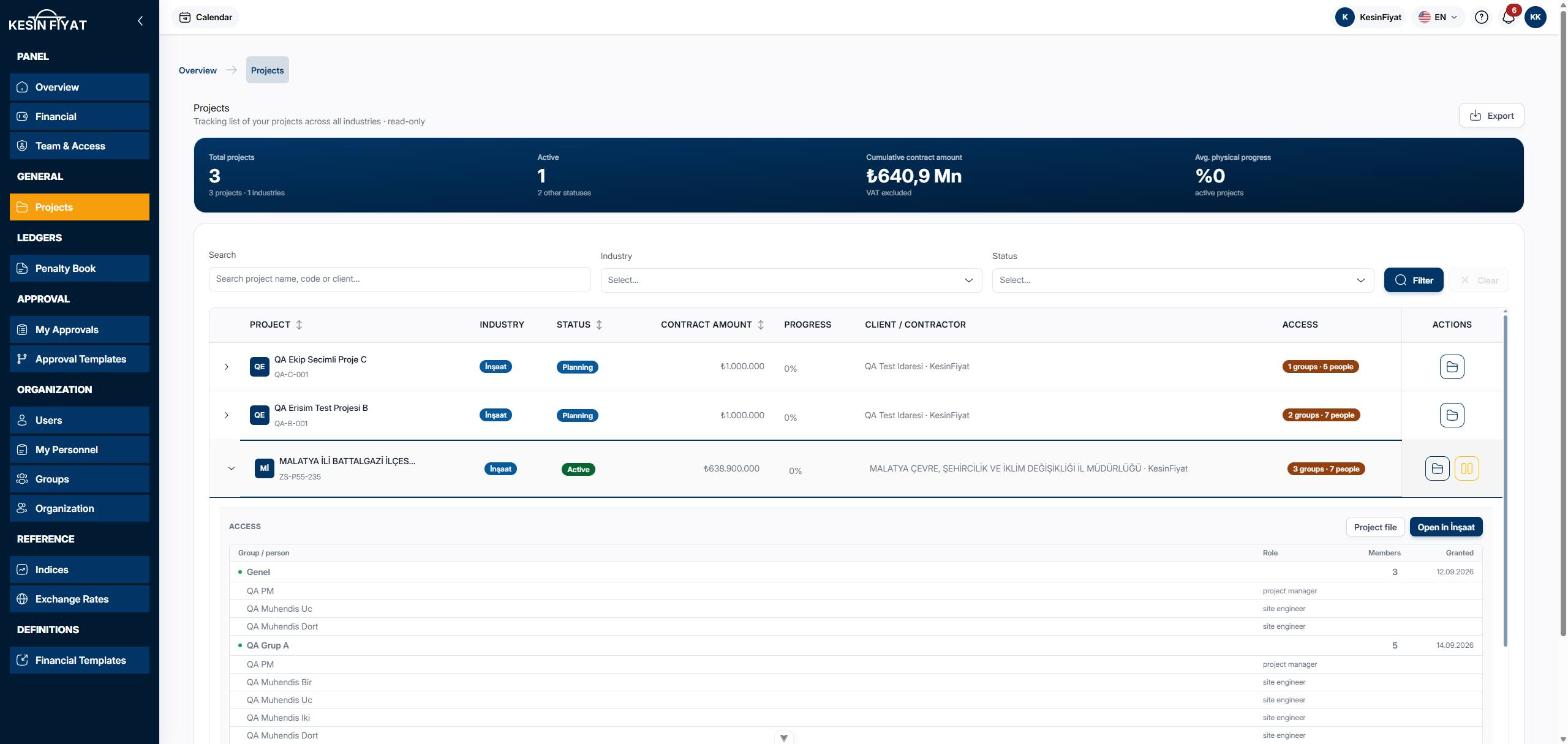
Click the arrow at the start of a row to open the Access section below it.
The section lists the groups that give access to the project and their members: Group / person, Role, Members and the Granted date. Passive appears next to a passive group or person. At the bottom there is a summary of the active people with access. If the project has no project manager or no accountant, this is written too.
The Project file button opens the project's page in this panel. The folder button on the row does the same. The Open in İnşaat button opens the project in the industry panel. If you cannot reach that industry, a note saying your access is closed appears instead.
If the project has an access problem, a warning bar with an Edit in Groups button appears at the top of the section. Only the company owner and administrators see this bar.
6. Suspend a project or resume it
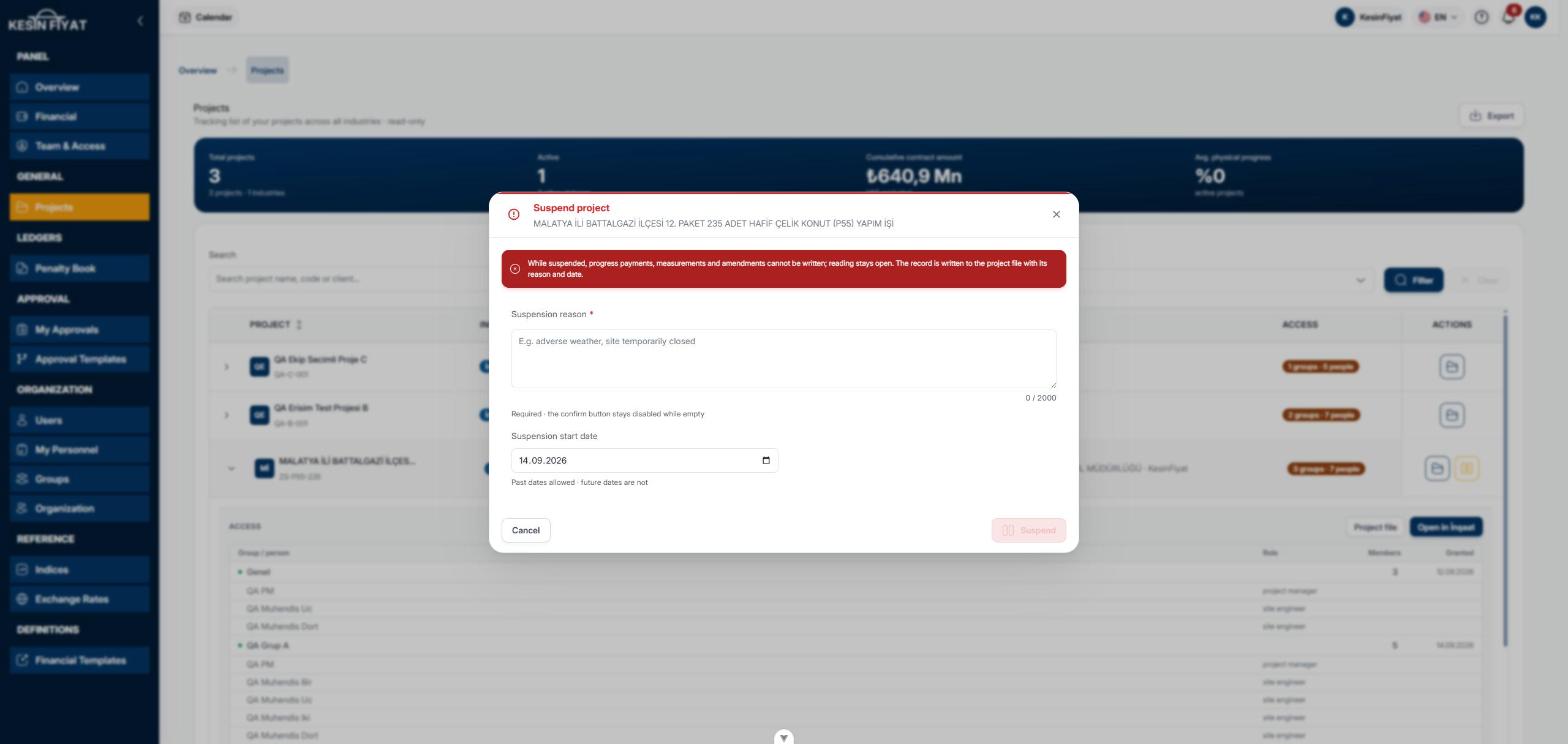
Click the suspend button on an active project's row, or the Suspend button in the opened section. The Suspend project window opens.
- Suspension reason is required. While it is empty, the Suspend button cannot be pressed.
- Suspension start date can be a past day. A future day cannot be chosen.
If you have not decided, close the window with Cancel.
When you open the row of a suspended project, a bar shows the suspension date and reason. The Resume button opens the same window. This time you choose the Suspension lift date, and the Note is optional.
Inside the project file, this is done on the page itself, without a window.
7. Export the list
The Export button downloads the list as an Excel file. The file contains every project that matches your search and choices.
You can export at most 3 times per hour.
Things to keep in mind
- The company owner and administrators see all projects. Other roles see only the projects that their active groups give them access to.
- Only the company owner and administrators see the Export button.
- The company owner, administrators, project managers and tender officers see the suspend and resume buttons. The buttons appear only on active and suspended projects.
- The Active and Avg. physical progress numbers are calculated from the projects shown in the list at that moment.
What suspension does
- In a suspended project, progress payments, measurements and amendments cannot be written. Reading stays open.
- The suspension is recorded in the project file with its reason and date.
- A suspended project no longer counts toward your package's project limit. To resume it, your package must have a free project slot.
Frequently asked questions
Why is there no button to create a new project?
Projects are created and run in the industry panel. This screen only follows all projects. A project created in the industry panel appears here automatically.
What do I see if the company has no projects?
Instead of the list you see No projects yet. Two steps appear below it: first get an industry, then switch to that industry panel and create your first project. A button to open each industry panel you can reach also appears.
The company has projects but I cannot see them. Why?
If you see You do not have access to any project yet, the company has projects but you have not been given access. Project access is given through groups. Ask your administrator to add you to the right group.
Why can I not see the Suspend button?
This button appears only for the company owner, administrators, project managers and tender officers. Also, only active projects can be suspended.