
New Personnel
On this page you open a new personnel record for your company. The details are entered on three tabs: Identity, Contact & Bank and Duty.
Four details are required: first name, last name, job title and area of responsibility. The others are optional. The CV and ID document are uploaded on the edit page after the record is created.
A personnel record does not create a user account. This person does not sign in to the panel.
When to use it
- To register a new person who will work on a site or job.
Step by step
1. Open the page
On the My Personnel screen, click New Personnel.
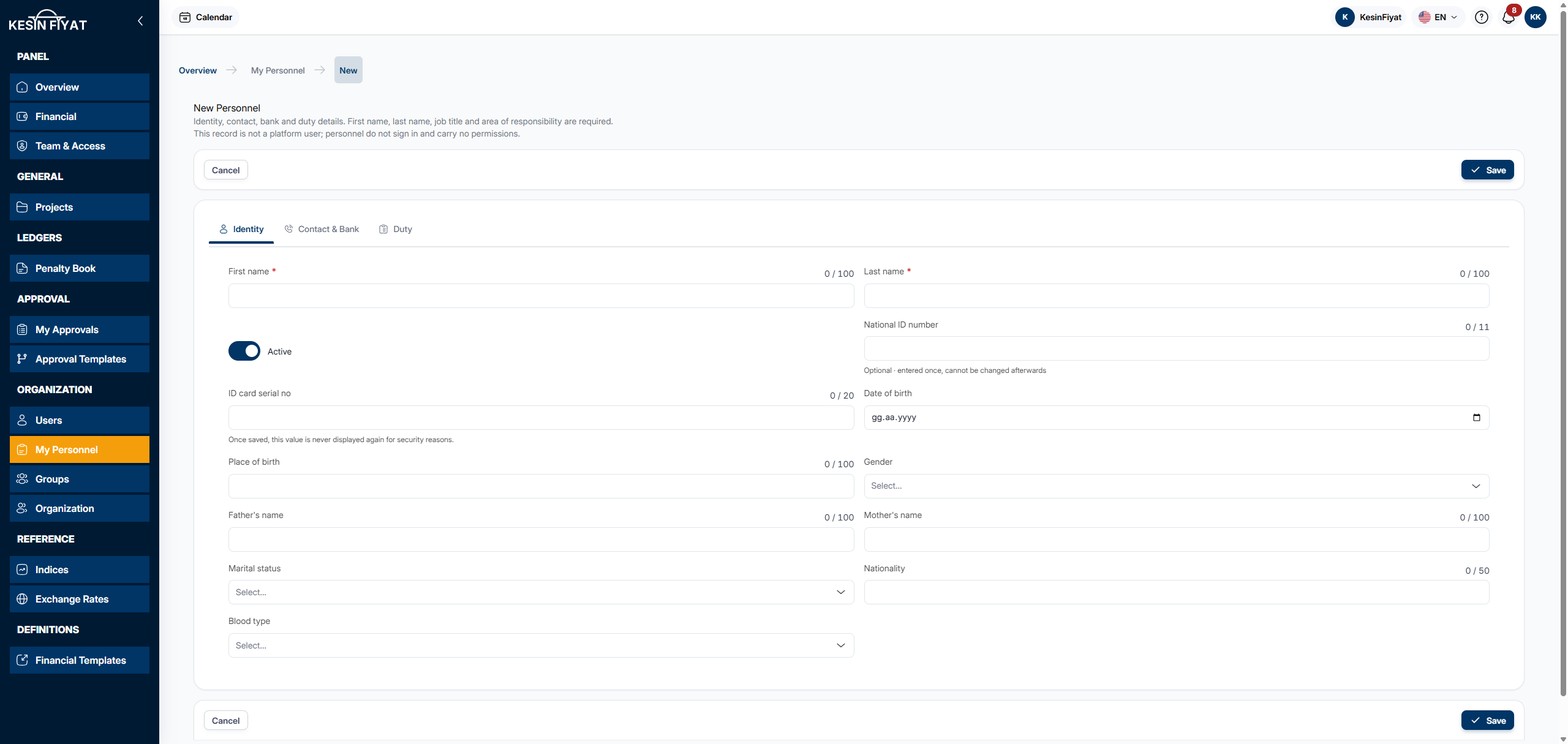
2. Enter the identity details
On the Identity tab:
- First name and Last name are required. Each must be between 2 and 100 characters.
- The Active switch is on by default. A person saved with it off becomes Passive.
- National ID number is optional. It must have 11 digits and must not start with 0. It is entered once and cannot be changed or deleted later.
- ID card serial no, Date of birth, Place of birth, Gender, Father's name, Mother's name, Nationality, Blood type and the box for whether the person is married are optional.
Once saved, the national ID number and the ID card serial number are never shown again, for security.
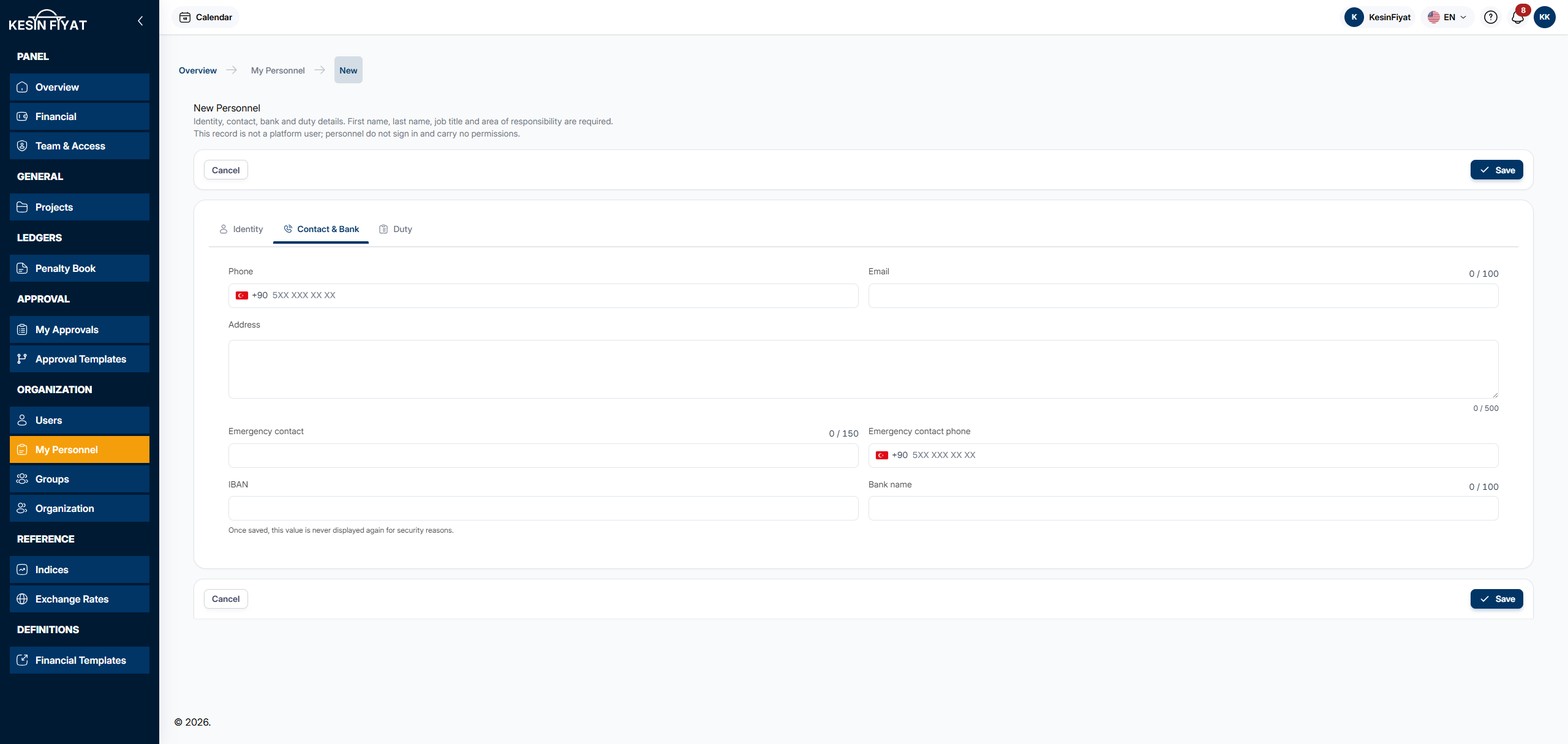
3. Enter the contact and bank details
All boxes on the Contact & Bank tab are optional:
- The Phone and Emergency contact phone boxes start with a fixed +90. Type the number without a leading 0, as 10 digits.
- Email, Address and Emergency contact.
- IBAN: must start with TR and be 26 characters long. Spaces are fine.
- Bank name.
Once saved, the IBAN is never shown again, for security.
4. Enter the duty details
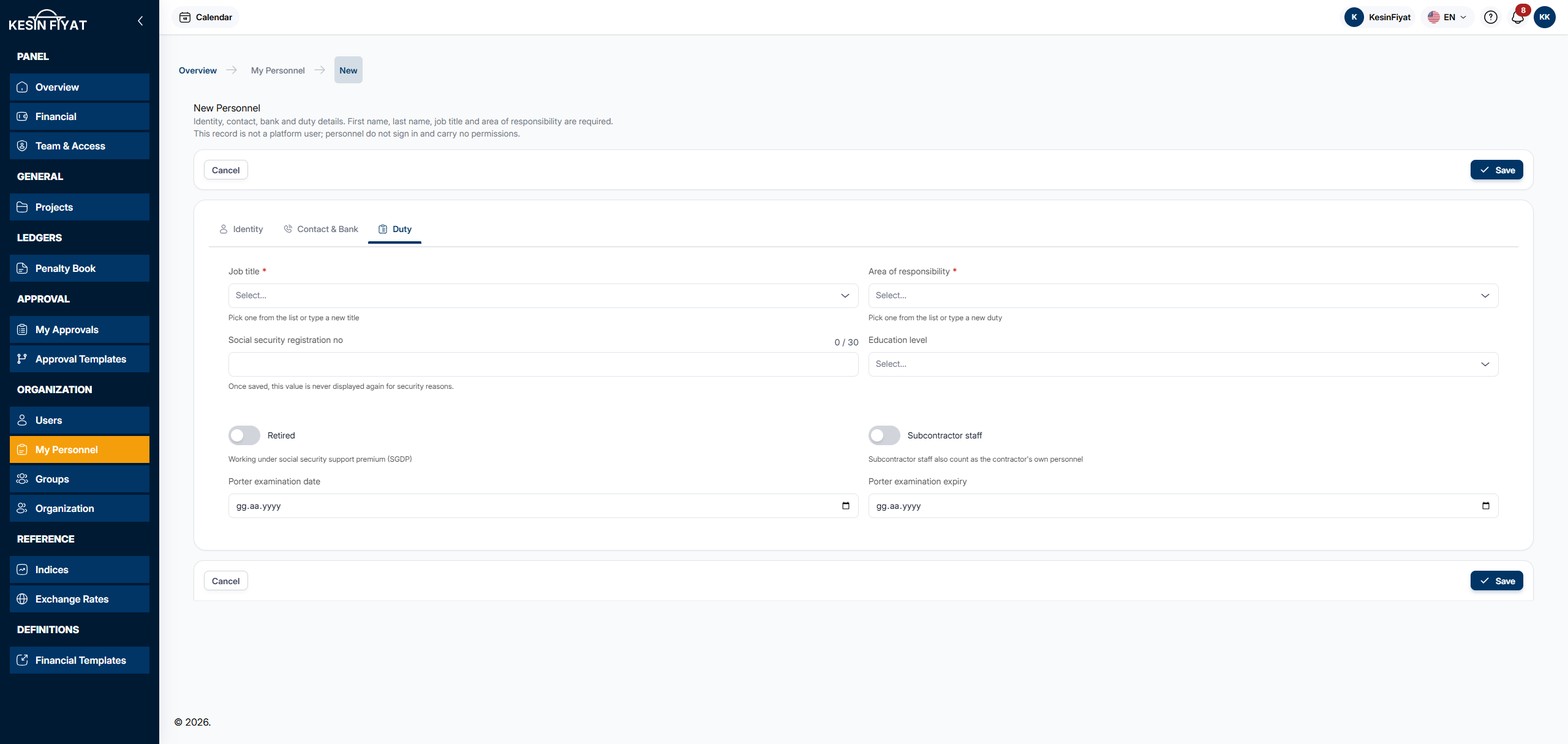
On the Duty tab:
- Job title is required. It is the person's profession, for example İnşaat Mühendisi (civil engineer).
- Area of responsibility is required. It is the person's job in your company, for example Şantiye Şefi (site chief). On the My Personnel list it appears in the Duty column.
- Both boxes list the values used most often in your company. You can also type a value that is not in the list.
- Social security registration no, Education level, Porter examination date and Porter examination expiry are optional.
- Turn on Retired if the person works under the social security support premium (SGDP).
- Turn on Subcontractor staff if the person works for a subcontractor. Subcontractor staff also count as the contractor's own personnel.
Once saved, the social security registration number is never shown again, for security.
5. Save
The Save button saves the person and returns to the My Personnel list. The message Personnel added appears.
If a required box is empty or a box is invalid, the record is not saved. A Missing badge appears next to the name of the tab with the problem, and the message names that tab.
The Cancel button returns to the list without saving. The Save and Cancel buttons are at both the top and the bottom of the page.
Things to keep in mind
- The company owner, administrators and project managers can add new personnel.
- If the same national ID number is already registered to another person in your company, the record is not saved. The message shows that person's name.
- The national ID number cannot be changed or deleted once entered. Check it before saving.
- If the person needs to sign in to the panel, create a separate user on the Users screen.
Frequently asked questions
Can I enter the national ID number later?
Yes. The national ID number is optional. You can enter it later, when you edit the record. Once entered, it cannot be changed.
What is the difference between job title and area of responsibility?
The job title is the person's profession, for example civil engineer. The area of responsibility is the person's job in your company, for example site chief or site engineer.
Where do I upload documents?
The CV and ID document are uploaded after the record is created. On the My Personnel list, click the Edit button on the person's row and open the Documents tab.