
Organization
On this screen you see your company's record, subscription and payments. The screen has three tabs: General, Subscription and Payment History.
When to use it
- To look at your company's official details, such as the tax number, tax office and address.
- To upload or remove the company logo.
- To see when your subscription ends and how many seats and projects you use.
- To see your payments and download the list as an Excel file.
Step by step
1. Read the general details
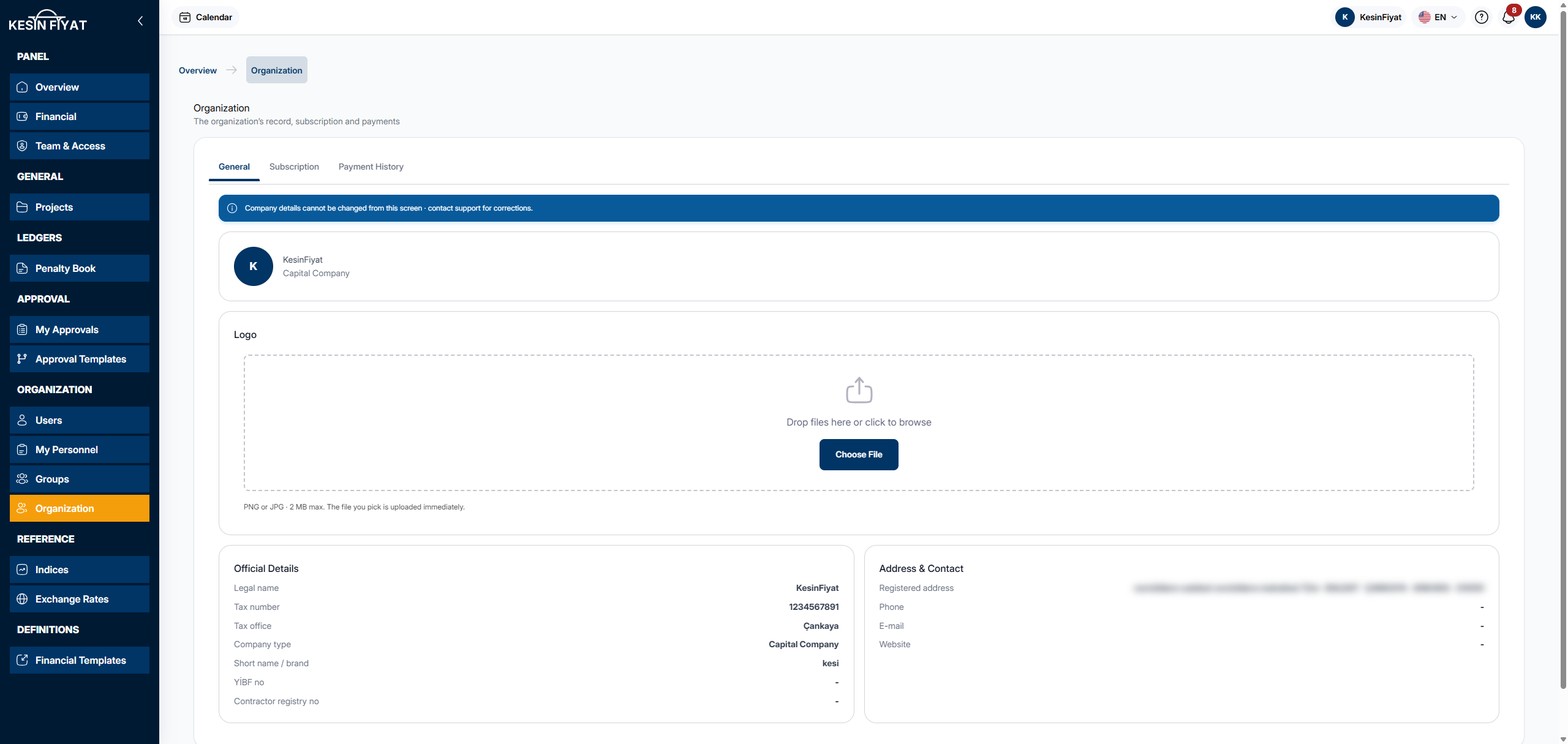
At the top of the General tab you see your company's name and company type.
The Official Details card shows Legal name, Tax number, Tax office, Company type, Short name / brand, YİBF no and Contractor registry no. The Address & Contact card shows Registered address, Phone, E-mail and Website. Details that have not been entered show a short line.
These details cannot be changed on this screen. If a correction is needed, write to the support team.
2. Upload or remove the logo
Drag a PNG or JPG file onto the area on the Logo card, or click Choose File. The file can be up to 2 MB.
The file you choose is uploaded at once; you do not need to save. The message Logo updated appears. The uploaded logo appears next to the company name at the top of the tab.
When a logo is uploaded, a Remove Logo button appears at the bottom of the card. It first opens a confirmation window: Remove deletes the logo and Cancel changes nothing.
3. Review the subscription
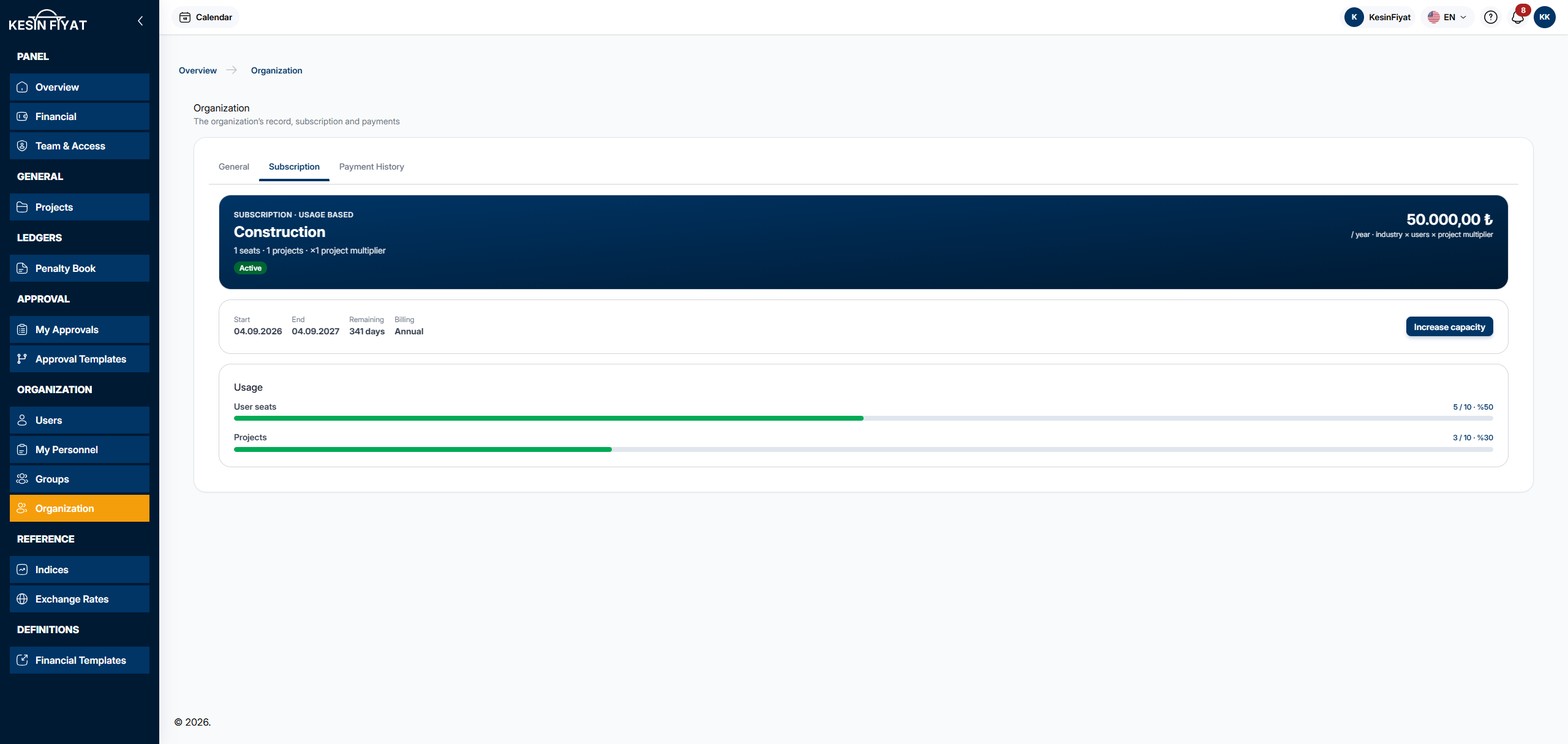
The dark card at the top of the Subscription tab shows the subscription's industry (for example İnşaat, construction), the number of seats and projects, the project multiplier and a badge such as Active. The yearly amount is on the right of the card.
The strip below shows Start, End, the Remaining days and Billing.
The Usage card shows the used and allowed numbers, with a percentage, for User seats and Projects. Click a number to open the related list.
4. Increase capacity or renew the subscription
The Increase capacity button on the right of the strip opens the Support Tickets page. Write to the support team there to raise your seat or project limit.
Depending on the situation, a warning may appear at the top of the tab:
- If the subscription was cancelled, a red warning with the Renew subscription button.
- If you are on a trial and your payment is awaited, a blue warning with the Start membership button.
- If 30 days or fewer are left before the subscription ends, a yellow warning with the Renew now button.
- If all seats are full, a yellow warning with the Increase capacity button.
Renew subscription, Start membership and Renew now open the payment page. Increase capacity in the warning opens the Support Tickets page. While a warning is shown, the button on the strip is hidden.
5. Look at the payment history
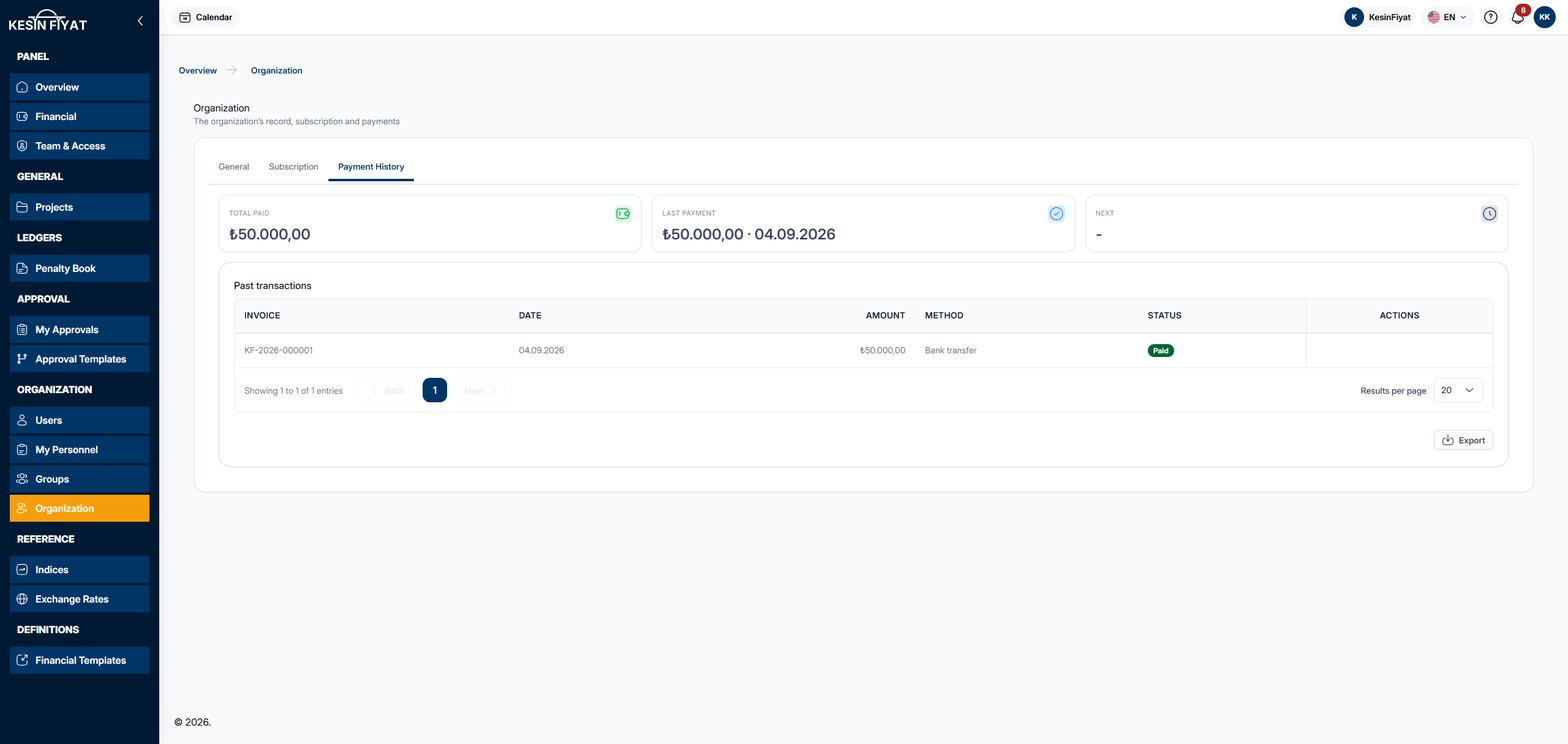
The Payment History tab has three summaries at the top: Total paid, Last payment and Next payment.
The Past transactions list shows each payment's number (Invoice), Date, Amount and Method, and a badge showing the outcome. The method is Credit card or Bank transfer. The badge can be Paid, Pending, Failed, Refunded or Partially refunded.
If a payment has a receipt, a Download receipt button appears on its row. The receipt opens in a new browser tab.
The Export button downloads the payment list as an Excel file. You can export up to 3 times an hour.
Things to keep in mind
- All roles can see the General tab. Only the company owner and administrators see the Logo card.
- The company owner, administrators and accountants see the Subscription and Payment History tabs.
- The subscription cannot be changed on this screen. Use the Support Tickets page for capacity and the button in the warning for renewal.
Frequently asked questions
Our company address or tax details are wrong. How do I correct them?
These details cannot be changed on this screen. Write to the support team for a correction.
Why does the seat number on the subscription card differ from the limit on the Usage card?
The subscription card shows the numbers the yearly amount is calculated from. The Usage card shows the current limits set for your company. If extra capacity has been given to you, these limits are larger.
All my seats are full. What should I do?
Use the Increase capacity button to go to the Support Tickets page and write to the support team to raise your number of seats.