
Approval Detail
The approval page shows the approval chain, the current step and the history of a single approval. Approving, returning, rejecting, reassigning and cancelling are done on this page.
When to use it
- To approve, return or reject an approval that came to you.
- To see where an approval stands in its chain.
- To pass the approval to another role or person.
- To see who did what and when.
Step by step
1. Open the approval
On the My Approvals screen, click the eye button at the end of the row.
To go back to the list, use the Back button at the top of the page.
2. Read the heading and the details
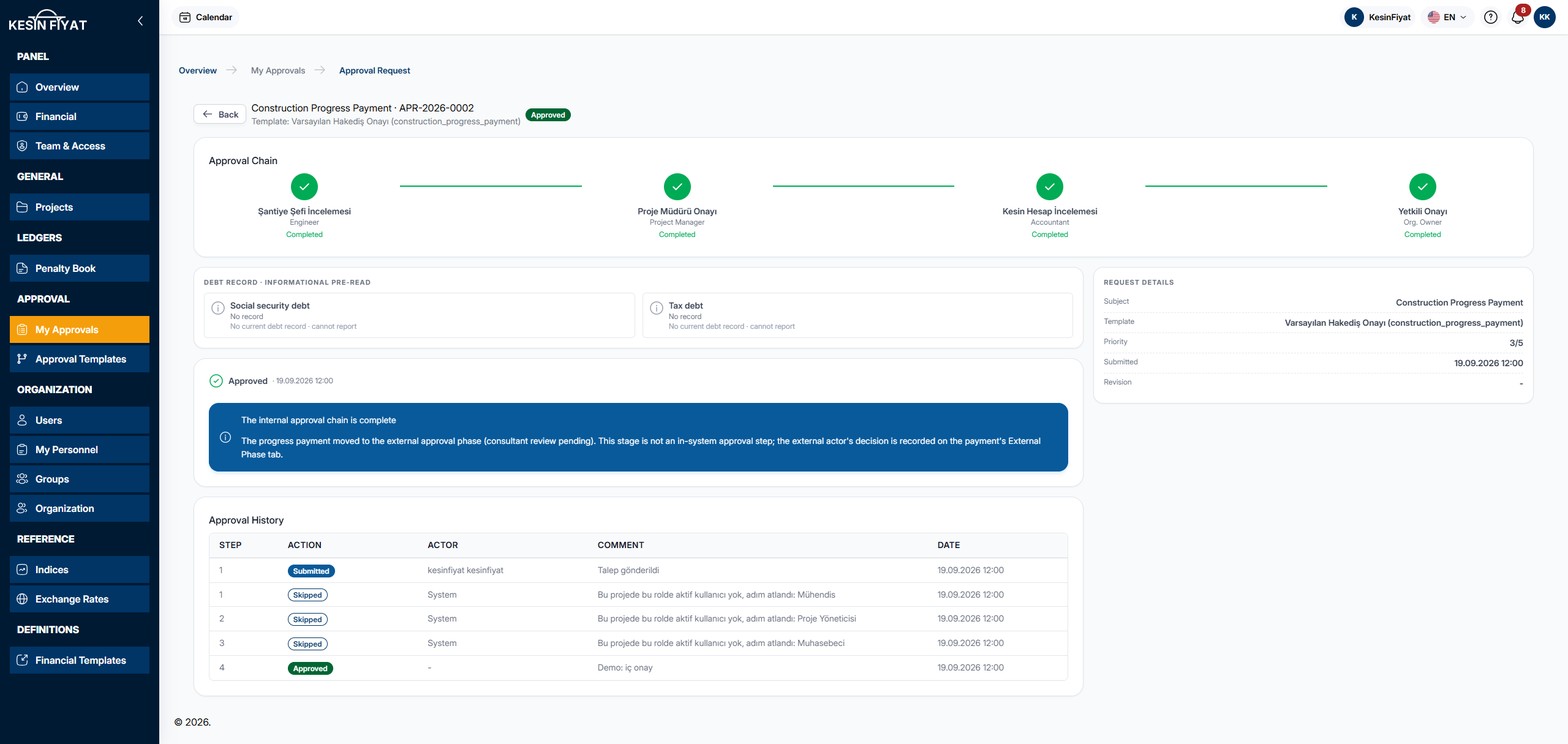
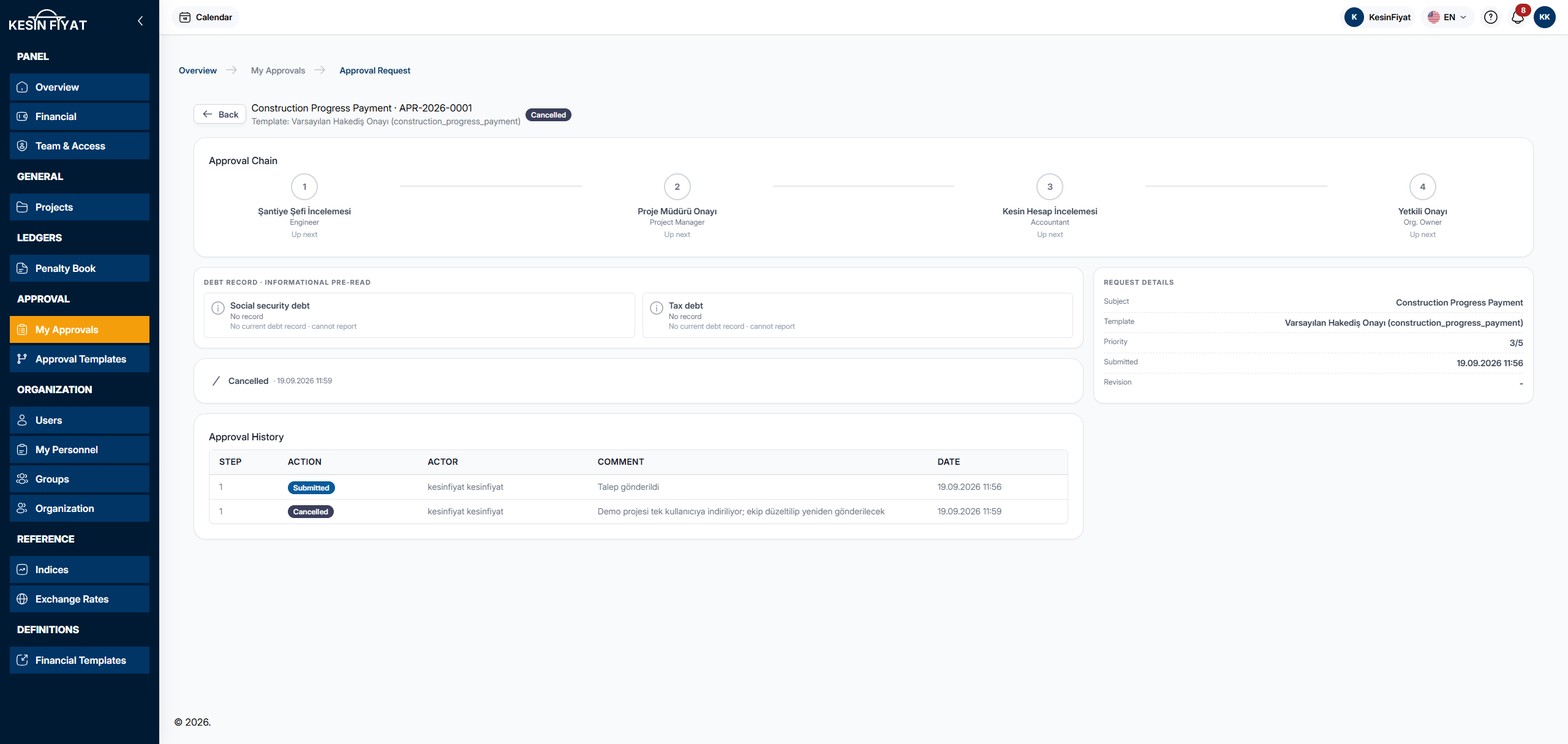
The heading shows the type of record that entered approval and the approval number. Below it is the template the approval follows, and next to it the stage badge. If the approval was returned and sent again, a version badge also appears.
The details card on the right shows Subject, Template, Priority, Submitted and Revision. For penalty appeals, this card also has a Go to record button that opens the appeal's page.
3. Read the approval chain
The Approval Chain shows the steps of the approval in order. Under each step you see its name, its role and where it stands: Completed, Waiting, Up next, Returned, Rejected or Escalated.
Skipped steps also appear as Completed in the chain. To see whether a step was really approved, check the Approval History.
4. Check the current step
If the approval is waiting, the Current step card appears. It shows the step name, which step it is and who it is assigned to. If the step is assigned to a role, the card says that people with that role who can access this project decide it.
If the step has a time limit, the due date and the hours left or overdue are shown. If the step asks something extra of you, its label appears on the card: Signature required (PIN), Attachment required, Comment required, Parallel step or Reservation allowed.
If the step is not assigned to you, a This step is not yours message appears and the Approve, Return and Reject buttons cannot be pressed. To take the step over, use the Reassign button.
5. Approve
Click Approve. The page does not change; a section opens under the card.
- You can write a Comment (optional). If the step asks for a comment, the box is called Comment and cannot be left empty.
- If the step asks for a document, add at least one file in the Attachment box. PDF, Excel, PNG and JPG files can be attached, up to 20 MB.
- If the step asks for a signature, type your PIN in the Signature PIN (4 digits) · fresh for every signature box.
The Approve button at the bottom of the section sends the approval. To go back, click Cancel.
After approving, a message tells you which step was approved and which step the approval is at now, and with whom.
6. Return, reject or reassign
- Return: the Return reason is required. From Step to return to (optional) you can choose an earlier step. If you leave it empty, the approval goes back to the first step. The correction is made on the record's own screen.
- Reject: the Rejection reason is required. Rejecting closes the approval.
- Reassign: choose from New role or or a specific user, and write a Reason.
The Return and Reject buttons appear only if the step allows them. The button at the bottom of each section sends it, and Cancel closes the section.
7. Cancel the approval
The cancel button sits at the right end of the card. Clicking it opens a warning and a Cancellation reason box. The reason is required.
8. Read the result and the history
A closed approval shows a result card: Approved, Rejected or Cancelled, with its date.
On a progress payment, when the approval chain ends, The internal approval chain is complete appears. This does not mean the progress payment is approved. The progress payment moves to the external approval phase and waits for the consultant review. The external party's decision is recorded in the industry panel, on the payment's External Phase tab.
If the approval was returned, a message says it was returned for correction. The correction is made on the record's own screen. For penalty appeals, the message has a Go to record and fix link.
The Approval History lists everything that happened to the approval: Step, Action, Actor, Comment and Date. For actions taken by the system itself, the Actor column says System. If there is duration or signature information, the Duration and Signature columns also appear. A signed step shows a Signed badge.
9. Check the debt record
On progress payments, people allowed to see debt records see the Debt record · informational pre-read bar. It shows the latest record for Social security debt and Tax debt: No debt, the debt amount, or No record.
A debt does not block the approval. It can stop the payment at the payment stage.
Things to keep in mind
- Approving, returning and rejecting can be done only by the person the step is assigned to or by people in that role. On a step assigned to a role, you also need access to the project. The company owner and administrators do not need project access.
- The Reassign and cancel buttons stay open even when the step is not assigned to you.
- If nobody active holds the step's role in this project, the step is skipped automatically and the history says Skipped. A step that asks for a signature or a document is not skipped; it is passed to a higher role and the history says Delegated upward.
- On a step that asks for a signature, your PIN must be set up and your profile signature uploaded. The PIN is entered again for every signature.
Cannot be undone
- Cancelling cannot be undone. The approval closes and a new approval flow must be opened for the record.
- Rejecting closes the approval. If the record enters approval again, a new approval is opened.
- On the first signature step of some progress payments, the I understand this outcome and approve it without reservation box appears. The approval cannot be sent until it is ticked. If you approve without a reservation, you are deemed to accept the progress payment as it is, and your claim right for that period lapses.
Frequently asked questions
Why can I not press Approve?
The step may not be assigned to you. In that case the This step is not yours message appears. Use the Reassign button to take the step over. If the approval is closed, the buttons do not appear at all.
The chain says Completed but the history says Skipped. Why?
If nobody active holds the step's role in this project, the step is skipped. The chain shows a skipped step as Completed too. Check the history to see who approved the step.
Where do I set up my signature PIN?
The PIN and the profile signature are set up under Profile > Security. If either one is missing, a step that asks for a signature cannot be approved.
Is the progress payment approved?
When the approval chain ends, the progress payment moves to the external approval phase, so it is not fully approved yet. The consultant's decision is recorded in the industry panel, on the payment's External Phase tab.