
Penalty Book
The Penalty Book shows the penalty records of all your company's projects in one list. Penalties are not created, edited or deducted from progress payments here. That work is done in the industry panel.
The only thing you can do in this book is appeal a penalty. An appeal is opened from the penalty's own page.
The screen has two tabs: Penalties and Appeals.
When to use it
- To see the penalties of all company projects in one place.
- To check the total penalty amount and how much of it has been deducted from progress payments.
- To see which penalties are under appeal and which will be deducted.
- To open a penalty's details and appeal it.
- To follow where appeals stand and how they ended.
Step by step
1. Read the summary cards
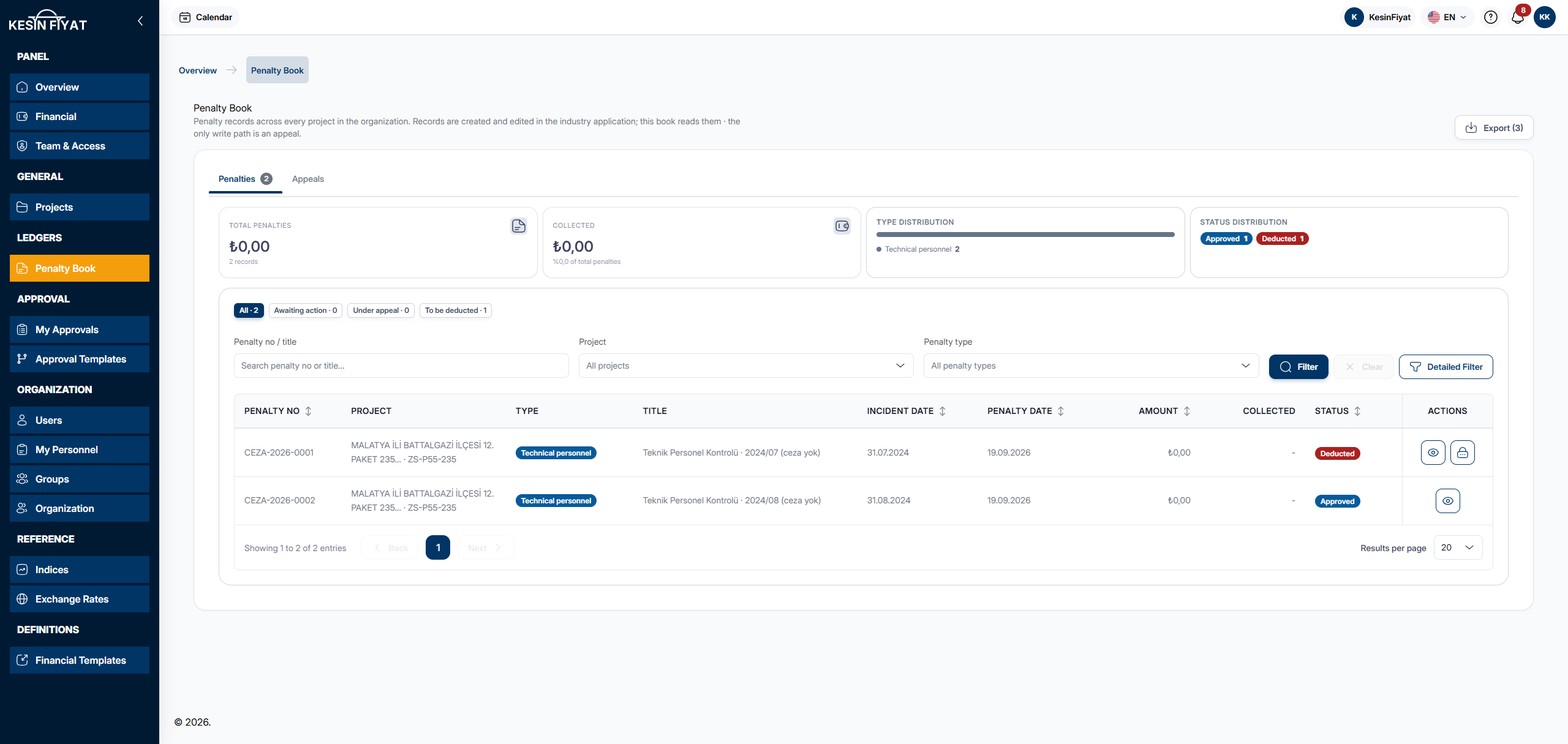
There are four cards at the top of the Penalties tab.
- Total penalties: the total amount of all penalties and the number of records.
- Collected: the amount deducted from progress payments and what share of the total penalties it is.
- Type distribution: how the penalties spread across types. The four types with the highest amounts are shown separately, the rest are grouped into one piece. The number of penalties is written next to each type.
- The last card shows how many penalties are at each stage. Only stages that have records appear.
2. Narrow the list with the quick buttons
The buttons below the cards narrow the list by stage. Each button shows how many records it holds.
- All: every penalty.
- Awaiting action: penalties that are Draft or Served.
- Under appeal: penalties that are Under Appeal or In Review.
- To be deducted: penalties that are Approved or Reduced.
The numbers on the buttons do not change with your search or choices. They always count all records.
3. Find a penalty
Type a penalty number or part of its title in the Penalty no / title box. You can also choose from the Project and Penalty type boxes.
The Filter button narrows the list to your choices. The Clear button clears them.
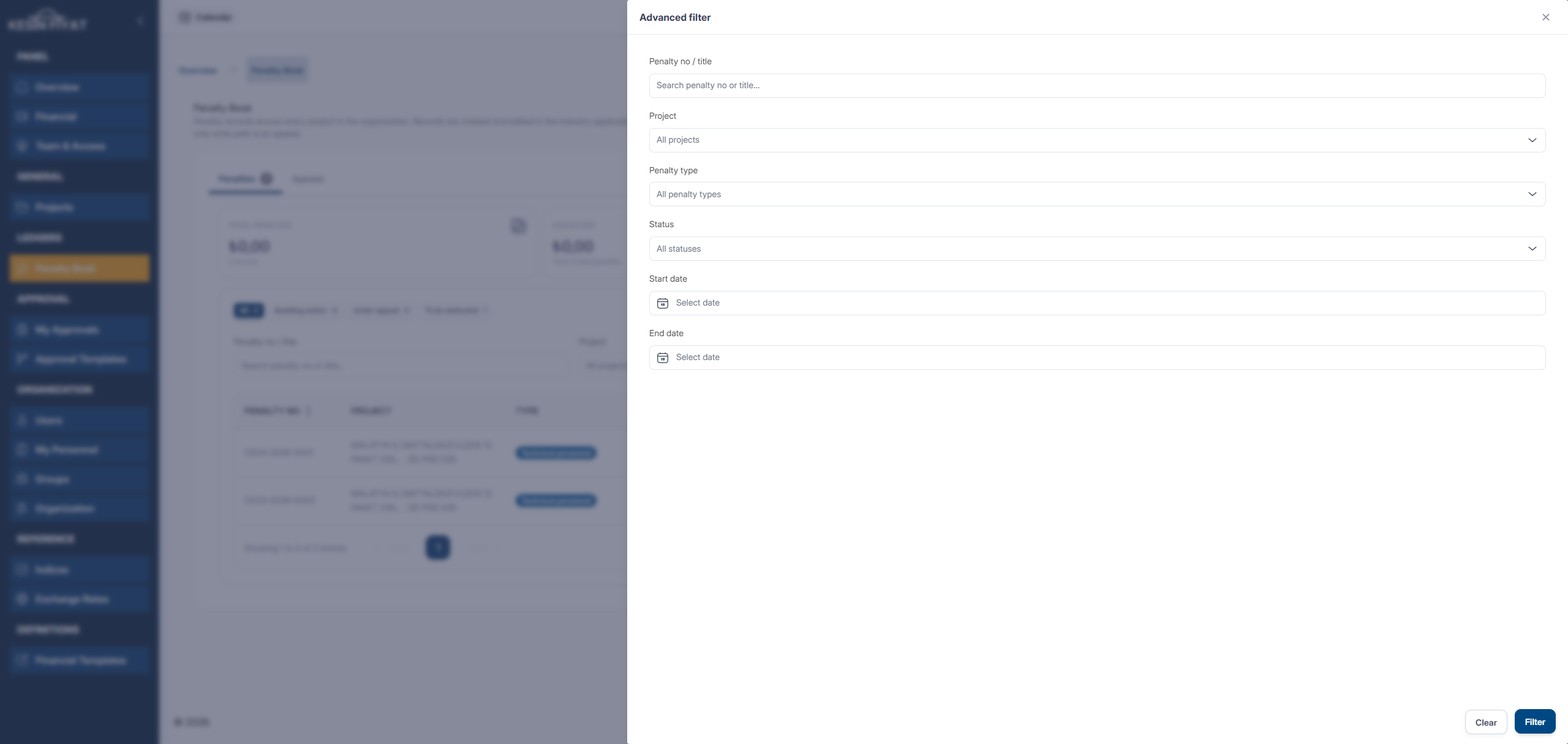
The Detailed Filter button opens a window on the side. There you can also choose the stage, the Start date and the End date. The dates look at the penalty date. If the two dates are not chosen together, the list is not narrowed by date.
If no penalty matches, you see No matching penalty record. Use the Clear Filters button to go back to the full list.
4. Read the list
Each row shows Penalty No, Project, Type, Title, Incident Date, Penalty Date, Amount, Collected and the stage. If nothing has been deducted from the penalty yet, the Collected column shows a dash.
The stage badge puts the penalty at one of eight stages:
- Draft: the penalty was prepared in the industry panel and has not been served yet.
- Served: the penalty was served to the contractor. The appeal term starts on this date.
- Under Appeal: an appeal was opened against the penalty and has not been sent for approval yet.
- In Review: the appeal was sent for approval and is waiting for a decision.
- Approved: the penalty is final and waiting to be deducted from a progress payment.
- Reduced: the amount went down after an appeal. The penalty will still be deducted.
- Cancelled: the penalty was cancelled and will not be deducted.
- Deducted: the penalty was deducted from a progress payment.
Click the Penalty No, Incident Date, Penalty Date, Amount or stage headings to sort the list.
5. Open a penalty's page
Click the eye button at the end of the row. The penalty's own page opens. Appeals are made from that page.
On Deducted and Cancelled penalties, a lock also appears next to the eye button. These records are closed and no further action can be taken on them. Clicking the lock also opens the penalty's page.
6. Check the Appeals tab
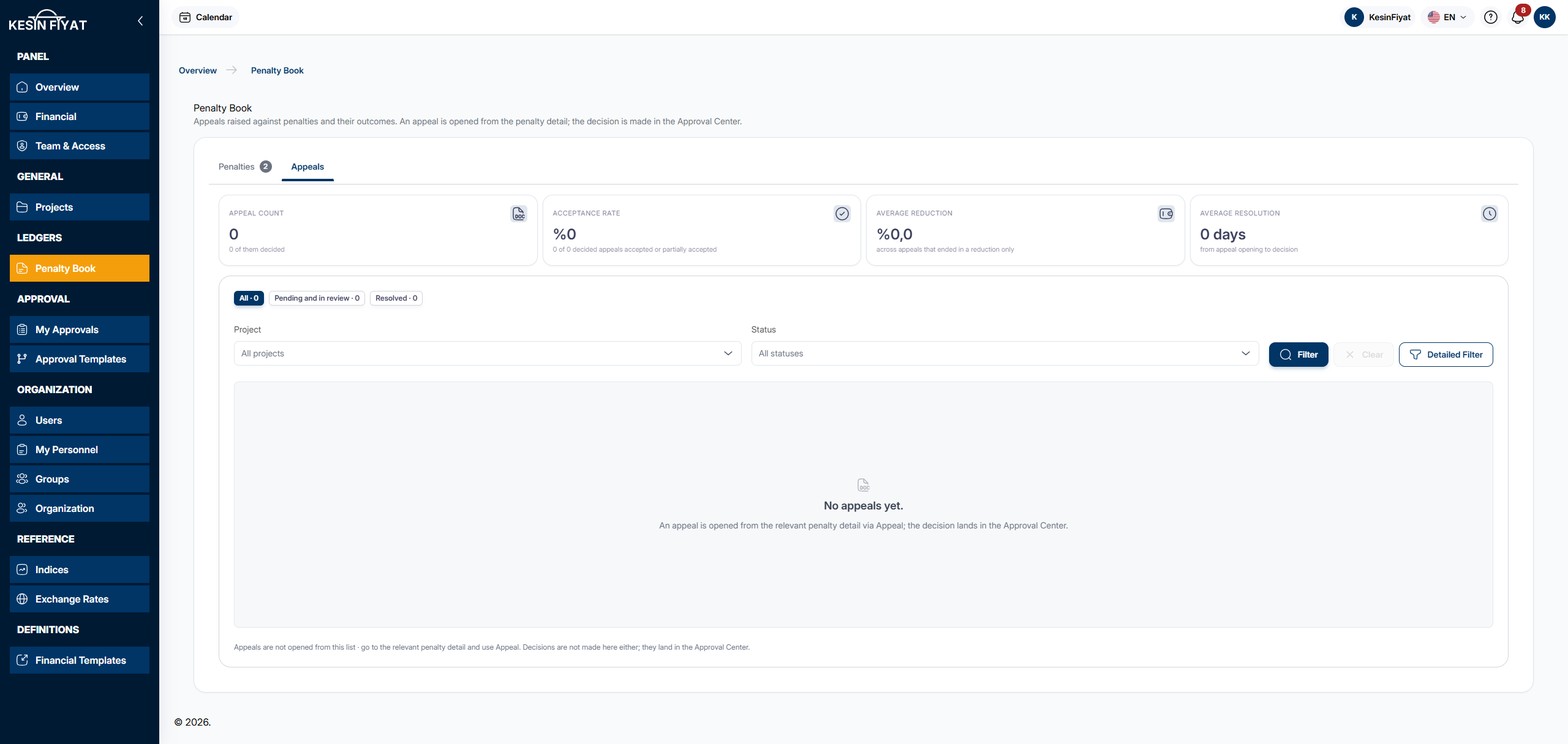
The Appeals tab shows the appeals raised against penalties and their outcomes. There are four cards at the top.
- Appeal count: all appeals and how many of them have been decided.
- Acceptance rate: the share of decided appeals that were accepted or partially accepted. Withdrawn appeals are left out of this figure.
- Average reduction: the average reduction rate of appeals that ended in a reduction only.
- Average resolution: the average number of days from opening an appeal to its decision.
The quick buttons are All, Pending and in review and Resolved. You can narrow the list with the Project box and the stage box. In the Detailed Filter window you can also narrow it by appeal date. This tab has no search box.
The list shows Appeal No, Project, Linked penalty, Original amount, Requested action, Requested by, Appeal date and the stage. Original amount is the penalty amount at the moment the appeal was opened. It does not change even if the penalty is reduced later.
The stage badge puts the appeal at one of six stages: Pending, In Review, Accepted, Partially Accepted, Rejected and Withdrawn. Open an appeal's details with the eye button at the end of the row.
7. Export the list
The Export button on the Penalties tab downloads the list as an Excel file. The file contains every penalty that matches your search and choices.
Besides the list columns, the file also includes Net delay, Legal basis and Contract clause.
You can export at most 3 times per hour. The number on the button shows how many exports you have left this hour. If the list has no records, the button cannot be pressed.
Things to keep in mind
- The company owner, administrators, accountants, project managers and site engineers see the Penalty Book. Tender officers do not see this screen.
- Only the company owner, administrators and accountants can appeal a penalty. Project managers and site engineers can only read the book.
- Only the company owner sees the Export button. This button is not on the Appeals tab.
- Suspended projects do not appear in the Project box. Their penalties still show in the list.
- A Reduced penalty is not closed. Its amount went down, but it will still be deducted from a progress payment.
Frequently asked questions
Why is there no button to create a new penalty?
Penalties are created, edited and deducted from progress payments in the industry panel. The Penalty Book only reads these records. A penalty created in the industry panel appears here automatically.
Why does clicking a row not open the penalty?
A penalty opens with the eye button at the end of its row. Clicking the row itself does not open anything.
Where do I open an appeal?
An appeal is opened with the Appeal button on the penalty's own page. There is no button for opening an appeal on the Appeals tab.
The decision is not made on this screen either. Once the appeal is sent for approval it lands in My Approvals, where the decision is made. The outcome is applied to the penalty automatically.
What do I see if there are no penalties?
Instead of the list you see No penalty records yet. Below it, a note reminds you that penalty records are created in the industry panel.