
Approval Templates
An approval template decides which steps a record goes through when it enters approval, and who approves each step. The Approval Templates screen lists every template in your company.
Records such as progress payments, penalty appeals and advances use one of these templates when they enter approval.
When to use it
- To see your company's approval flows.
- To build a new approval template or start from a preset.
- To edit, deactivate or delete a template.
Step by step
1. Read the list
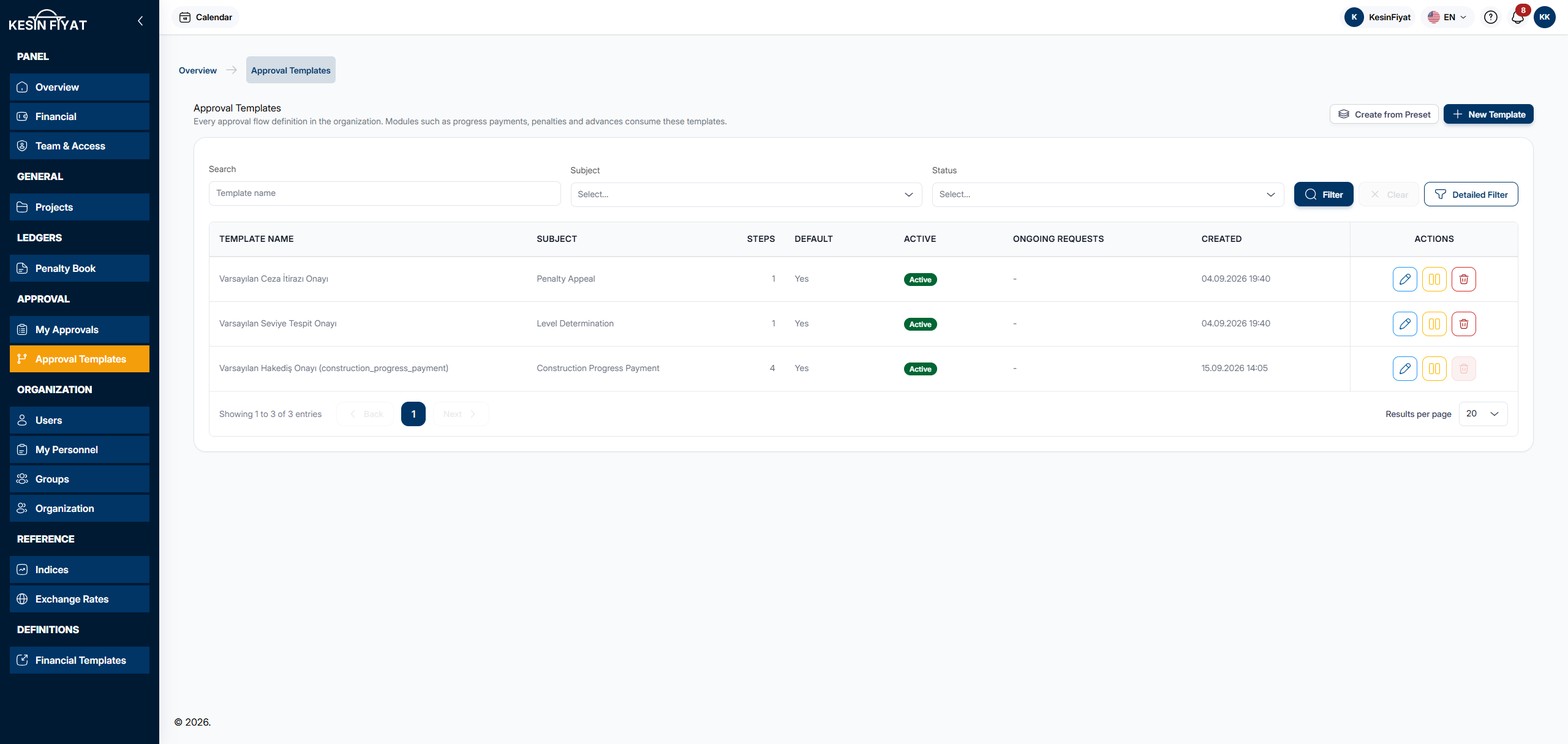
Each row shows Template Name, Subject, the number of Steps, Default, Active, Ongoing Requests and Created.
Subject shows which record type the template is for, for example Construction Progress Payment or Penalty Appeal. A template with Yes in the Default column is the default template for that subject. The Active column shows whether the template is open for use (Active) or closed (Passive).
The Ongoing Requests column counts the approvals opened with this template that are still running: draft, pending and escalated ones. While there are any, steps locked is written next to the number and the template's steps cannot be changed.
2. Find a template
Type a template name in the Search box. You can choose from the Subject box, and from the box next to it to show active or passive templates. In the Detailed Filter window you can also choose Project. Suspended projects do not appear in that box.
If no template matches, you see No matching template. Use the Clear Filters button to go back to the full list.
3. Start from a preset
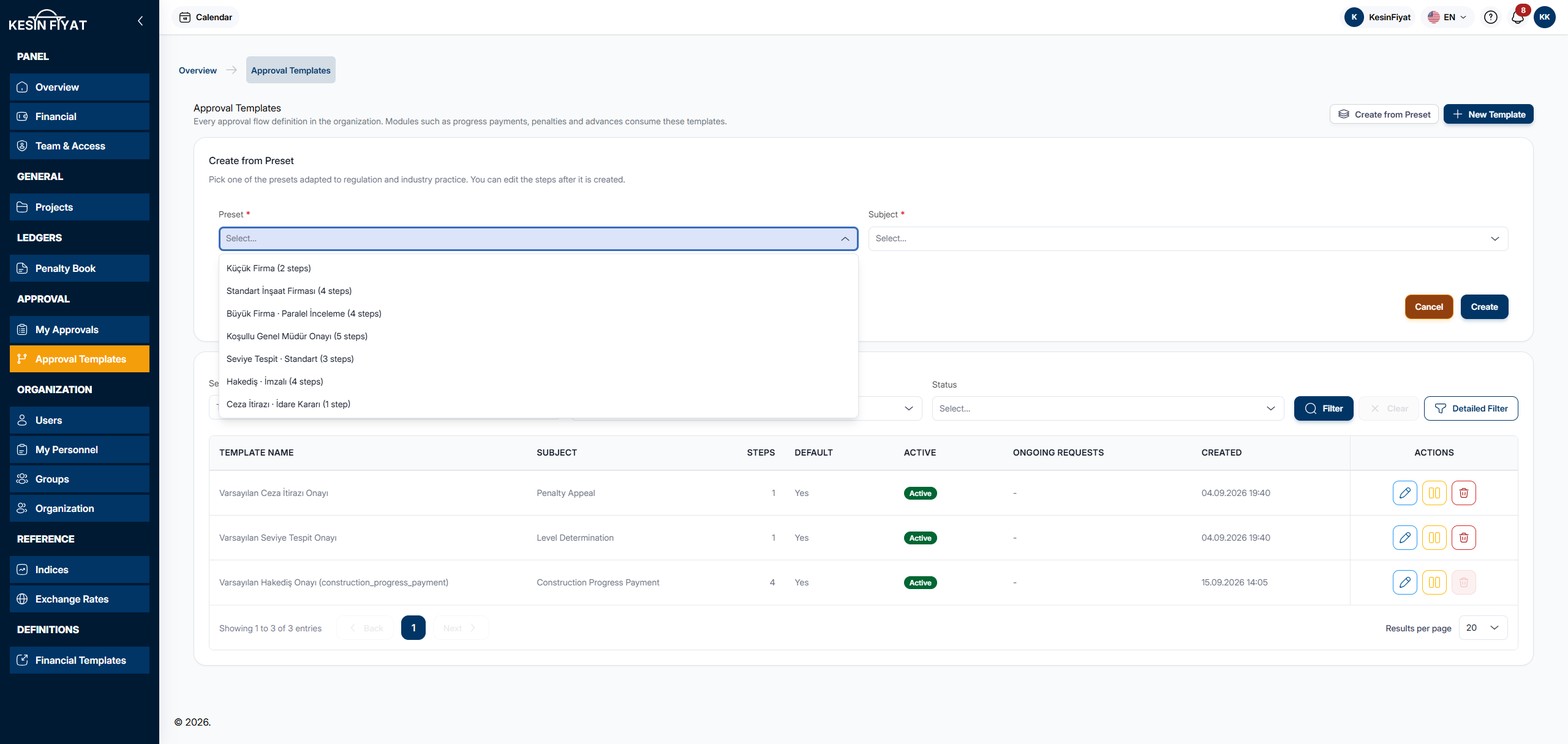
The Create from Preset button opens a section above the list.
- Choose one from Preset: Küçük Firma, Standart İnşaat Firması, Büyük Firma · Paralel İnceleme, Koşullu Genel Müdür Onayı, Seviye Tespit · Standart, Hakediş · İmzalı or Ceza İtirazı · İdare Kararı. The number of steps is written next to each.
- From Subject, choose which record type the template is for.
- To make it the default template for this subject, turn on Default for this subject.
The Create button builds the template and opens its edit page, where you can change the steps. To close the section, click Create from Preset again.
4. Build a new template
The New Template button opens an empty template page where you define the steps yourself. It is explained on the New Approval Template page.
5. Edit, deactivate or delete a template
The buttons at the end of each row:
- The pencil button opens the template's edit page.
- Deactivate closes the template for use. On a passive template, Activate appears instead.
- Delete removes the template for good. A confirmation window opens first.
If at least one approval was opened with the template, the Delete button cannot be pressed. The template cannot be deleted even if those approvals are closed or cancelled. Deactivate it instead.
6. Know how a template is chosen
When a record enters approval, the template is chosen like this:
- If there is an active template linked to the record's project, that one is used. If there are several, the default one is chosen, and if none is default, the oldest.
- Otherwise the company-wide default template for that subject is used.
Passive templates are never chosen. For subjects such as progress payments and penalty appeals, if a record enters approval while there is no template at all, the system builds a default template for that subject by itself.
Things to keep in mind
- The company owner, administrators, project managers, accountants, tender officers and site engineers see Approval Templates. Only the company owner and administrators can build, change, deactivate and delete templates. Other roles see the buttons, but the action cannot be completed.
- A subject can have only one company-wide default template. For project templates, each project can also have one default. A passive default template still holds this place.
- Before deactivating the default template of a subject, build a new one to replace it. Otherwise records of that subject may not be sent for approval.
- The steps of a template with ongoing approvals cannot be changed. To change the steps, build a new template and deactivate the old one.
Cannot be undone
- Delete removes the template for good. This cannot be undone.
Frequently asked questions
The list has default templates I did not build. Why?
When a record enters approval while its subject has no template, the system builds a default template for that subject. You can edit these templates.
Why can I not delete a template?
A template cannot be deleted if at least one approval was opened with it, even a closed one. Hover over the faded Delete button to see how many. You can deactivate the template.
I press New Template but cannot save. Why?
Only the company owner and administrators can build and change templates. Other roles see the buttons, but saving is not possible.