
Financial
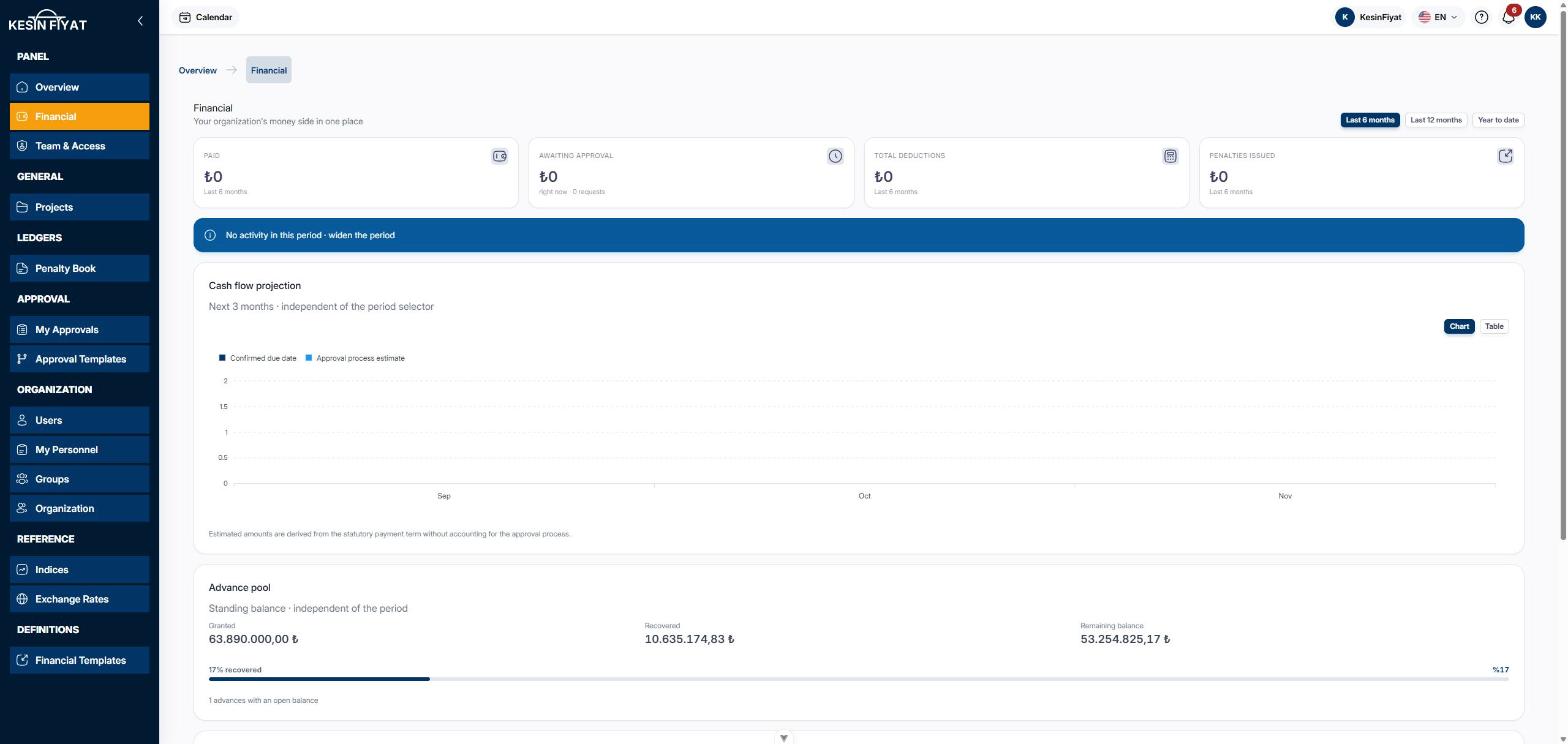
The Financial screen brings your company's money side together in one place. You follow what was paid, what is awaiting approval, deductions, penalties, the cash flow of the coming months and advances here.
Nothing is changed on this screen. Work such as preparing a progress payment is done in the industry panel.
When to use it
- To see how much was paid and deducted in a period.
- To check the total of progress payments awaiting approval.
- To see how much payment is expected in the next three months.
- To follow upcoming due dates and index announcement days.
Step by step
1. Choose the period
There are three buttons to the right of the title: Last 6 months, Last 12 months and Year to date. When the screen opens, Last 6 months is selected.
The period you choose changes the summary boxes, the chart and the deduction cards. The cash flow projection, the advance pool and upcoming items do not depend on the period. Their card titles say so too.
2. Read the summary boxes
The Paid box shows the net amount paid in the selected period. The date of payment is what counts.
The Awaiting approval box shows the net total of progress payments that are in approval or payment, and how many there are. This box does not depend on the period. It shows the situation right now.
The Total deductions and Penalties issued boxes are totals for the selected period.
3. Look at the accrual chart
The Accrual · Deductions · Net chart draws three columns for each month: Accrued (issued), Deductions and Net accrual. Actually paid is a separate line on top of them.
The first three columns are counted by the month the progress payment was issued. Actually paid is counted by the month the payment was made. That is why the amount issued and the amount paid in a month can differ.
Use the Chart and Table buttons to see the same figures as a table.
4. Review the deduction, penalty and appeal cards
Deduction breakdown splits deductions into five parts: Penalty, Retention, Advance recovery, Tax & withholding and Other. An award added to the contractor is not a part. It is written on a separate line at the bottom of the card.
The Penalties issued card shows the penalty total for the period, the number of penalties and the monthly trend. The Penalty Book button opens the penalty list.
The Appeal rate card shows the total number of appeals, their stages, the Win rate and the amount Recovered through appeals. The Appeals button opens the appeal list.
If you have more than one industry, the Revenue by industry card also appears. It shows how the paid amount is spread across industries.
5. Read the cash flow projection
The Cash flow projection shows the next three months. Each month has two parts.
Confirmed due date is the solid part. It is the real due date of progress payments that have passed approval.
Approval process estimate is the striped part. It is calculated from the statutory payment term of progress payments awaiting approval. How long approval takes is not included, so the real date can move later.
The Table button shows the same figures month by month as a table.
6. Check the advance pool
The Advance pool card shows the Granted, Recovered and Remaining balance amounts. The bar shows what percentage of the advance has been recovered. Below it you see how many advances still have a balance.
This card does not depend on the period. If the company has no advances, the card is not shown.
7. Follow upcoming items
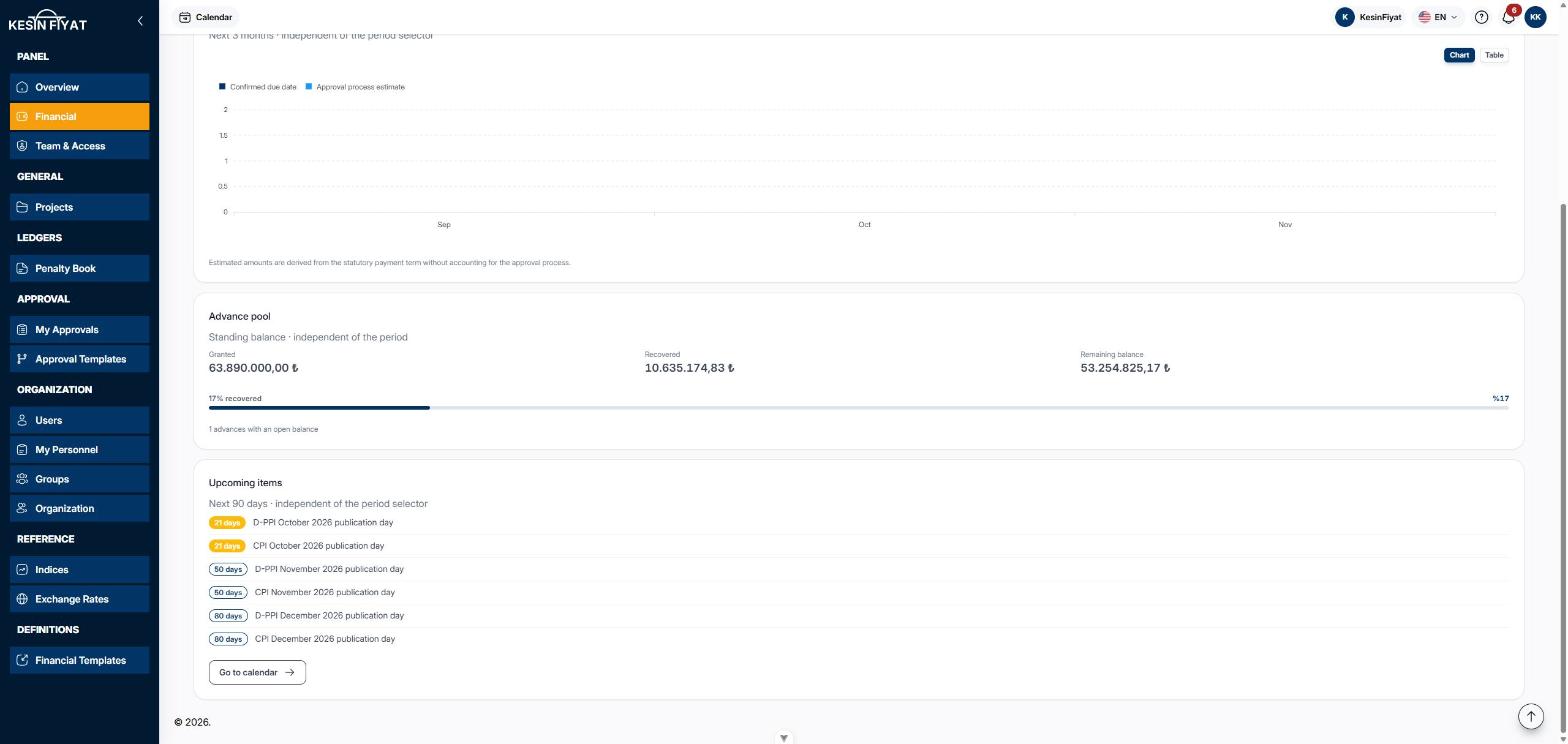
Upcoming items lists the financial dates in the next 90 days, ordered by days left. Bond due dates, progress payment due dates, appeal deadlines, material usage deadlines and index announcement days appear here.
Items with 7 days or less left are red, items with 30 days or less are yellow. For items whose date has passed, the number of days overdue is shown.
The Go to calendar button opens the calendar. The full list is there.
Things to keep in mind
- Only the company owner, administrators, accountants and project managers can see this screen. Other roles do not see Financial in the menu. If they try to open the screen another way, a no permission page opens.
- The figures are for following up only. Progress payment and payment work is done in the industry panel.
- Subscription renewal dates are not part of upcoming items.
Frequently asked questions
All boxes show zero and it says "No activity in this period". Why?
No progress payment was issued and no payment was made in the selected period. Choose a longer period.
In this case the chart, deduction, penalty and appeal cards are not shown. The cash flow projection, the advance pool and upcoming items are still shown.
What do I see if the company has no progress payments at all?
A single info bar appears instead of the cards: No progress payment has been issued yet. Create your first one in the industry app.
Why does the amount awaiting approval not change with the period?
This amount is the balance right now. If it were limited to the period, a progress payment submitted months ago and still waiting would drop out, and the debt would look settled.
Why is the win rate not shown?
If no appeal has been decided, you see No appeal has been decided yet instead of a rate. Withdrawn appeals are not counted in the rate.