
Edit Approval Template
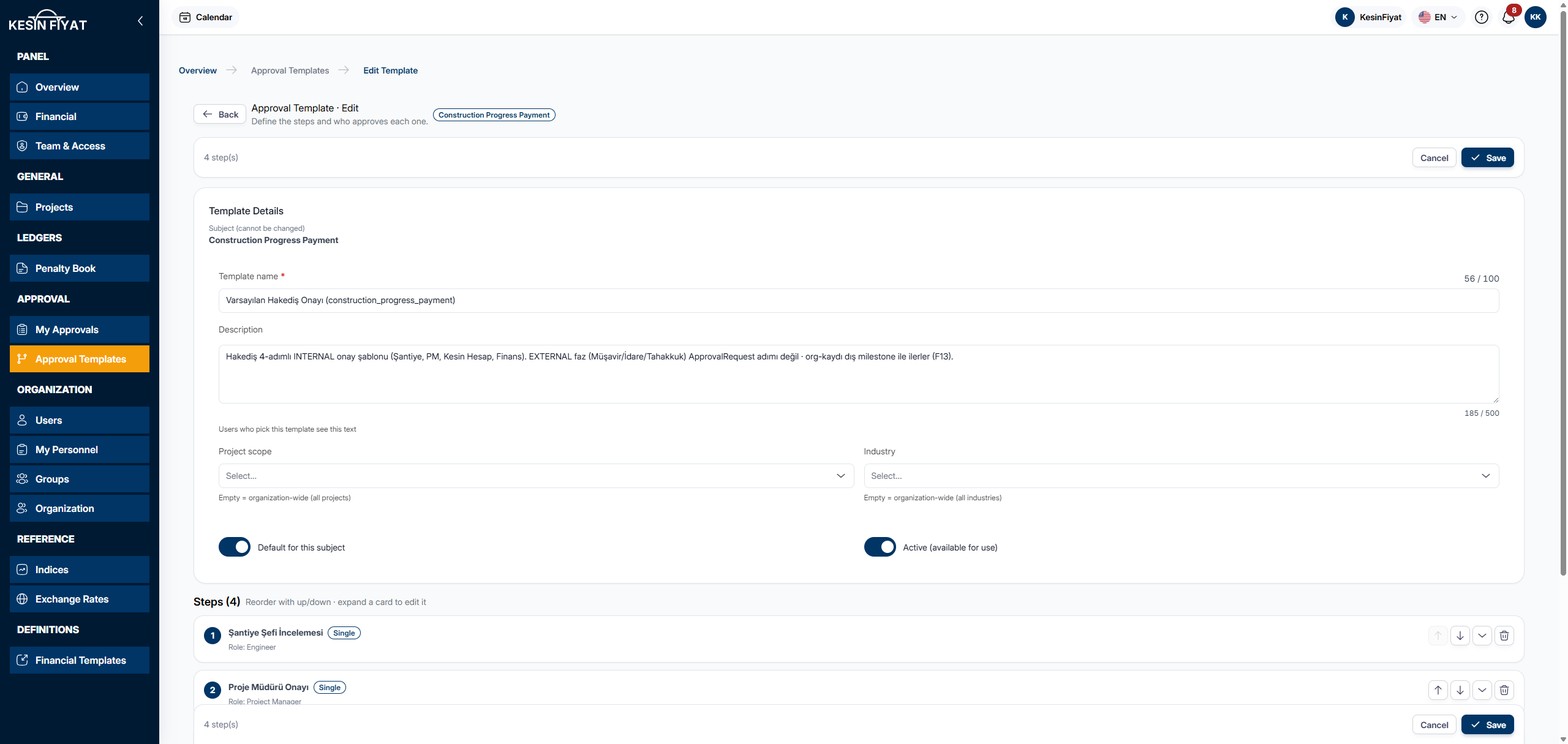
On this page you change the details and steps of an existing approval template. The page has the same layout as the New Approval Template page. The differences are that the subject cannot be changed, and that the steps are locked on a template with ongoing approvals.
When to use it
- To change a template's name, description or scope.
- To make a template the default or close it for use.
- To add or remove steps, or change their order or rules.
- To adapt a template you built from a preset to your company.
Step by step
1. Open the page
On the Approval Templates screen, click the pencil button at the end of the row. A template you create from a preset also opens on this page as soon as it is built.
2. Change the template details
The subject of the template is shown next to the heading. At the top of the card, Subject (cannot be changed) is written: the subject cannot be changed on this page. For a different subject, build a new template.
Template name, Description, Project scope, Industry, Default for this subject and Active (available for use) are filled in as on the New Approval Template page.
3. Edit the steps
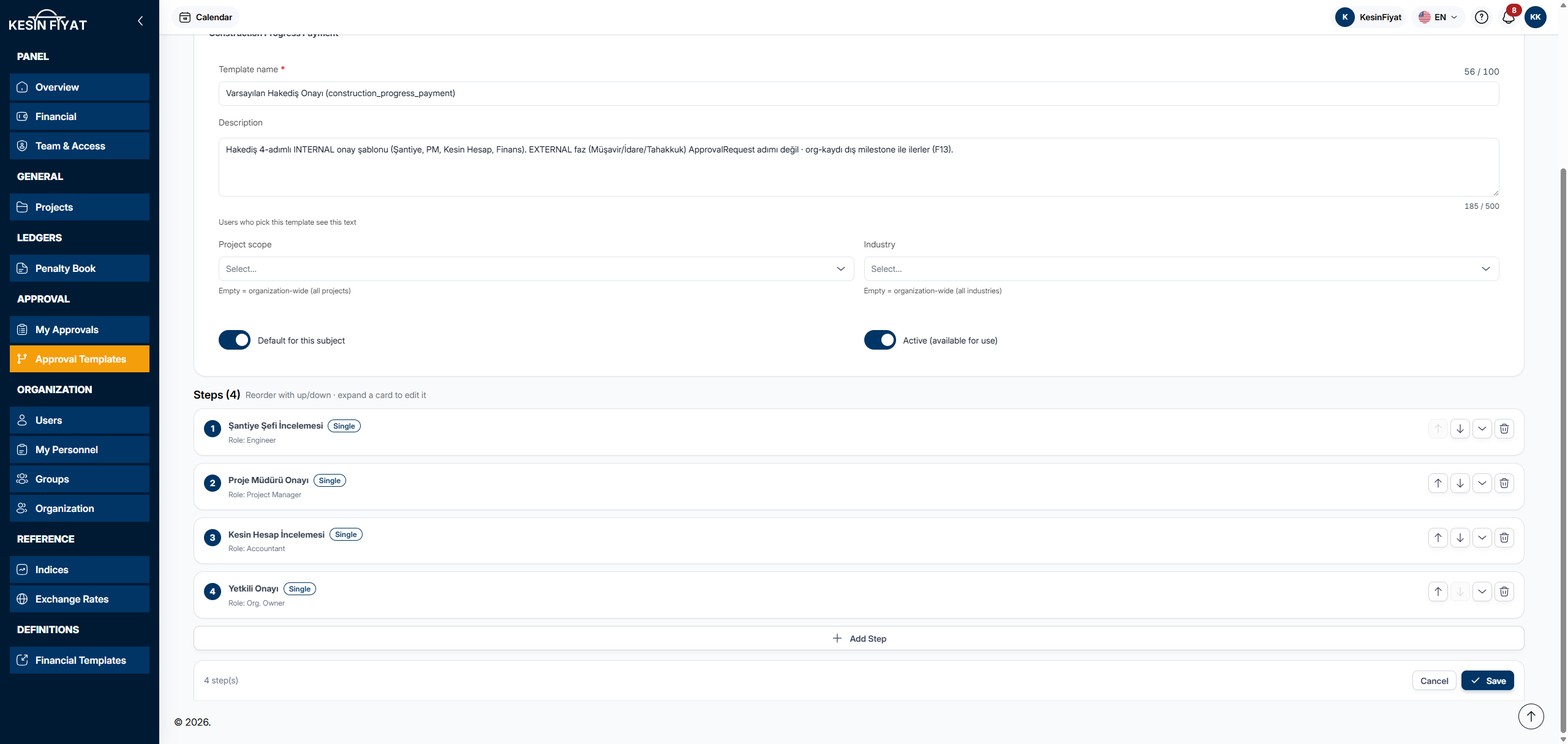
The steps arrive as closed cards. Each card shows the step's order, name, type and who it is assigned to. The chevron button opens the card. The boxes and rules are the same as on the New Approval Template page.
Use the arrows on the right of a card to move the step up or down. The bin button deletes the step. Add Step adds a new step to the end of the list.
4. Recognise a locked template
If the template has an ongoing approval, a warning appears at the top of the page saying that its steps cannot be changed. Draft, pending and escalated approvals cause this lock.
On a locked template, the step cards do not open, the move and delete buttons are hidden, and Add Step does not appear. steps are locked is written next to the number of steps. Under a card, the step's rules are summarised if it has any, such as Comment required, Cannot be rejected or Cannot be returned.
The name, description, scope, default and active settings can still be changed. To change the steps, build a new template and deactivate this one.
5. Save
Save stores your changes and returns to the Approval Templates list. On a locked template only the details are saved; the steps do not change.
The Cancel and Back buttons open a confirmation window. If you choose Discard, unsaved changes are lost. Go back keeps you on the page.
Things to keep in mind
- Only the company owner and administrators can change templates. For other roles the page opens, but saving is not possible.
- Changing the steps only affects approvals opened from now on. While there are ongoing approvals, the steps cannot be changed anyway.
- A subject can have only one company-wide default template. If you try to save a second default for the same subject, a warning appears.
- Before closing the default template of a subject, build a new one to replace it. Otherwise records of that subject may not be sent for approval.
Frequently asked questions
Why can I not add a step?
If the template has ongoing approvals, its steps are locked. The name, description, scope, default and active settings can still be changed. To change the steps, build a new template and deactivate this one.
Why can I not change the subject?
The subject is chosen when the template is built and cannot be changed later. For a different subject, build a new template.