
Project file
The project file is a single project's page in this panel. At the top is the project's record, and below it are four tabs: General, Financial, Documents and Access. The record stays in place when you switch tabs.
The project is not edited on this page. What you can do here is suspend or resume the project and give a group access to it.
When to use it
- To see a project's client, contractor, contract amount and progress in one place.
- To check bond expiry dates.
- To look at the money side of a single project.
- To download progress payment outputs and project documents.
- To see who can reach the project and to give a group access.
Step by step
1. Open the project file
On the Projects screen, click the folder button on a row, or the Project file button that appears when you open a row.
To go back to the list, use the Projects button at the top of the page.
2. Read the record
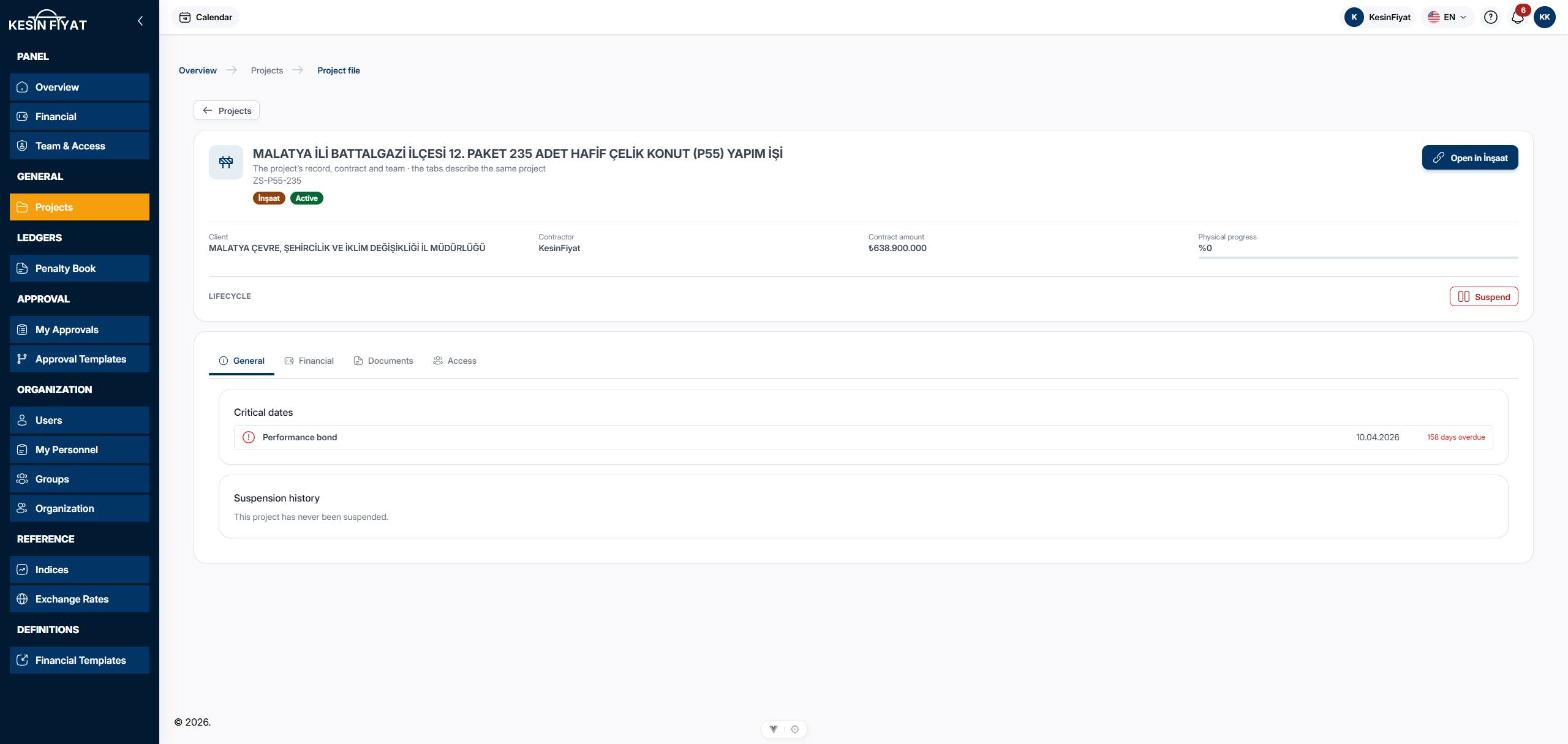
The record shows the project's name, code, industry badge and stage badge. Below them are Client, Contractor, Contract amount and Physical progress.
The Open in İnşaat button opens the project in the industry panel. Work such as progress payments and measurements is done there. If you cannot reach that industry, a note saying your access is closed appears instead of the button.
3. Look at the General tab
The Critical dates card lists the project's bond expiries: the kind of bond, the expiry date, and how many days are left or overdue. Past dates are red, and dates less than 30 days away are yellow.
The Suspension history card shows every suspension of the project: Start, Lifted, Reason and Performed by. For a suspension that is still going on, Ongoing appears instead of a lift date. If the project was never suspended, you see This project has never been suspended.
4. Look at the Financial tab
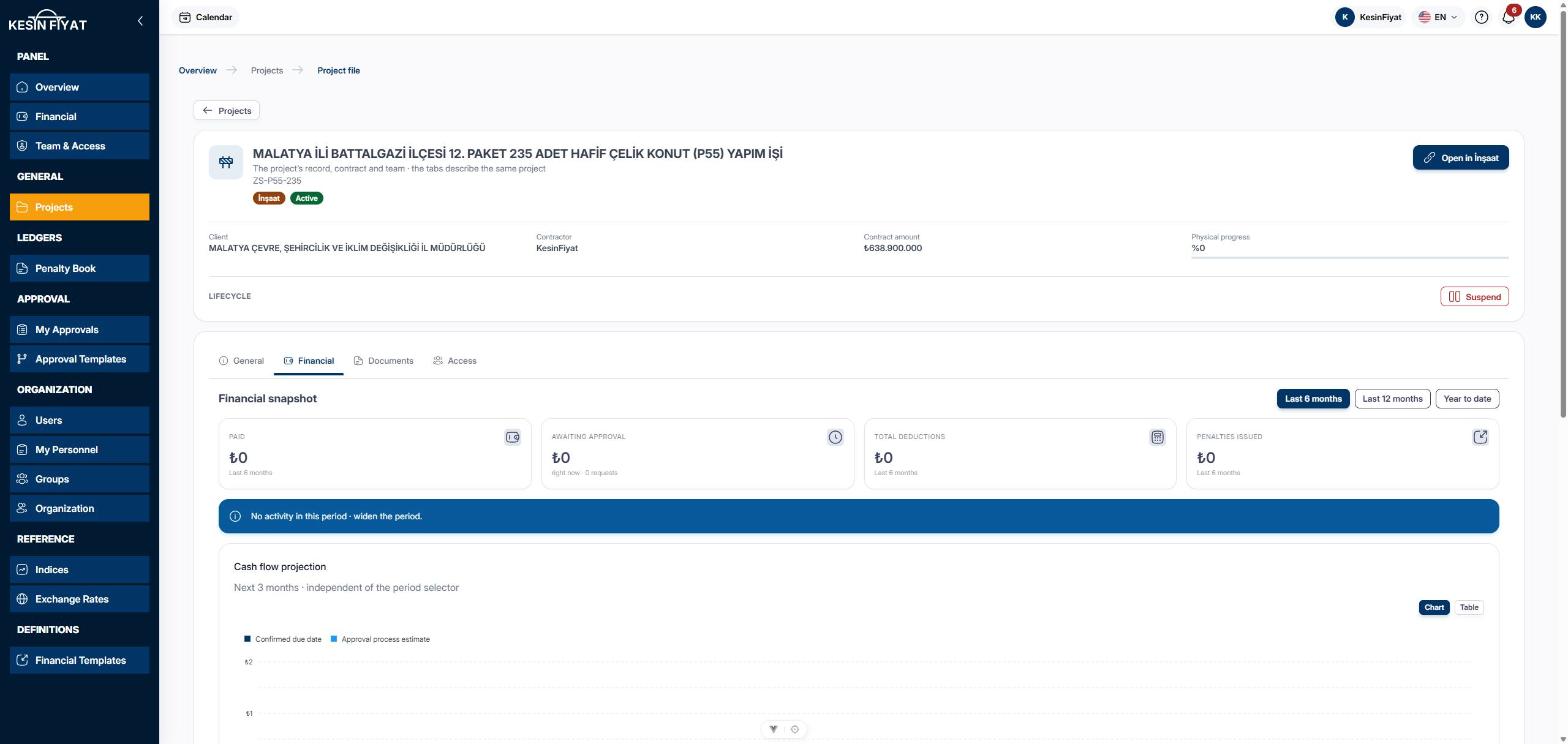
The Financial tab is the Financial screen narrowed down to this project. The ideas and cards are the same: period buttons, summary boxes, the accrual chart, the deduction, penalty and appeal cards, cash flow, the advance pool and upcoming items.
A single project has a single industry, so there is no revenue by industry card here. Progress payments are not listed one by one; for them, switch to the industry panel.
If the project has no progress payments, you see No progress payment has been issued for this project yet · payments are produced in the industry application.
5. Look at the Documents tab
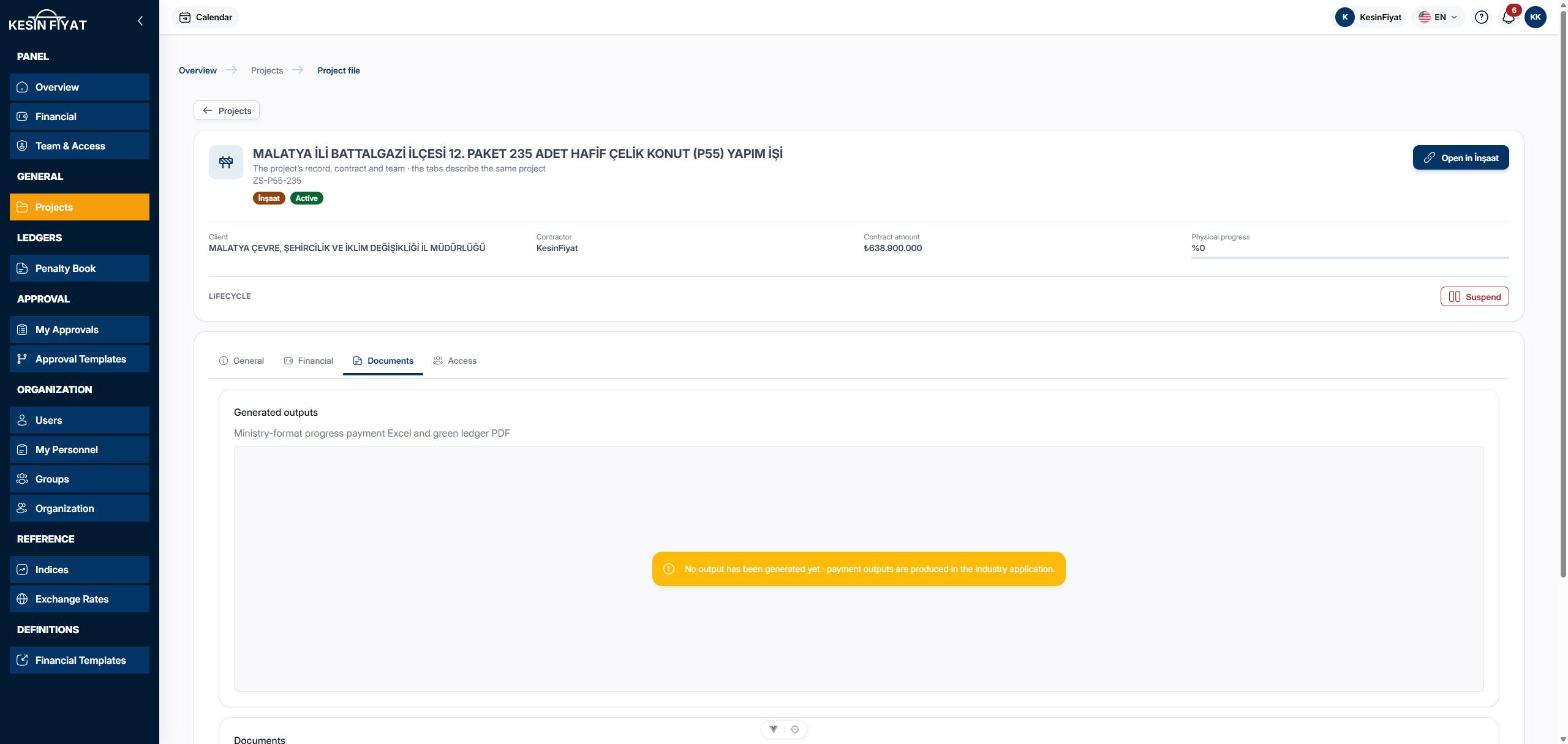
The Generated outputs table holds this project's progress payment Excel files and green ledger PDFs. The columns are Output type, Payment no, the stage of the output, Size and Generated at. An output can be Queued, Generating, Ready, Failed or Cancelled.
A Download button appears on rows that are Ready. Downloads are permanent; the link does not expire.
Open a row to see Generation details: Requested by, Requested at, Generation time and File. If the output failed, the Error details section shows what went wrong. The company owner and administrators also see the Download trail section with who downloaded the output and when.
The Documents card below holds the Cover image, Contract and Work schedule. An uploaded document shows download, a missing one shows not uploaded.
6. Manage access on the Access tab
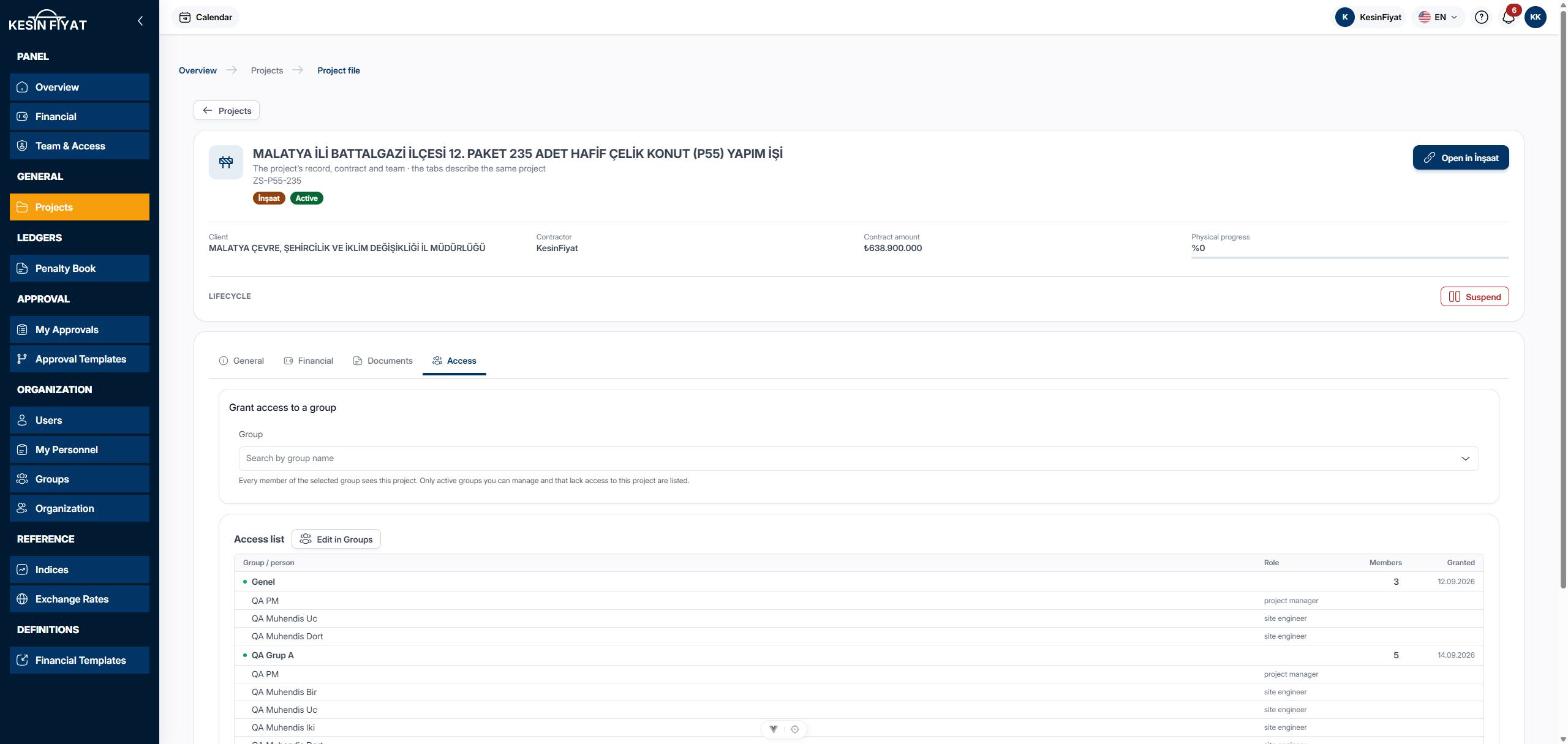
The Access list shows the groups that give access to the project and their members: Group / person, Role, Members and Granted. The Edit in Groups button opens the Groups screen. If no group gives access to the project, a red warning appears.
In the Grant access to a group card at the top, type a group name in the Group box and choose it. Access is given the moment you choose, and every member of the group starts seeing the project. There is no separate save button.
Only active groups that do not yet have access to this project are listed. The company owner and administrators can choose any of them; other roles can choose only groups they created.
7. Suspend the project or resume it
In the Lifecycle part below the record, click Suspend. No window opens on this page; the section opens inside the record.
Suspension reason is required; while it is empty, the Suspend button cannot be pressed. Suspension start date can be a past day, but a future day cannot be chosen. If you change your mind, click Cancel.
For a suspended project, a bar with the suspension date and reason appears above the record. The Resume button opens the same section. This time you choose the Suspension lift date, and the Note is optional.
Things to keep in mind
- Only the company owner, administrators, accountants and project managers see the Financial tab. For other roles the tab does not appear at all.
- Only the company owner and administrators see the Download trail section.
- The company owner, administrators, project managers and tender officers see the Suspend and Resume buttons. They appear only on active and suspended projects.
- The Grant access to a group card appears for people who are allowed to edit groups. It does not appear on suspended, accepted, completed, closed or cancelled projects.
- For what suspension does, see the suspension part of the Projects page.
Frequently asked questions
Why can I not change the project's details?
The project file is for following up. Project details, progress payments and document uploads are handled in the industry panel. Use the Open in İnşaat button to go there.
Why can I not see the Financial tab?
This tab is open only to the company owner, administrators, accountants and project managers. Other roles do not see it.
Why is there no button to generate an output?
Progress payment outputs are generated in the industry panel. This page only lets you download outputs that already exist. If there are none, you see No output has been generated yet · payment outputs are produced in the industry application.
It says "Project not found or you do not have access." Why?
The project may have been deleted, or you are not a member of a group that gives access to it. Ask your administrator to add you to the right group.