
Overview
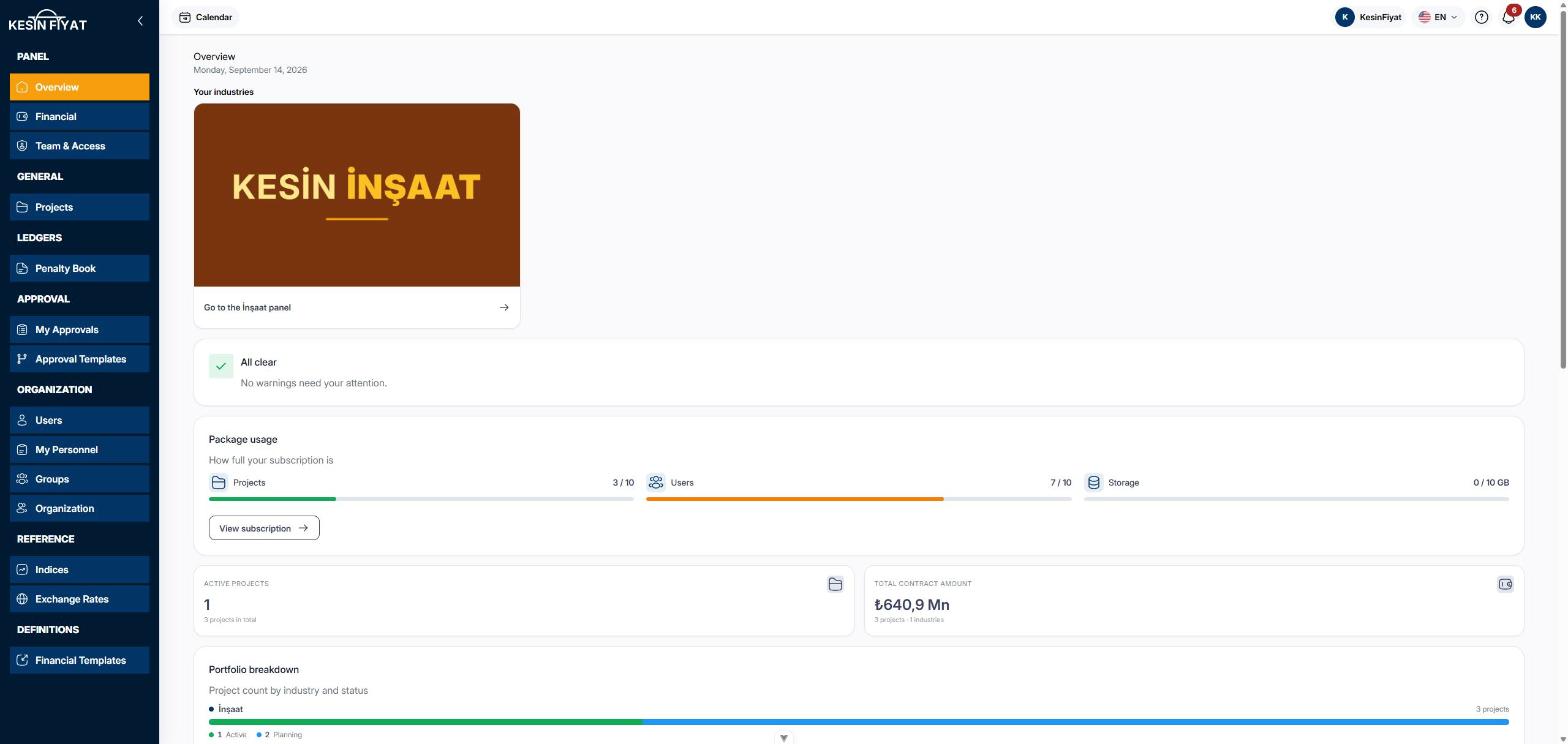
Overview is the first screen you see when you open the panel. It shows all of your company's projects in one place: what needs attention, how full your package is, and who did what recently.
Nothing is changed on this screen. Every card is a shortcut to the screen where the work is done.
When to use it
- To check how the company is doing at the start of the day.
- To see whether anything is waiting for your approval.
- To check whether your package is close to its limit.
- To jump quickly to an industry panel, for example the construction panel.
Step by step
1. Go to an industry panel
Under Your industries, each industry your company uses appears as a card. The link at the bottom of the card, for example Go to the İnşaat panel, takes you to that industry's panel. Projects are opened and run there.
2. Check the warning cards
There are four warning cards: Awaiting approval, Suspended projects, Bonds expiring and, in packages with more than one user, Seat quota.
Clicking a card opens the related list. When there is nothing to warn about, you see All clear instead.
3. Check package usage
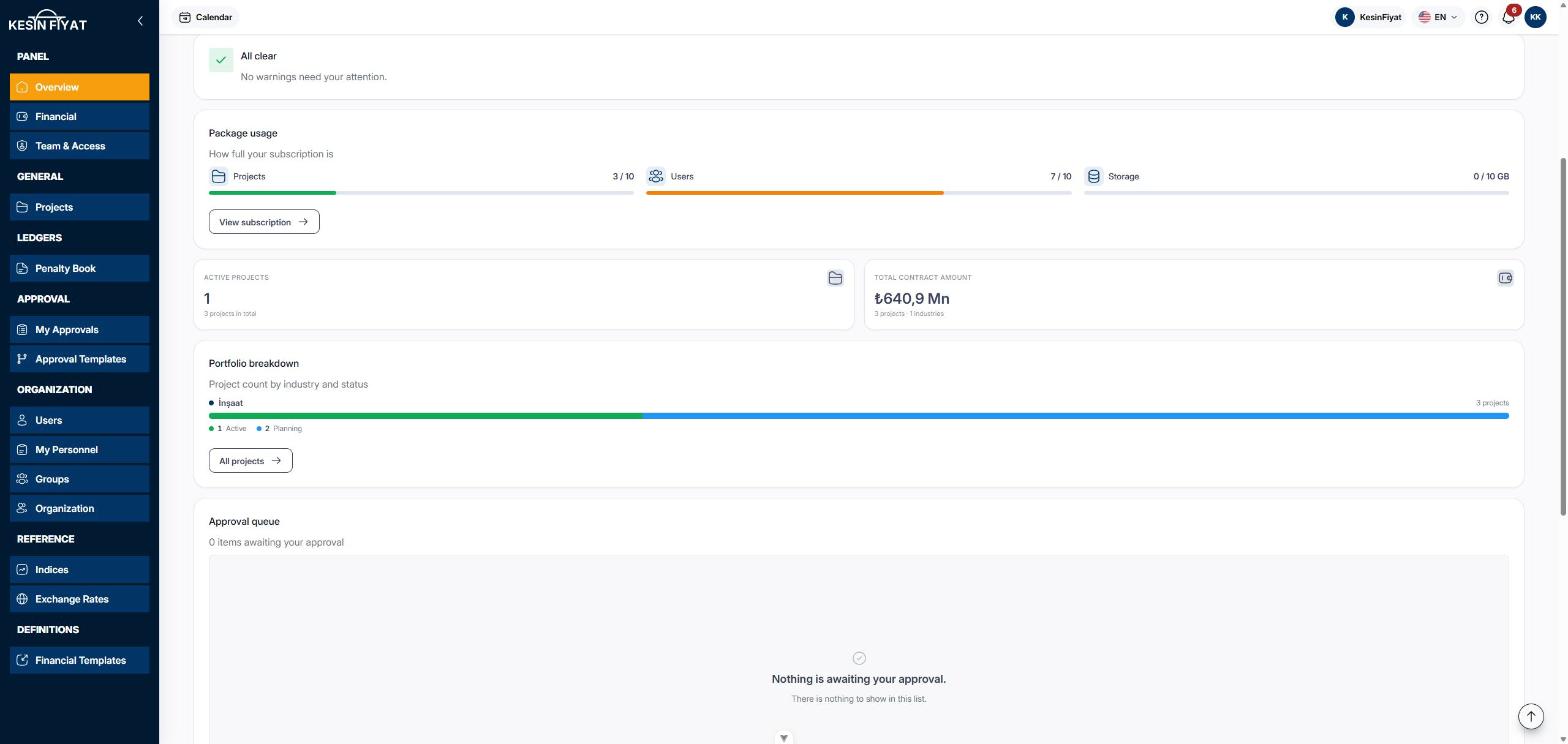
The Package usage card shows how full your subscription is: projects, users and storage.
A bar turns yellow above 70 percent and red above 90 percent. The View subscription button opens the Organization screen.
4. Read the summary boxes
The Active projects box counts ongoing projects; projects in provisional acceptance and in the warranty period are included.
Cancelled projects are not included in Total contract amount.
5. Look at the portfolio breakdown
The Portfolio breakdown card has a coloured bar for each industry. Under the bar you see how many projects are at each stage: active, suspended, planning and completed. A stage with no projects is not shown. The All projects button opens the Projects screen.
6. Open the approval queue
The Approval queue lists the items waiting for your approval: what kind of item it is, project, amount, who asked and how long it has been waiting.
Requests waiting for days are shown in yellow. Click a row, or the eye button at the end of the row, to see its details. The My Approvals button shows the full list.
7. Follow recent activity
The last card lists recent actions in the company together with the person who did them. Scroll inside the card to load older entries. A short note tells you when everything has been loaded.
Things to keep in mind
- The numbers here are for following up only. Opening a project or preparing a progress payment is done in the industry panel.
- Only people who are allowed to see approvals see the approval queue.
Frequently asked questions
I have no projects. Why does the screen look different?
If your company has no projects yet, you see a getting started list instead of this screen: first get an industry, then open your first project. In packages with more than one user, inviting your team and setting up an access group are added to the list.
Why can I not see the seat quota card?
In single user packages, the user count and the seat quota are not shown.
Where can I see how the money is doing?
Money matters are not on this screen but on the Financial screen. That screen is visible to the company owner, administrators, accountants and project managers.