
New Approval Template
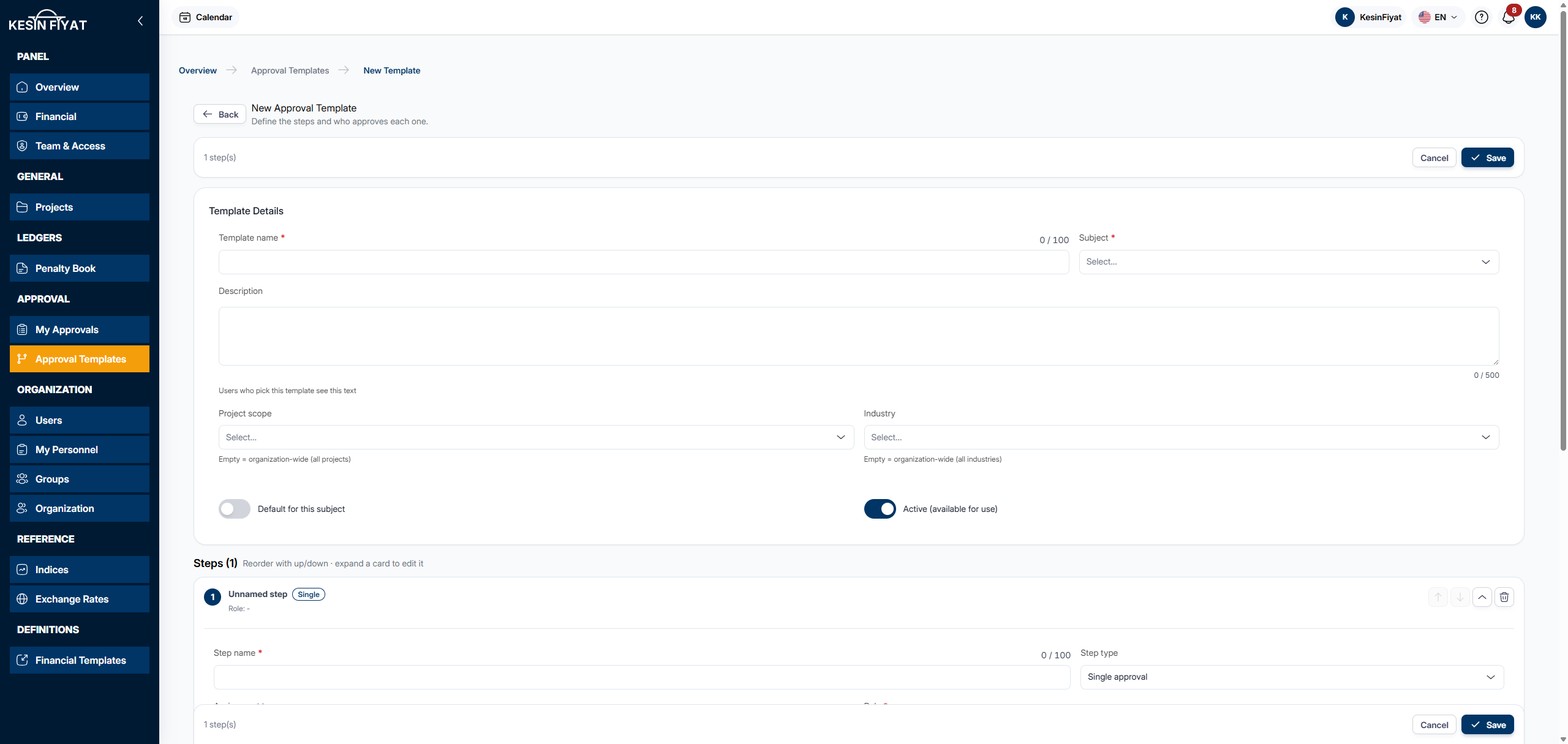
On this page you build an approval template from scratch. First you enter the template details, then you define the steps in order and choose who approves each step.
When to use it
- To build an approval flow that the presets do not cover.
- To define an approval chain for one project or one subject.
Step by step
1. Open the page
On the Approval Templates screen, click the New Template button.
2. Enter the template details
On the Template Details card:
- Template name is required, up to 100 characters.
- Subject is required: the record type the template is for. The subject cannot be changed after saving.
- Description is optional, up to 500 characters. Users who pick this template see this text.
- If Project scope is left empty, the template applies to all projects. If you choose a project, the template is linked to that project. Suspended projects do not appear in the list.
- In Industry you can mark the template with an industry. Leaving it empty means all industries.
- Turn on Default for this subject to make the template the default for this subject.
- Active (available for use) is on by default. A template that is off is not used.
3. Define the steps
The page opens with one step. Each step is a card. The top of the card shows the step's order, its name and who it is assigned to.
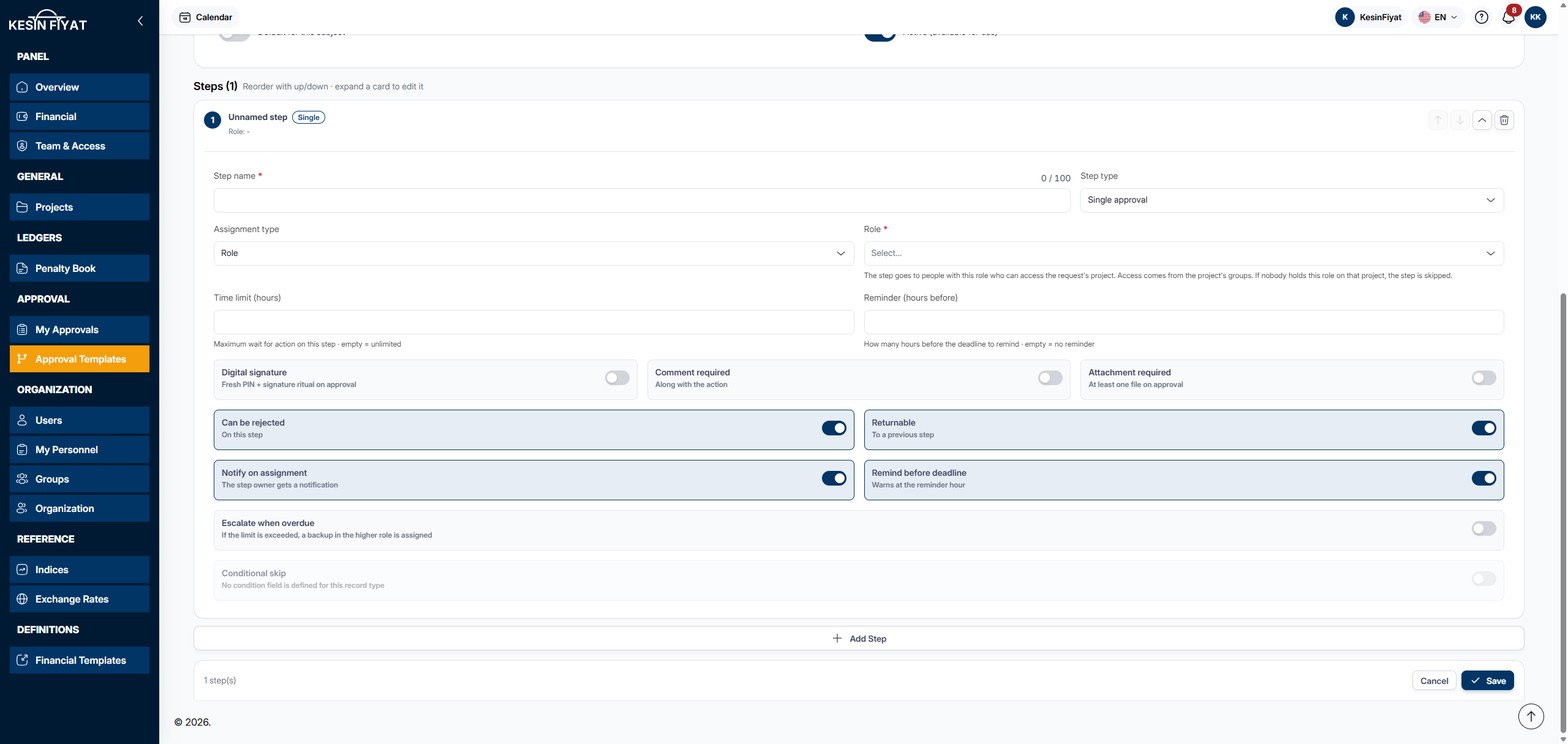
- Step name is required, up to 100 characters.
- Step type: Single approval or Parallel approval.
- For a single approval, choose the Assignment type: Role or Specific user. A step assigned to a role goes to people with that role who can access the project of the approval. If nobody holds that role on that project, the step is skipped.
- For a parallel approval, choose the Completion rule: Everyone must approve or At least one must approve. Then use Add assignee to choose a role or user for each assignee. At least one assignee is needed.
- Time limit (hours) is how long the step can wait. If it is empty, there is no time limit.
- Reminder (hours before) is how many hours before the time limit a reminder is sent. If it is empty, no reminder is sent.
4. Choose the step's rules
The options at the bottom of the card are the step's rules:
- Digital signature: the approver enters their PIN when approving, and their profile signature is added to the approval.
- Comment required: writing a comment becomes mandatory when approving.
- Attachment required: at least one file is added when approving.
- Can be rejected and Returnable are on by default. If you turn them off, rejecting or returning is not possible on this step.
- Notify on assignment: the step owner gets a notification. On by default.
- Remind before deadline: a warning is sent at the reminder hour. On by default.
- Escalate when overdue: when you turn it on, the Escalate after (hours) and Escalate to role boxes appear, and both must be filled. When the step's time limit runs out, the approval is passed to this role. If the time limit is empty, nothing is passed on.
- Conditional skip: the step is skipped when the condition holds. You choose the Field, Operator and Value. If the chosen subject has no condition field, the option stays off and No condition field is defined for this record type is written.
5. Order and edit the steps
The Add Step button adds a new step to the end of the list. Use the arrows on the right of a card to move the step up or down. The chevron button opens or closes the card. The bin button deletes the step.
The number of steps is shown at the top and bottom of the page.
6. Save
The Save button builds the template and returns to the Approval Templates list. If a box is missing or wrong, Please fix the missing / invalid fields. appears and the card with the problem opens. If there are no steps, Add at least one step. is shown.
The Cancel and Back buttons open a confirmation window. If you choose Discard, unsaved changes are lost. Go back keeps you on the page.
Things to keep in mind
- Only the company owner and administrators can build templates. For other roles the page opens, but saving is not possible.
- A subject can have only one company-wide default template. If you try to save a second default for the same subject, a warning appears.
- On a step assigned to a role, if nobody holds that role on the project, the step is skipped. A step that asks for a signature or a document is not skipped; it is passed to a higher role.
- The person who approves a step that asks for a signature must have a PIN set up and a profile signature uploaded.
Frequently asked questions
Why is Conditional skip off?
The condition looks at the information a record carries when it enters approval. If the chosen subject has no field to use, the option does not open. Choose the Subject first; if there is a field, the option opens.
Can I start from a preset?
Yes. Use the Create from Preset button on the Approval Templates screen and choose a preset. The template is built and its edit page opens.