
Users
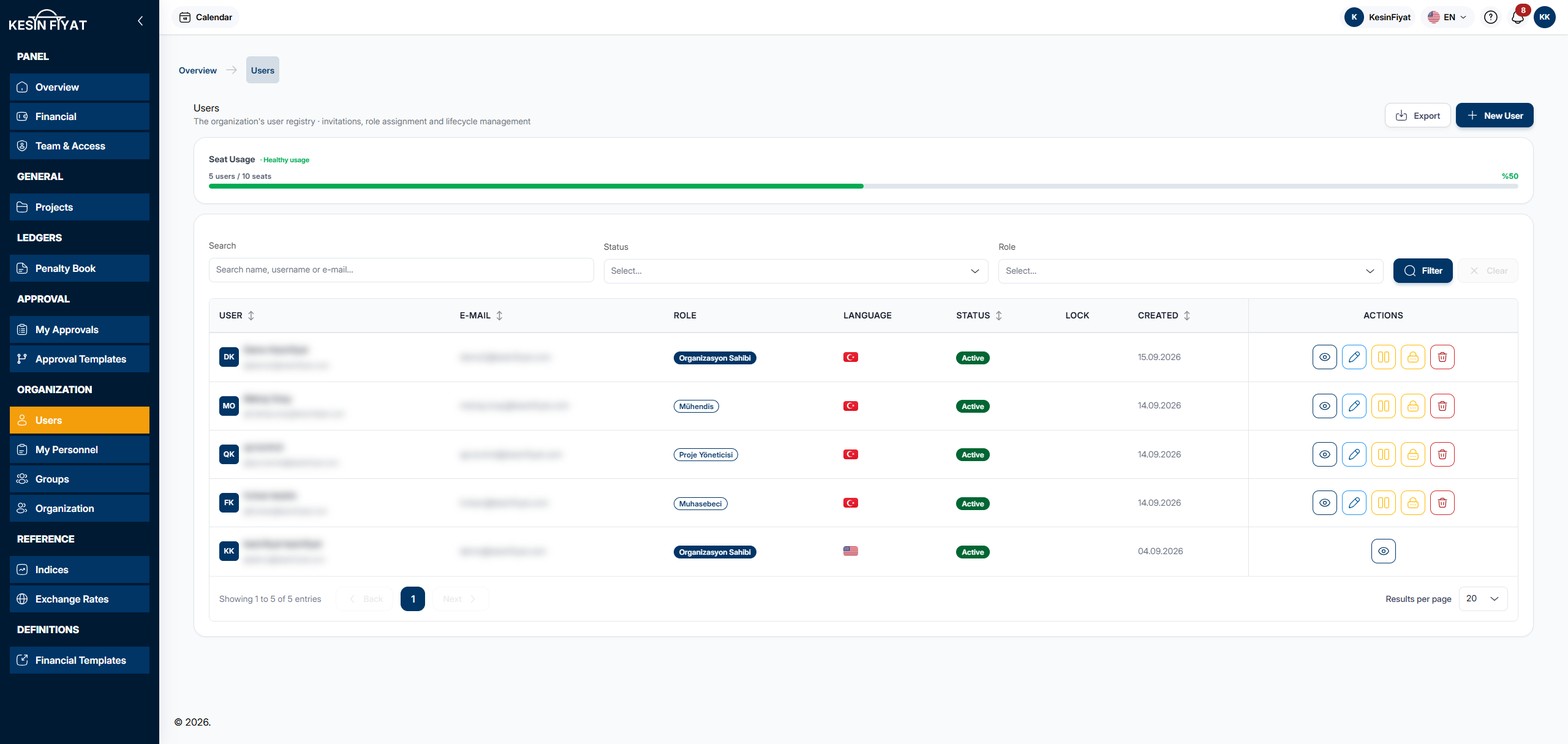
The Users screen lists everyone in your company who can sign in to the panel. From here you create new users, deactivate users, unlock accounts and reset passwords.
Every user takes one seat. The number of seats comes from your package.
When to use it
- To see the users in your company, their roles and whether they are active.
- To create a new user.
- To deactivate a user, unlock an account or reset a password.
- To see how many seats you use.
Step by step
1. Check the seat usage
The Seat Usage card shows how many users you have and how many seats your package gives. The usage percentage is shown next to the bar.
- Healthy usage: less than 70% of the seats are used.
- Approaching the limit: 70% or more of the seats are used.
- Seat limit reached: 90% or more of the seats are used.
When all seats are full, a Limit Reached button that cannot be pressed takes the place of New User.
2. Find a user
Type a name, username or e-mail in the Search box. You can choose Active, Passive or Pending from the box next to it, and a role from the Role box. The Filter button narrows the list and the Clear button clears your choices.
If no user matches, you see No users match the filters. Use the Clear Filters button to go back to the full list.
3. Read the list
Each row shows the User name and username, E-mail, Role, Language, whether the user is active, Lock and the Created date. The Language column shows the user's language as a flag.
An account locked after too many wrong sign-in attempts shows Account locked in the Lock column. A locked account still appears as Active; the lock is a separate mark.
Click the User, E-mail or Created headings, or the heading of the activity column, to sort the list.
4. Use the row buttons
The buttons at the end of each row:
- The eye button (View) opens the user's page.
- The pencil button (Edit) opens the page for editing their details.
- Deactivate makes the user passive. For a passive user, Activate appears instead.
- Unlock Account appears only on a locked account.
- Reset Password and Delete open the user's page with that section ready.
Deactivate, Activate and Unlock Account first open a confirmation window. A deactivated user's open sessions are closed and they cannot sign in to the panel.
Your own row has only the eye button. Clicking a row does not open anything.
5. Create a new user
The New User button opens the page for creating a user. It is explained on the New User page.
6. Export the list
The Export button downloads the list as an Excel file. The file contains every user that matches your search and choices. You can export at most 3 times per hour.
Things to keep in mind
- All roles see the Users screen. Only the company owner and administrators can create, edit, deactivate, delete and export users. Other roles see only the eye button.
- Passive users still count as seats.
- The buttons also appear on the row of someone in a higher role than yours, but the action cannot be completed. For example, an administrator cannot deactivate the company owner.
- The last active owner of the company cannot be deactivated or deleted.
Frequently asked questions
Why can I not press New User?
All seats are full. Hover over the button to see what to do. The number of seats comes from your package.
A user cannot sign in. What should I do?
First check whether the user is Passive; if so, turn them back on with Activate. If the Lock column says Account locked, remove the lock with Unlock Account. If they forgot their password, reset it from the user's page.
Why do I see only the eye button?
Only the company owner and administrators can manage users. Other roles can only view the list and the users' pages.